
Trading Platforms
Exness MT4 Mobile: Complete Guide to Trading on the Go
Everything you need to know about MetaTrader 4 mobile trading with Exness

Senior Forex Trader & Market Analyst
Daniel Chen is an experienced forex trader and financial market analyst with over 15 years of experience in currency trading. He specializes in technical analysis, risk management, and developing practical trading strategies to help traders make informed decisions.
MetaTrader 4 remains the most widely used trading platform in the forex world, and the mobile version brings that same functionality to your pocket. Exness offers MT4 on both iOS and Android, letting you manage positions, analyze charts, and execute trades from anywhere with an internet connection. This guide walks through the entire experience — from download to daily use — so you can decide whether the mobile app fits your trading routine.
Contents
- 1. Downloading and Installing the App
- 2. Logging Into Your Exness Account
- 3. Navigating the Mobile Interface
- 4. Charting and Analysis Tools
- 5. Placing and Managing Trades
- 6. Account Management Features
- 7. MT4 Mobile vs Desktop: Key Differences
- 8. MT4 Mobile vs Exness Proprietary App
- 9. Troubleshooting Common Issues
- 10. Security and Best Practices
- 11. Performance Tips for Daily Use
- 12. Final Assessment of Exness MT4 Mobile
The mobile app is not a watered-down version of the desktop terminal. It carries the core charting engine, the full suite of technical indicators, and the same order types you rely on at your desk. What changes is the interaction model: touch gestures replace mouse clicks, screen real estate is tighter, and some advanced features like Expert Advisors are not supported. Understanding those trade-offs upfront saves frustration later.
Exness does not modify the MT4 mobile app itself. You download the official MetaQuotes build from the App Store or Google Play, then point it at Exness servers during login. That means the app behaves identically whether you trade with Exness, another broker, or a demo account. The broker-specific differences show up in spreads, execution speed, available symbols, and account types — not in the software interface.
Downloading and Installing the App
Installation is straightforward, but a few details trip up new users. On iOS, open the App Store and search for "MetaTrader 4" — the developer should read MetaQuotes Software Corp. On Android, use the Play Store with the same search. Avoid third-party APK sites; they sometimes bundle outdated builds or, worse, modified versions that steal credentials. The official app is free, lightweight (roughly 30–40 MB), and updates automatically if you have that setting enabled.
After installation, the app opens to a login screen. You can create a demo account directly inside the app, but for a live Exness account you need credentials from your Personal Area. The server field is critical: Exness lists several server names (Exness-MT4Trial, Exness-MT4Real, and region-specific variants). Pick the one that matches your account type. Entering the wrong server is the most common reason login fails.
- Download only from Apple App Store or Google Play Store
- Verify developer name is MetaQuotes Software Corp
- Allow automatic updates for security patches
- Grant notification permission for price alerts and margin calls
- Use Wi-Fi for initial download to avoid mobile data charges
Logging Into Your Exness Account
You need three pieces of information: login (account number), password, and server. All three live in your Exness Personal Area under the account details section. Copy them carefully — the login is numeric, the password is case-sensitive, and the server must match exactly. If you have multiple accounts (say, a Standard and a Raw Spread), each has its own login and possibly a different server. The app stores credentials after the first successful login, so switching accounts later takes only a few taps.
Two-factor authentication adds a layer of security. Exness supports 2FA via authenticator apps (Google Authenticator, Authy) and SMS. When enabled, the MT4 mobile app prompts for the one-time code after you enter the password. The code refreshes every 30 seconds, so type quickly. If you lose access to your 2FA device, you must contact Exness support to reset it — there is no self-service recovery inside the app.
Navigating the Mobile Interface
The app opens to the Quotes tab — a scrollable list of symbols with bid/ask prices updating in real time. Tap any symbol to reveal a context menu: New Order, Chart, Depth of Market (where available), and Specification. The bottom navigation bar holds five tabs: Quotes, Charts, Trade, History, and Settings. Muscle memory builds fast; most traders spend 80% of their time between Quotes and Charts.
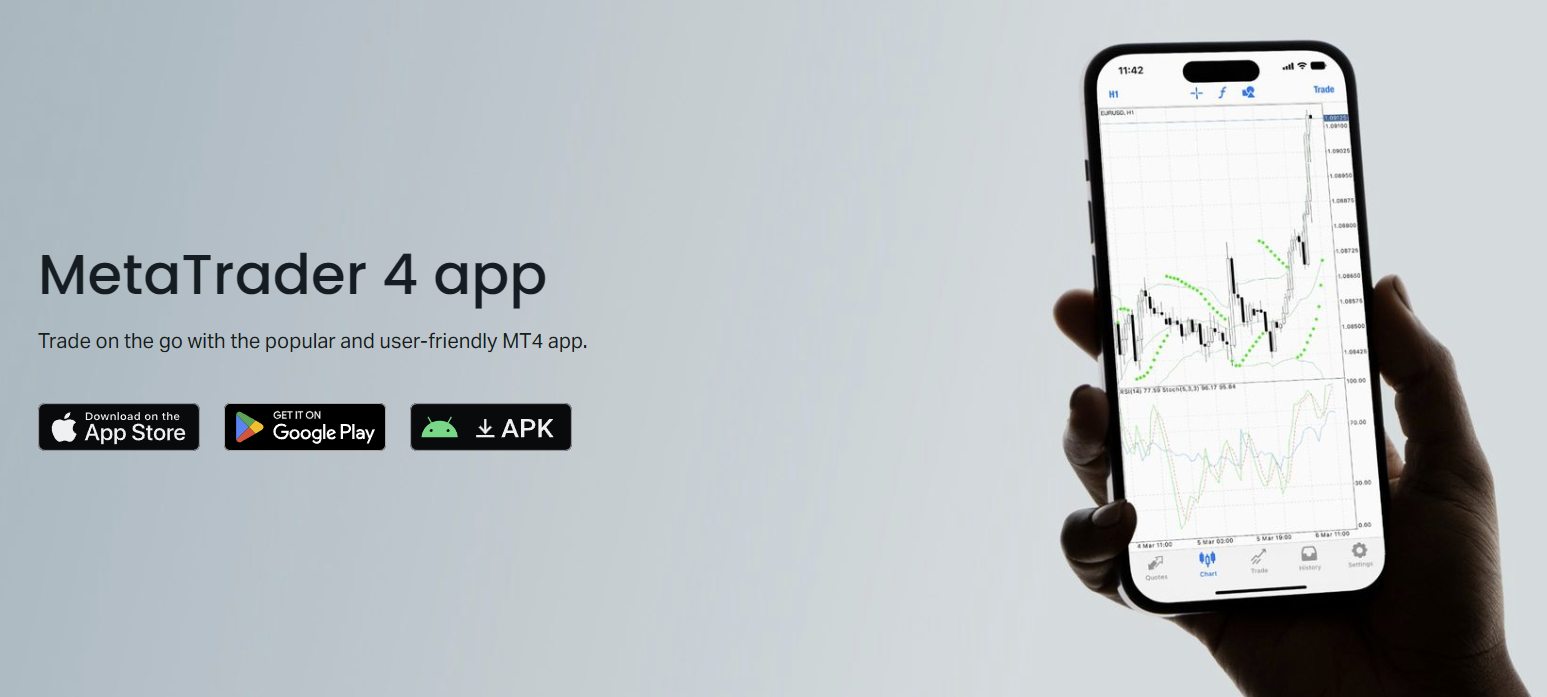
The Charts tab defaults to the last viewed chart. Pinch to zoom, swipe to scroll horizontally, and use the toolbar at the top for timeframes, indicators, and drawing tools. Landscape mode gives more horizontal space for price action — rotate your phone for a better view. The Trade tab shows open positions, pending orders, and account summary (balance, equity, margin, free margin). Swipe left on a position to close or modify it quickly.
- Quotes: watchlist with live bid/ask, tap for actions
- Charts: full charting with indicators and objects
- Trade: positions, orders, and account metrics
- History: closed trades with filters by date/symbol
- Settings: login management, notifications, chart preferences
Charting and Analysis Tools
Charting on mobile is surprisingly capable. You get nine timeframes (M1 through MN), three chart types (bars, candles, line), and 30 built-in indicators including Moving Averages, RSI, MACD, Bollinger Bands, and Ichimoku. Custom indicators from the desktop platform do not transfer — the mobile app only runs what MetaQuotes bundles. Drawing tools cover trendlines, horizontal lines, Fibonacci retracements, channels, and a handful of shapes. Each object can be edited or deleted by tapping it.
Indicator settings mirror the desktop version: period, shift, method, applied price, and visual style (color, line width). You can stack multiple indicators on one chart or use separate sub-windows for oscillators. Saving chart templates is not supported on mobile, so you rebuild your preferred setup each session or keep a chart open in the background. The app retains the last used layout per symbol, which helps.
One limitation: no Expert Advisors. EAs require the desktop terminal or a VPS. If your strategy depends on automated execution, the mobile app serves only for monitoring and manual intervention. Some traders run EAs on a VPS and use the phone to check positions or disable the EA during news events. That workflow works well, but it means you need a VPS subscription (Exness offers free VPS for qualifying accounts).
Scroll horizontally to see all columns
| Feature | MT4 Mobile | MT4 Desktop |
|---|---|---|
| Timeframes | 9 (M1–MN) | 9 (M1–MN) |
| Built-in Indicators | 30 | 30 + custom |
| Custom Indicators | Not supported | Full support |
| Expert Advisors | Not supported | Full support |
| Drawing Tools | 12 types | 19 types |
| Chart Templates | Not saved | Saved and loaded |
| Multiple Chart Layouts | Single chart view | Tabbed multi-chart |
Placing and Managing Trades
Opening a position takes three taps from the Quotes screen: tap symbol → New Order → set volume → Buy or Sell. The order screen shows current spread, margin required, and stop level (minimum distance for SL/TP). You can set stop loss and take profit before confirming, or add them after the position is open. One-click trading is available from the chart: long-press the chart, select Trade, and the order panel slides up with preset lot sizes.
Pending orders (Buy Limit, Sell Limit, Buy Stop, Sell Stop, Buy Stop Limit, Sell Stop Limit) work the same way. Enter the trigger price, expiry (optional), volume, and SL/TP. The app validates the price against current market levels and the broker's stop level. If the trigger is too close, you get an error. Modifying an open position or pending order uses the same interface — tap the position in the Trade tab, choose Modify, adjust fields, confirm.
Closing a position can be done three ways: swipe left on the position in the Trade tab and tap Close, tap the position and choose Close Position, or use the X button on the chart (if enabled in settings). Partial close is supported — enter a volume smaller than the open position. The app shows realized P/L immediately after close, and the trade moves to History.
Account Management Features
The Trade tab doubles as an account dashboard. At the top you see Balance, Equity, Margin, Free Margin, and Margin Level percentage. These update in real time. Tapping the account summary expands details: credit, floating P/L, and used margin per symbol. It's enough to monitor risk without logging into the Personal Area. However, deposit and withdrawal actions are not in the app — those require the web portal or Exness proprietary app.
Switching between multiple Exness accounts is simple. In Settings → Accounts, you see a list of saved logins. Tap one to switch; the app reconnects to the corresponding server. Passwords are stored encrypted on the device. If you log out completely, you must re-enter credentials next time. There is no quick-switch gesture — plan for a 10–15 second reconnect when changing accounts.
- Real-time equity and margin monitoring
- Multiple account storage with encrypted passwords
- Leverage display per account (set in Personal Area)
- Margin call and stop out level visibility
- No deposit/withdrawal — use web or Exness app
MT4 Mobile vs Desktop: Key Differences
The desktop terminal is a power tool; the mobile app is a companion. On desktop you get multi-monitor layouts, custom indicators, Expert Advisors, strategy tester, and the full MQL4 editor. On mobile you get portability, push notifications, and touch-optimized chart navigation. Most serious traders use both: desktop for research, backtesting, and heavy lifting; mobile for checking positions, adjusting stops, and reacting to news while away from the desk.
The mobile app handles 90% of what a discretionary trader needs daily. The 10% it misses — custom indicators, EAs, strategy testing — only matters when you're building or refining a system.
Screen size is the practical constraint. A 6.7-inch phone shows roughly one-third the horizontal candles of a 27-inch monitor. You scroll more, zoom more, and lose context faster. Tablets help, but the app does not have a dedicated tablet UI — it just scales. Some traders carry an iPad Mini specifically for MT4; it strikes a reasonable balance between portability and chart real estate.
Scroll horizontally to see all columns
| Task | Preferred Platform |
|---|---|
| Strategy development and backtesting | Desktop |
| Running Expert Advisors | Desktop or VPS |
| Multi-timeframe analysis | Desktop |
| Monitoring open positions | Mobile |
| Adjusting stops during news | Mobile |
| Quick market check on the go | Mobile |
| Placing pending orders for next session | Either |
| Custom indicator development | Desktop |
MT4 Mobile vs Exness Proprietary App
Exness also offers its own mobile app (Exness Trade), which is a different product entirely. The proprietary app integrates account management, deposits, withdrawals, copy trading, and a simplified trading interface. It feels more modern, with a cleaner design and features like one-tap funding. But it lacks MT4's depth: fewer indicators, no drawing tools beyond basic trendlines, no pending order types beyond stop/limit, and no support for custom analysis.
Choose MT4 Mobile if you rely on technical analysis, use multiple indicators, need pending order variety, or want consistency with your desktop workflow. Choose Exness Trade if you prioritize account management, copy trading, quick deposits, and a simpler interface. Many Exness clients install both — MT4 for analysis and execution, Exness Trade for funding and account oversight.
Troubleshooting Common Issues
Connection problems top the list. If quotes freeze or orders reject with "no connection," check your internet first. Switch between Wi-Fi and mobile data to isolate the issue. The app shows a connection status icon in the top bar — green bars mean healthy, red means disconnected. Tapping the icon forces a reconnect. If that fails, close and reopen the app. Persistent issues may indicate server maintenance (check Exness status page) or an IP block (rare, but happens on some corporate or VPN networks).
Login failures usually stem from wrong server, typo in password, or expired 2FA code. The error message "invalid account" covers all three. Verify each field against your Personal Area. If you recently changed your MT4 password in the Personal Area, the app may still cache the old one — log out and back in. Forgotten passwords must be reset via the web portal; the app has no password recovery flow.
- "No connection" — check internet, toggle airplane mode, restart app
- "Invalid account" — verify login, password, server; check 2FA
- "Off quotes" — spread widened, try again or adjust SL/TP distance
- "Not enough money" — free margin insufficient, close positions or deposit
- Charts not loading — clear cache in Settings, or reinstall app
- Push notifications not arriving — check phone settings, not just app settings
Security and Best Practices
Your phone is a single point of failure. If someone unlocks it and opens MT4, they can trade your account. Enable device-level biometrics (Face ID, fingerprint) and set the app to require authentication on launch — MT4 mobile supports this in Settings → Security. Use a strong, unique password for your MT4 account (different from your Personal Area password). Enable 2FA on the Exness side; the app will prompt for the code each login.
Avoid trading on public Wi-Fi without a VPN. The MT4 protocol encrypts traffic, but network-level attacks (DNS spoofing, MITM) can still redirect you to a fake server. A reputable VPN adds a layer of protection. Keep the app updated — MetaQuotes pushes security fixes regularly. If you lose your phone, log into your Personal Area from another device and change the MT4 password immediately. That invalidates the session on the lost device.
Performance Tips for Daily Use
Battery drain is real. MT4 keeps a persistent connection to the quote server, which prevents deep sleep on both iOS and Android. If you leave the app open in the background all day, expect 10–15% extra battery usage. Close the app (swipe away from recent apps) when not actively monitoring. Push notifications still arrive because they route through Apple/Google push services, not the app's own connection.
Data usage is modest — roughly 1–3 MB per hour of active chart watching on major pairs. Exotic pairs and high-volatility sessions push it higher. If you have a limited data plan, restrict background data for MT4 in your phone settings and rely on Wi-Fi for extended sessions. The app caches chart data, so revisiting a recently viewed symbol uses minimal bandwidth.
Close the app when you're done. The persistent connection is the single biggest battery drain, and it serves no purpose while the phone sits in your pocket.
Customize the quote list. The default shows dozens of symbols you may never trade. In the Quotes tab, tap the edit icon (pencil or plus sign) to remove unused pairs and add your focus markets. A shorter list loads faster, scrolls smoother, and reduces quote traffic. Group related symbols (majors, crosses, metals, indices) for quicker scanning.
Final Assessment of Exness MT4 Mobile
Exness MT4 Mobile delivers the core MetaTrader 4 experience on a phone without compromise on the essentials: real-time quotes, full charting, all order types, and reliable execution. It falls short on automation (no EAs), customization (no custom indicators or templates), and screen efficiency — but those are platform limitations, not Exness faults. For a discretionary trader who needs to manage positions away from the desk, it works well. For a systematic trader, it's a monitoring tool at best.
The integration with Exness is seamless because Exness does not fork the app. You get the same MT4 build as every other broker, pointed at Exness servers with their spreads, leverage, and symbol selection. That means your skills transfer perfectly if you ever switch brokers. The main friction points — server selection, stop levels, 2FA — are one-time setup hurdles. Daily use is smooth, stable, and feature-complete for manual trading.
Frequently Asked Questions
Can I use Expert Advisors on Exness MT4 Mobile?
No. The mobile version of MetaTrader 4 does not support Expert Advisors or custom indicators. You need the desktop terminal or a VPS for automated trading.
Does Exness MT4 Mobile work on both iOS and Android?
Yes. The official MetaTrader 4 app is available on the Apple App Store for iOS and Google Play Store for Android. Both versions have identical features.
How do I find the correct Exness server for my account?
Log into your Exness Personal Area, select the account, and check the server field. Demo accounts typically use Exness-MT4Trial; live accounts use Exness-MT4Real or a dedicated server for Pro/Zero/Raw Spread accounts.
Can I deposit or withdraw funds from the MT4 Mobile app?
No. The MT4 app only handles trading. Deposits, withdrawals, and account verification require the Exness Personal Area (web) or the Exness Trade proprietary app.
Why does my MT4 Mobile app show "invalid account" when I enter correct credentials?
The most common cause is selecting the wrong server. Verify the exact server name in your Personal Area. Also check for typos in the password (case-sensitive) and ensure your 2FA code is current if enabled.
Does MT4 Mobile support push notifications for price alerts?
Yes. You can set price alerts in the app (long-press a symbol in Quotes → Create Alert). Notifications route through Apple Push Notification Service or Google Firebase, so they arrive even when the app is closed.
Can I have multiple Exness accounts logged in simultaneously?
You can store credentials for multiple accounts in Settings → Accounts, but only one account is active at a time. Switching requires a brief reconnect (10–15 seconds).
Is my trading data synced between MT4 Mobile and desktop?
Yes. Positions, pending orders, chart objects, and indicator settings sync automatically because both platforms connect to the same Exness server. Changes on one appear on the other within seconds.