

Trading Platforms
Exness Web Terminal: Browser-Based Trading Platform Guide
Trade forex, crypto, and CFDs directly in your browser with Exness Web Terminal.

Senior Forex Trader & Market Analyst
Daniel Chen is an experienced forex trader and financial market analyst with over 15 years of experience in currency trading. He specializes in technical analysis, risk management, and developing practical trading strategies to help traders make informed decisions.
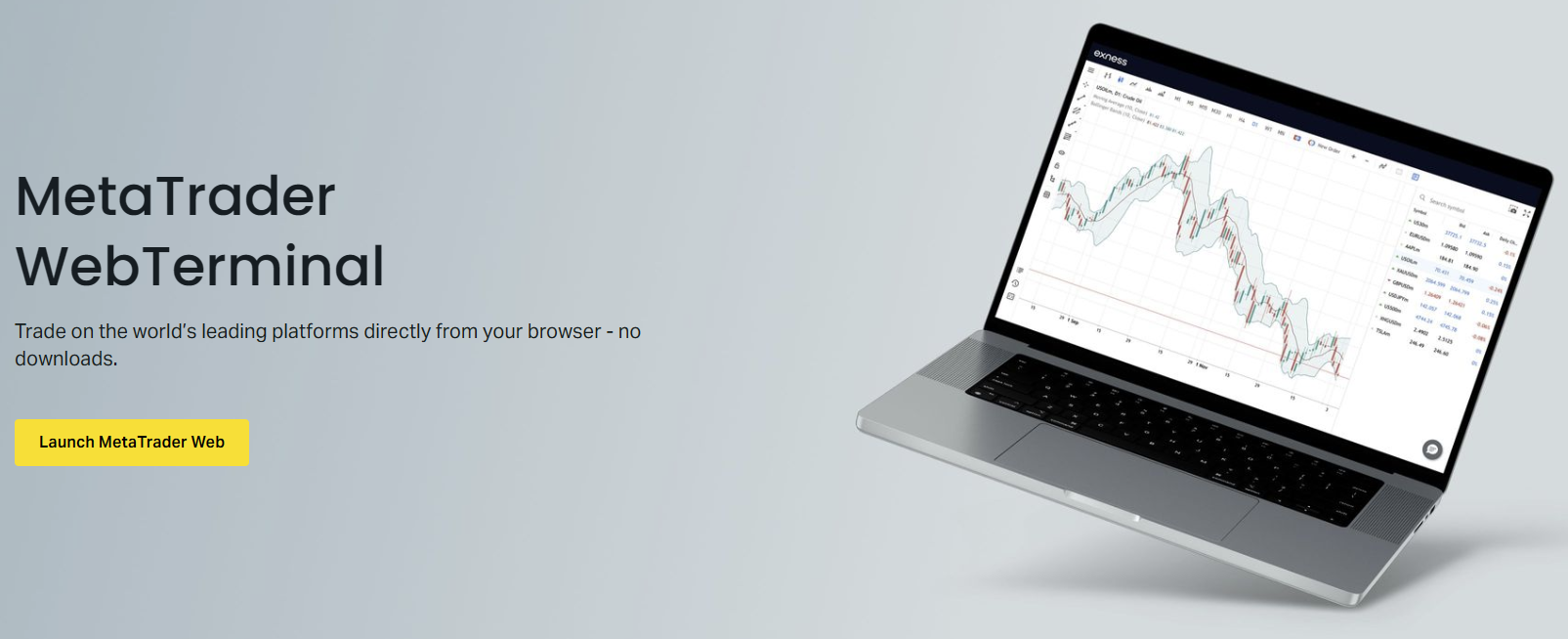
The Exness Web Terminal lets traders access markets directly through a browser without downloading or installing desktop software. Built on MetaTrader 5 technology, it provides charting, technical analysis, and order execution across forex, metals, energies, indices, stocks, and cryptocurrencies. This guide covers how the platform works, what it offers, and how it compares to the downloadable MT4 and MT5 applications.
Contents
- 1. Getting Started with Exness Web Terminal
- 2. Charting Tools and Technical Analysis
- 3. Order Execution and Trade Management
- 4. Market Watch and Symbol Management
- 5. Account Management Features
- 6. Web Terminal vs Desktop MT5 vs Mobile App
- 7. Security and Connection Reliability
- 8. Limitations and Workarounds
- 9. Browser Optimization Tips
- 10. Mobile Browser Access
- 11. Troubleshooting Common Issues
- 12. Exness Web Terminal for Different Trader Types
- 13. Integration with Exness Ecosystem
- 14. Final Assessment of Exness Web Terminal
Browser-based trading has become essential for traders who switch devices, work from restricted networks, or prefer not to maintain local installations. The Exness Web Terminal loads in seconds, syncs with your Exness account credentials, and retains most core functionality of the desktop terminal. Understanding its capabilities and limitations helps you decide when to use it versus the full desktop or mobile apps.
Exness designed the Web Terminal to match the broker's trading conditions: raw spreads from 0.0 pips on major pairs, commission-based pricing on Raw Spread and Zero accounts, and leverage up to 1:2000 where permitted. The platform connects to Exness servers directly, so execution speed and pricing mirror what you see in the desktop terminal. No separate login or configuration is required beyond your Personal Area credentials.
Getting Started with Exness Web Terminal
Access the Web Terminal by logging into your Exness Personal Area and selecting the Web Terminal option from the trading platforms menu. The platform opens in a new browser tab and automatically detects your account type. If you have multiple accounts, a dropdown lets you switch between them without re-entering credentials. The interface loads your last-used workspace, including chart layouts, indicators, and watchlists.
First-time users see a default layout with a Market Watch window on the left, a central chart area, and a Toolbox panel at the bottom showing Trade, History, and Journal tabs. The top toolbar provides quick access to timeframes, chart types, drawing tools, and indicator insertion. Right-clicking any chart opens a context menu for one-click trading, template management, and property adjustments.
- Log into Exness Personal Area at exness.com
- Navigate to Trading Platforms and select Web Terminal
- Choose your trading account from the dropdown
- Allow browser notifications for price alerts if prompted
- Customize chart layout and save as a template for future sessions
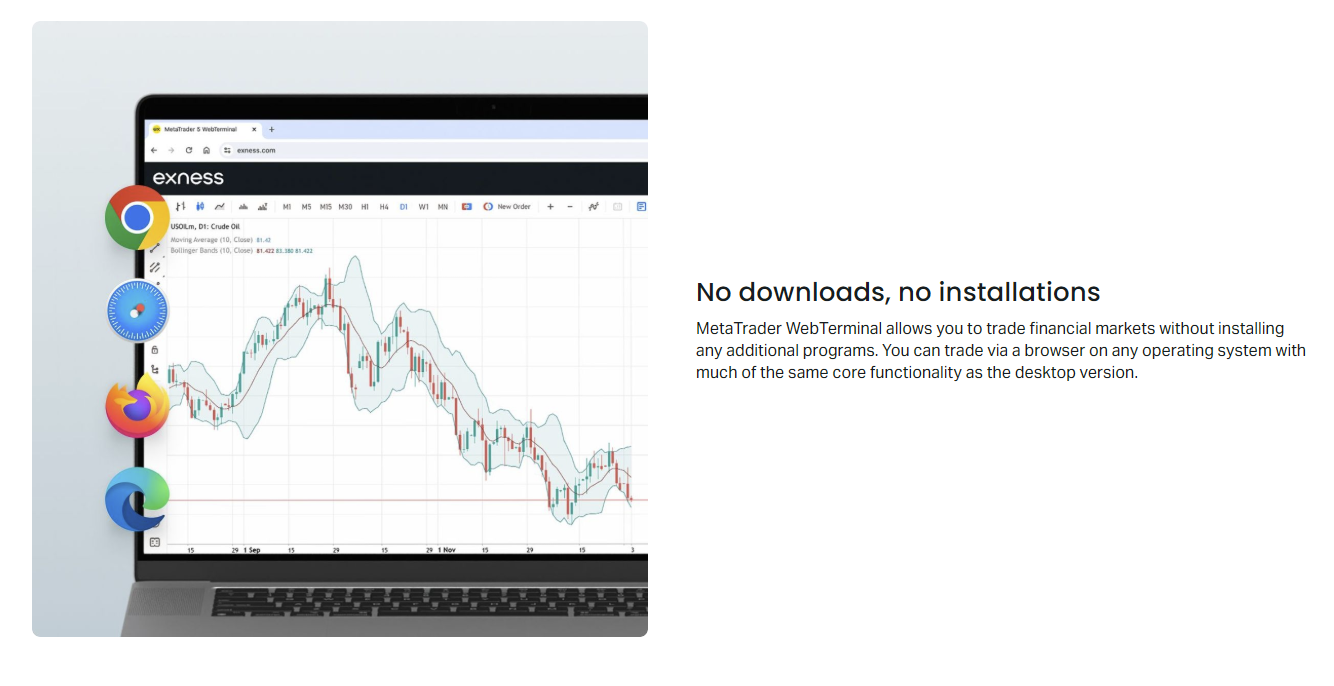
The platform supports all major browsers: Chrome, Firefox, Safari, and Edge. No plugins or extensions are required. For best performance, keep your browser updated and disable aggressive ad blockers that might interfere with WebSocket connections to Exness pricing servers. The terminal uses approximately 150-300 MB of RAM depending on open charts and indicators.
Charting Tools and Technical Analysis
The Web Terminal includes 21 timeframes ranging from one minute to one month, matching the desktop MT5 offering. Three chart types are available: candlestick, bar, and line. You can open up to 100 charts simultaneously, though browser memory limits practical usage to fewer windows. Each chart maintains independent indicator sets, drawing objects, and template settings.
Built-in indicators cover trend, oscillator, volume, and Bill Williams categories. The platform ships with 38 technical indicators including Moving Averages, MACD, RSI, Stochastic, Bollinger Bands, Ichimoku Kinko Hyo, and Average True Range. Custom indicators written in MQL5 cannot be uploaded to the Web Terminal — this is a key limitation compared to the desktop version. However, you can apply indicator templates saved from the desktop platform if they use only standard indicators.
- 21 timeframes from M1 to MN1
- Candlestick, bar, and line chart types
- 38 built-in technical indicators
- Drawing tools: trend lines, channels, Fibonacci, Gann, Elliott Wave
- Chart templates for saving and reusing layouts
- Multiple chart layouts with tabbed navigation
Scroll horizontally to see all columns
| Feature | Web Terminal | Desktop MT5 | Mobile MT5 |
|---|---|---|---|
| Timeframes | 21 | 21 | 21 |
| Built-in Indicators | 38 | 38 | 30 |
| Custom Indicators | Not supported | Full support | Not supported |
| Expert Advisors | Not supported | Full support | Not supported |
| Max Charts | 100 (browser limited) | 100+ | 4-8 |
| Drawing Tools | Full set | Full set | Basic set |
Drawing tools include trend lines, horizontal and vertical lines, channels, Fibonacci retracements and extensions, Gann tools, and Elliott Wave labeling. Objects can be customized for color, line style, and thickness. The magnet feature snaps drawing points to nearest price levels for precision. All drawings persist across sessions when you save the chart template.
Order Execution and Trade Management
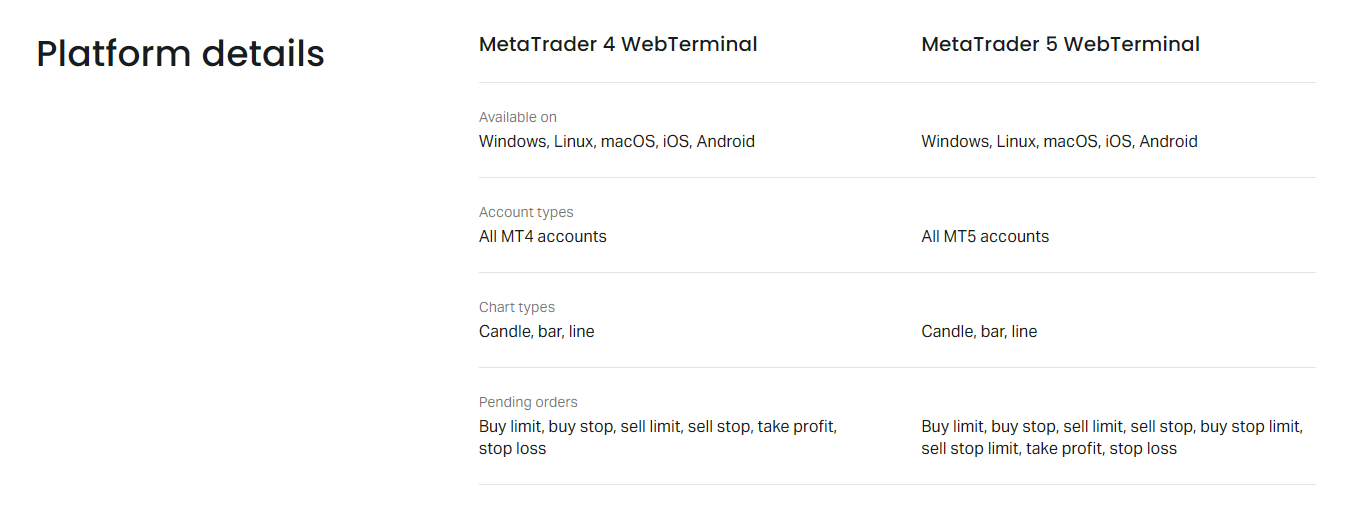
The Web Terminal supports all Exness order types: market execution, pending orders (buy limit, sell limit, buy stop, sell stop, buy stop limit, sell stop limit), stop loss, and take profit. One-click trading is available directly from the chart — right-click and select Trade to open a quick order panel with pre-filled volume and SL/TP fields. The Trade tab in the Toolbox shows open positions, pending orders, and account summary including balance, equity, margin, and free margin.
Execution mode matches your account type: Market Execution for Standard and Standard Cent accounts, Instant Execution for Pro accounts (where available), and Market Execution with commission for Raw Spread and Zero accounts. The platform displays real-time spreads in Market Watch and shows swap rates for overnight positions. Partial close, position reversal, and hedge mode are all supported.
- Market and pending order types (6 pending varieties)
- One-click trading from chart context menu
- Stop loss and take profit in points, price, or monetary value
- Partial position closing
- Position reversal with single click
- Hedge and netting modes per account settings
- Real-time margin level monitoring
- Swap and commission display in trade details
The order window includes a margin calculator showing required margin for the selected volume before you confirm. This helps avoid margin calls on high-leverage accounts. For algorithmic traders, the lack of Expert Advisor support means the Web Terminal suits discretionary trading only. You can, however, manage EA-driven positions opened from desktop — modify SL/TP, close partially, or reverse.
Market Watch and Symbol Management
Market Watch displays all instruments available on your account type. Standard accounts see forex majors, minors, exotics, metals, energies, indices, stocks, and cryptocurrencies — over 200 symbols total. Raw Spread and Zero accounts have a slightly narrower forex-focused list. Symbols can be grouped into custom watchlists for faster access. Right-click any symbol to open a chart, place a new order, or view specification details including contract size, swap long/short, and margin requirements.
The Market Watch window supports real-time tick charts for each symbol. Double-clicking a symbol opens a pop-up tick chart showing last 1000 ticks with bid/ask spread visualization. This is useful for scalpers monitoring spread widening during news events. Column customization lets you show or hide spread, high/low, change percentage, and time columns.
Scroll horizontally to see all columns
| Category | Standard / Cent | Pro | Raw Spread / Zero |
|---|---|---|---|
| Forex Majors | Yes | Yes | Yes |
| Forex Minors | Yes | Yes | Yes |
| Forex Exotics | Yes | Limited | No |
| Metals (Gold, Silver) | Yes | Yes | Yes |
| Energies (Oil, Gas) | Yes | Yes | Limited |
| Indices | Yes | Yes | Limited |
| Stocks CFDs | Yes | No | No |
| Cryptocurrencies | Yes | No | No |
Account Management Features
The Web Terminal integrates with Exness Personal Area for account operations. From the platform header, you can access deposit and withdrawal functions, switch between demo and live accounts, and view account verification status. The platform shows real-time account metrics: balance, equity, margin, free margin, and margin level percentage. A margin call warning appears when margin level drops below 100%, and stop out triggers at 0% for most account types.
Multi-account switching is seamless. The account dropdown in the top toolbar lists all accounts linked to your Exness profile. Selecting a different account reloads the workspace with that account's symbols, leverage, and trading conditions. Open charts and indicators reset to defaults for the new account. This is faster than logging out and back in, but you lose unsaved chart layouts.
- Real-time balance, equity, margin, free margin display
- Margin level percentage with color-coded warnings
- Quick switch between demo and live accounts
- Direct links to deposit and withdrawal pages
- Account verification status indicator
- Leverage display per account
- Trading history export to CSV
The History tab provides a filterable trade log with entry/exit prices, volumes, profit/loss, swap, and commission. You can generate statements for custom date ranges and export them as HTML or CSV for tax reporting. The Journal tab logs platform events: connection status, order executions, modifications, and errors. This helps troubleshoot execution issues or confirm order timestamps.
Web Terminal vs Desktop MT5 vs Mobile App
Choosing between Exness platforms depends on your workflow. The Web Terminal excels for accessibility — trade from any computer with internet and a browser. No installation means you can trade from work computers, library terminals, or borrowed laptops without leaving traces. The desktop MT5 offers full Expert Advisor support, custom indicators, strategy tester, and more stable performance for heavy multi-chart setups. The mobile app provides push notifications, touch-optimized charts, and on-the-go position management.
Scroll horizontally to see all columns
| Use Case | Recommended Platform |
|---|---|
| Algorithmic trading with EAs | Desktop MT5 |
| Custom indicator development | Desktop MT5 |
| Backtesting strategies | Desktop MT5 |
| Trading from restricted work PC | Web Terminal |
| Quick position check on phone | Mobile MT5 App |
| Multi-monitor chart analysis | Desktop MT5 |
| Travel trading on laptop | Web Terminal |
| Push price alerts | Mobile MT5 App |
The Web Terminal is not a reduced version — it's a different access point to the same Exness trading engine. Execution quality, spreads, and account conditions are identical.
Performance-wise, the Web Terminal handles 10-15 charts with indicators comfortably on a modern laptop. Beyond that, browser memory management may cause lag. Desktop MT5 can run 50+ charts with EAs on the same hardware. Mobile MT5 is limited to 4-8 charts but offers the best battery efficiency. For traders running multiple accounts simultaneously, desktop MT5's multi-terminal feature (separate from Web Terminal) allows managing several accounts in one window.
Security and Connection Reliability
The Web Terminal uses TLS 1.2+ encryption for all data transmission between your browser and Exness servers. Login credentials are never stored in the browser — each session requires authentication through the Personal Area. Two-factor authentication (2FA) from your Exness account applies to Web Terminal access. Session timeout occurs after 30 minutes of inactivity, requiring re-authentication.
Connection stability depends on your internet quality and browser WebSocket support. The platform automatically attempts reconnection if the WebSocket drops. During reconnection, charts may show stale prices briefly. Open positions and pending orders remain on the server — they are not affected by client-side disconnection. For critical trades, verify order status in the Trade tab after any connection interruption.
- TLS 1.2+ encryption for all traffic
- No credential storage in browser
- Inherits Exness account 2FA settings
- 30-minute inactivity timeout
- Automatic WebSocket reconnection
- Server-side order persistence during disconnects
- No local cache of sensitive data
Limitations and Workarounds
The Web Terminal has deliberate limitations compared to desktop MT5. No Expert Advisors means no automated trading. No custom indicators means no proprietary MQL5 tools. No strategy tester means no backtesting. The platform cannot run scripts or use the MQL5 Market. For traders who rely on these features, the Web Terminal serves as a monitoring and emergency management tool rather than a primary platform.
Workarounds exist for some limitations. You can manage EA positions opened from desktop: modify stops, close partially, or reverse. Custom indicator signals viewed on desktop can be manually replicated using drawing tools. Price alerts set in desktop MT5 or the mobile app push to your phone — the Web Terminal itself has no native alert system. For algorithmic traders, a common workflow is developing and testing on desktop, then using Web Terminal for remote position oversight.
Scroll horizontally to see all columns
| Missing Feature | Workaround |
|---|---|
| Expert Advisors | Monitor EA positions remotely; modify SL/TP manually |
| Custom Indicators | Use standard indicators; replicate signals with drawings |
| Strategy Tester | Backtest on desktop only |
| Price Alerts | Set alerts on mobile app or desktop MT5 |
| MQL5 Market | Purchase/install on desktop only |
| Scripts | Use one-click trading panel for common actions |
Treat the Web Terminal as a companion to desktop MT5, not a replacement. Its strength is access, not automation.
Browser Optimization Tips
For smoother Web Terminal performance, use Chrome or Firefox with hardware acceleration enabled. Close unused browser tabs — each tab consumes memory that could go to the trading platform. Disable browser extensions that inject scripts into pages (ad blockers, password managers, grammar checkers) as they can interfere with WebSocket messages. If you experience chart lag, reduce the number of open charts and remove unused indicators.
- Enable hardware acceleration in browser settings
- Use Chrome or Firefox for best WebSocket support
- Close unnecessary tabs and extensions
- Limit open charts to 10-15 for stable performance
- Remove indicators not actively used
- Clear browser cache weekly
- Use wired ethernet over WiFi for lower latency
Some traders run the Web Terminal in a dedicated browser profile or separate browser instance (e.g., Chrome for trading, Firefox for browsing). This isolates trading memory and prevents crashes from affecting other work. Browser developer tools (F12) can help diagnose connection issues — check the Network tab for WebSocket frames and Console for JavaScript errors if the platform behaves unexpectedly.
Mobile Browser Access
The Web Terminal loads in mobile browsers but is not optimized for touch screens. Charts are pinch-zoomable but drawing tools are difficult to use precisely. The interface scales to screen width but retains desktop-density menus. For phone trading, the Exness mobile app or MT5 mobile app provides a far better experience. Tablet browsers in landscape mode are usable for position monitoring and basic order placement.
If you must use mobile browser access, request the desktop site in browser settings to avoid forced mobile redirect. The platform will still detect touch input and adjust some behaviors. Landscape orientation on tablets provides enough width for Market Watch, chart, and Toolbox to be visible simultaneously. Avoid placing complex orders on mobile browser — use the app instead.
Troubleshooting Common Issues
If the Web Terminal fails to load, first verify your internet connection and try a different browser. Clear cache and cookies for exness.com. Disable VPN or proxy — some corporate networks block WebSocket connections. Check Exness system status page for platform-wide issues. If charts show 'Waiting for update' indefinitely, the WebSocket connection dropped; refresh the page to re-establish.
- Platform won't load: clear cache, try different browser, disable VPN
- Charts frozen: refresh page to reconnect WebSocket
- Orders not executing: check margin level, verify market hours
- Indicators missing: ensure using standard indicators only
- Template not loading: remove custom indicators from template
- Slow performance: reduce open charts, disable hardware acceleration
- Login loop: clear all Exness cookies, re-login to Personal Area
For order execution issues, verify the symbol is tradeable (market open, not disabled). Check margin level in the Trade tab — below 100% blocks new orders. Spreads may widen during news; the order window shows current spread before confirmation. If slippage occurs, it reflects market conditions, not platform error. Exness provides execution statistics in Personal Area for transparency.
Most Web Terminal issues are browser or network related, not platform bugs. A refresh or browser switch resolves 90% of cases.
Exness Web Terminal for Different Trader Types
Scalpers benefit from the Web Terminal's low-latency WebSocket feed and one-click trading. The tick chart in Market Watch helps monitor spread dynamics. However, the lack of custom indicators and EAs means high-frequency algorithmic scalping is not possible. Discretionary scalpers using price action and standard indicators will find the platform adequate.
Swing traders and position traders often prefer the Web Terminal for its accessibility. Multi-timeframe analysis across daily, weekly, and monthly charts works well. Drawing tools persist in templates, so your analysis remains intact across sessions. The ability to check positions from any computer suits traders who don't watch markets continuously.
Beginners appreciate the zero-installation barrier. The interface is less overwhelming than desktop MT5 with its multiple windows and menus. Standard indicators cover most introductory technical analysis needs. The integrated margin calculator in the order window helps new traders understand leverage impact before placing trades.
Scroll horizontally to see all columns
| Trader Profile | Web Terminal Fit | Primary Platform |
|---|---|---|
| Algorithmic / EA Trader | Poor — no EA support | Desktop MT5 |
| Discretionary Scalper | Good — fast execution, one-click | Web Terminal or Desktop |
| Swing / Position Trader | Excellent — full charting, accessible | Web Terminal |
| Beginner | Excellent — simple, no install | Web Terminal |
| Multi-Account Manager | Fair — manual switching only | Desktop MT5 Multi-Terminal |
| Traveling Trader | Excellent — any browser access | Web Terminal |
Integration with Exness Ecosystem
The Web Terminal shares infrastructure with other Exness platforms. Trading Central signals available in Personal Area appear as chart overlays when enabled. Economic calendar events from the Exness website can be displayed on charts as vertical lines. The Exness calculator tools (margin, pip, profit, swap) open in separate browser tabs but use the same account data. Social trading and copy trading features are accessed through the Exness Social Trading app or website, not the Web Terminal directly.
VPS hosting from Exness runs desktop MT4/MT5, not the Web Terminal. If you use a VPS for EA uptime, the Web Terminal serves as a remote monitoring window into the same account. You can view VPS-driven positions, modify them, or close them manually from the browser while EAs continue running on the VPS. This separation of execution (VPS) and oversight (Web Terminal) is a common professional setup.
- Trading Central signals as chart overlays
- Economic calendar events on charts
- Shared account data with Exness calculators
- VPS position monitoring and manual intervention
- Personal Area for deposits, withdrawals, settings
- Social trading via separate Exness app
Frequently Asked Questions
Does Exness Web Terminal support Expert Advisors?
No. The Web Terminal does not support Expert Advisors, custom indicators, or scripts. For automated trading, use desktop MT5 or Exness VPS hosting.
Can I use the Web Terminal on a Mac without installing Windows?
Yes. The Web Terminal runs in any modern browser on macOS, Linux, or Chrome OS. No Wine, Parallels, or virtual machine needed.
Are spreads and execution different on Web Terminal vs desktop MT5?
No. Both platforms connect to the same Exness pricing engine. Spreads, commissions, swap rates, and execution speed are identical.
How many charts can I open simultaneously?
The platform allows up to 100 charts, but browser memory typically limits practical use to 10-15 charts with indicators for stable performance.
Can I set price alerts in the Web Terminal?
The Web Terminal has no native alert system. Set price alerts in the Exness mobile app or desktop MT5; they will push to your devices.
Does the Web Terminal work offline?
No. An active internet connection is required. The platform uses WebSocket for real-time data and order routing.
Can I trade cryptocurrencies on the Web Terminal?
Yes, on Standard and Standard Cent accounts. Crypto CFDs are not available on Pro, Raw Spread, or Zero accounts.
Is there a difference between Exness Web Terminal and Exness WebTrader?
Exness Web Terminal is the current MT5-based browser platform. WebTrader was an older MT4-based web platform that has been discontinued.
Final Assessment of Exness Web Terminal
The Exness Web Terminal delivers on its core promise: full-featured MT5 trading in a browser with zero installation. It replicates the broker's trading conditions faithfully — spreads, commissions, leverage, and execution are identical to desktop platforms. Charting covers 21 timeframes, 38 indicators, and a complete drawing toolkit. Order management supports every type Exness offers. For discretionary traders, travelers, and anyone needing access from restricted or shared computers, it is a capable primary platform.
The limitations are deliberate and well-known: no Expert Advisors, no custom indicators, no strategy tester, no native alerts. Algorithmic traders must use desktop MT5 or VPS. The platform serves best as part of a multi-platform workflow — desktop for development and automation, mobile for alerts and quick checks, Web Terminal for remote access and oversight. Exness has maintained feature parity with the core MT5 web experience while integrating account management, calculators, and analytics from their ecosystem.
If your trading relies on standard technical analysis, price action, or fundamental catalysts, the Web Terminal removes every barrier to entry. No downloads, no OS constraints, no admin rights needed. Open a browser, log in, trade. That accessibility, combined with Exness trading conditions, makes it one of the more practical browser terminals available.