

Trading Platforms
Exness MT5 Mobile: Complete Trading Guide
Everything you need to know about MetaTrader 5 on mobile with Exness

Senior Forex Trader & Market Analyst
Daniel Chen is an experienced forex trader and financial market analyst with over 15 years of experience in currency trading. He specializes in technical analysis, risk management, and developing practical trading strategies to help traders make informed decisions.
MetaTrader 5 has become the standard platform for many traders who want more than basic charting. Exness offers MT5 across desktop, web, and mobile, with the mobile version letting you manage positions, analyze markets, and execute trades from anywhere. This guide walks through the Exness MT5 mobile experience from download to daily use.
Contents
- 1. Downloading and Installing Exness MT5 Mobile
- 2. Navigating the Mobile Interface
- 3. Charting Tools and Technical Analysis
- 4. Placing and Managing Orders
- 5. Account Management on Mobile
- 6. Instruments Available on Exness MT5 Mobile
- 7. Push Notifications and Alerts
- 8. Exness Trade App vs MT5 Mobile
- 9. Performance and Battery Considerations
- 10. Security and Session Management
- 11. Troubleshooting Common Issues
- 12. Limitations to Keep in Mind
- 13. Final Assessment of Exness MT5 Mobile
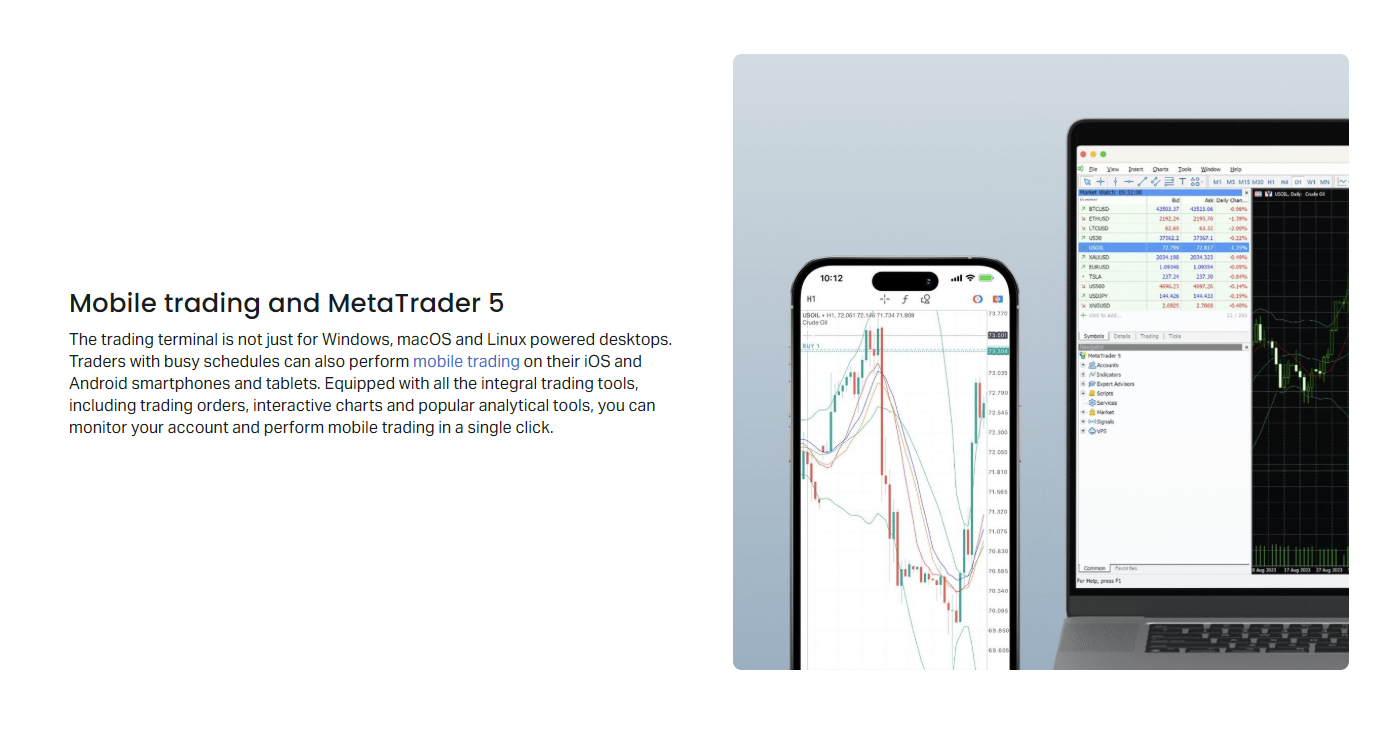
The mobile app carries most of the desktop functionality but adapts it for smaller screens. You get the same account access, instrument selection, and order types. The main differences come down to screen real estate and input methods. Understanding those constraints helps you decide when mobile works and when you need a larger setup.
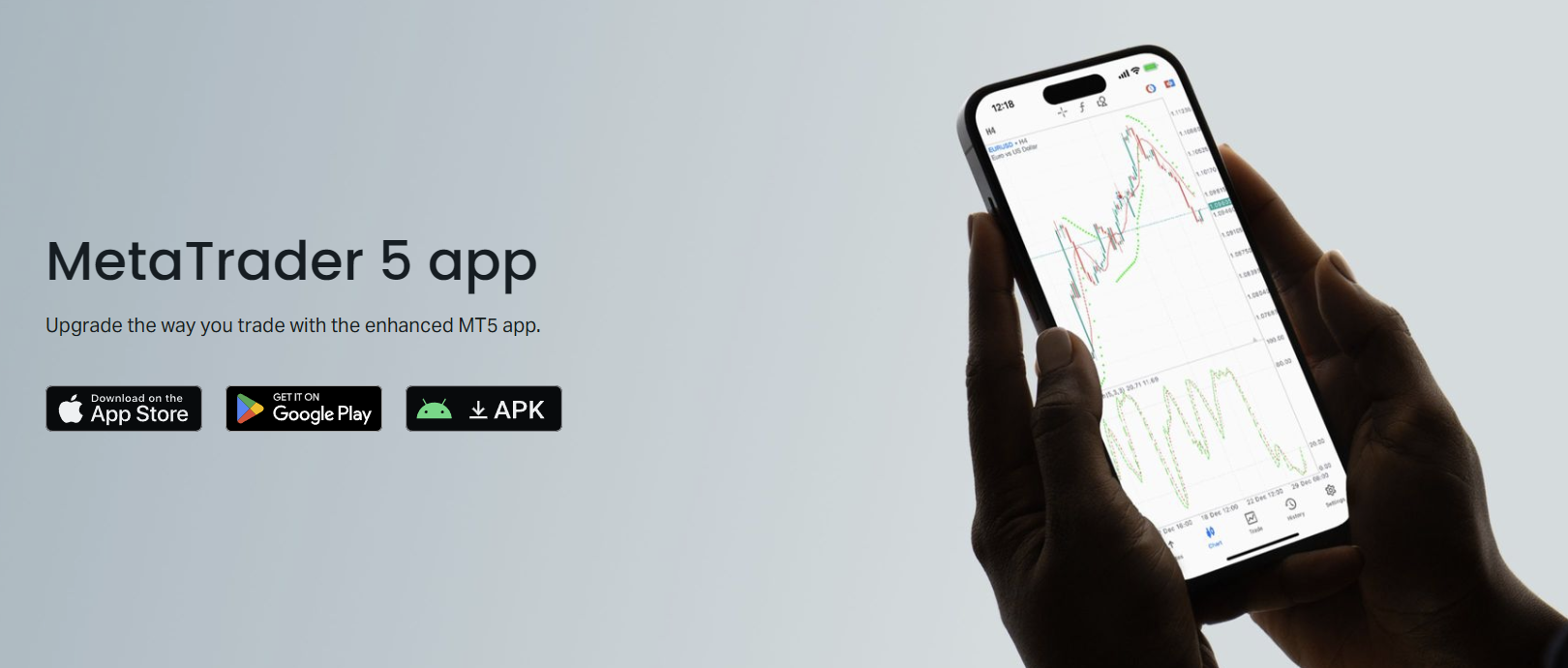
Exness provides the standard MetaQuotes MT5 app branded for their servers. You download it from the App Store or Google Play, then log in with your Exness credentials. No separate APK is needed unless you're on a device without Google services. The broker's server list appears automatically once you select Exness from the broker dropdown.
Downloading and Installing Exness MT5 Mobile
Installation is straightforward. Open your device's app store, search for MetaTrader 5, and install the official MetaQuotes version. The icon shows a green and blue chart. After opening the app, tap the settings gear or the 'Add Account' button. Choose 'Login to Existing Account' and type Exness in the broker search. Select the appropriate server — usually Exness-MT5 Trial for demo or Exness-MT5 Real for live accounts.
Enter your login number and password. The login is the account number from your Exness Personal Area, not your email. Password is the trading password you set during account creation. If you enabled two-factor authentication on your Exness account, you'll need the 2FA code as well. The app saves credentials after the first successful login.
Demo accounts let you test without risk. Exness provides unlimited demo funds and no expiration on trial accounts. This is useful for learning the mobile interface before committing real money. Switch between demo and live by adding both accounts in the app's account switcher.
Navigating the Mobile Interface
The app uses a bottom tab bar with five sections: Quotes, Charts, Trade, History, and Settings. Quotes displays a watchlist with bid/ask prices, spread, and daily change. Tap any symbol to open its chart. Charts opens your current chart with timeframe selector, indicators, and drawing tools. Trade shows open positions, pending orders, and account summary. History lists closed trades with profit, swap, and commission details. Settings manages accounts, notifications, and app preferences.
Swipe gestures replace right-click menus. Long-press a symbol in Quotes to add to favorites, open chart, or place a new order. On charts, pinch to zoom, drag to scroll, and double-tap to reset. The crosshair appears with a long press, showing price, time, and indicator values at that point.
- Quotes tab: customizable watchlist with real-time prices
- Charts tab: full charting with 21 timeframes and 38 built-in indicators
- Trade tab: positions, orders, and account equity at a glance
- History tab: filterable trade log with export option
- Settings: account management, push notifications, color themes
Charting Tools and Technical Analysis
Mobile charts support the same 21 timeframes as desktop, from one minute to monthly. The timeframe selector sits at the top of the chart area. Indicators are added through the 'f' icon — 38 built-in options include moving averages, RSI, MACD, Bollinger Bands, and Ichimoku. Custom indicators from the desktop platform do not sync to mobile; you only get the standard set.
Drawing tools cover trendlines, horizontal lines, Fibonacci retracements, channels, and shapes. Access them via the pencil icon. Each drawing can be edited or deleted by tapping it. Objects persist across sessions but are stored locally on the device, not synced to the cloud. If you switch phones, your drawings don't transfer.
The chart supports three types: candlestick, bar, and line. Candlestick is default. Color schemes include light, dark, and green/red variants. Grid and volume display toggle in chart settings. One limitation: you cannot run Expert Advisors on mobile. EAs only execute on the desktop terminal or VPS.
Scroll horizontally to see all columns
| Feature | Mobile MT5 | Desktop MT5 |
|---|---|---|
| Timeframes | 21 | 21 |
| Built-in Indicators | 38 | 38 |
| Custom Indicators | No | Yes |
| Expert Advisors | No | Yes |
| Drawing Tools | Full set | Full set |
| Object Sync | Local only | Cloud via MQL5 |
Placing and Managing Orders
New orders open from the Quotes tab (long-press a symbol) or the '+' button on the Trade tab. The order screen shows symbol, volume, stop loss, take profit, and order type. Market execution fills at the next available price. Pending orders include buy limit, sell limit, buy stop, sell stop, buy stop limit, and sell stop limit. Exness offers instant execution on some account types, but market execution is standard.
Volume enters in lots. The minimum is 0.01 lots on Standard and Pro accounts, 0.0001 on Cent accounts. Maximum depends on the instrument and account leverage. Stop loss and take profit can be set in price or points. The app shows the approximate monetary value of SL/TP based on current price and volume.
- Market Execution: fills at best available price
- Pending Orders: six types for breakout and reversal strategies
- One-Click Trading: enable in settings for faster entry
- Modify Positions: drag SL/TP lines on chart or edit in Trade tab
- Close Partial: reduce position size instead of full exit
Account Management on Mobile
The Trade tab shows balance, equity, margin, free margin, and margin level in real time. Tap the account name at the top to switch between connected accounts. You can add multiple Exness accounts — demo and live — and toggle between them without logging out. Each account maintains its own chart layouts and watchlists.
Deposits and withdrawals are not handled inside MT5 mobile. Those go through the Exness app or Personal Area in a browser. The MT5 app only shows trading funds. Profit and loss update tick-by-tick. Swap charges appear in the swap column on open positions and in the History tab after rollover.
Leverage displays next to the account name. Exness offers dynamic leverage up to 1:2000 on certain instruments, but the mobile app only shows the current effective leverage. Margin calls and stop outs follow the same rules as desktop: margin call at 100% margin level, stop out at 0% for most accounts. Push notifications can alert you when margin level drops below a threshold you set.
Instruments Available on Exness MT5 Mobile
Exness MT5 mobile provides access to the same instrument list as desktop: forex pairs, metals, energies, indices, stocks, and cryptocurrencies. The Quotes tab initially shows a default set. Tap the '+' icon to browse all categories and add symbols to your watchlist. Symbol search works by name or ticker.
Forex includes majors, minors, and exotics with raw spreads on Pro and Zero accounts. Metals cover gold, silver, platinum, palladium. Energies include USOIL and UKOIL. Indices feature major global indexes as CFDs. Stocks offer large-cap shares from US, EU, and Asian exchanges. Crypto includes BTC, ETH, and major altcoins with 24/7 trading.
Scroll horizontally to see all columns
| Category | Examples | Trading Hours |
|---|---|---|
| Forex | EURUSD, GBPJPY, USDTRY | 24/5 |
| Metals | XAUUSD, XAGUSD | 24/5 with daily break |
| Energies | USOIL, UKOIL | Near 24/5 |
| Indices | US30, US500, GER40 | Follows exchange hours |
| Stocks | AAPL, TSLA, NVDA | Exchange hours only |
| Cryptocurrencies | BTCUSD, ETHUSD | 24/7 |
Push Notifications and Alerts
Price alerts are set from the Quotes tab by long-pressing a symbol and choosing 'Create Alert.' You can trigger on bid or ask crossing a specific price. Alerts fire as push notifications if allowed in device settings. The app also sends notifications for order fills, margin calls, and stop outs when enabled in Settings > Notifications.
Notification reliability depends on the OS. iOS sometimes delays pushes when the app is backgrounded for long periods. Android is more consistent but battery optimization settings can interfere. Keep the app excluded from battery saver if you rely on real-time alerts. Test the notification path with a demo account before trusting it live.
Exness Trade App vs MT5 Mobile
Exness offers its own proprietary Trade app alongside MT5. The Trade app is built by Exness, not MetaQuotes. It has a cleaner mobile-first design, integrated deposit/withdrawal, and social trading features. MT5 mobile is the standard MetaTrader experience with deeper charting, more order types, and EA compatibility on desktop. Both connect to the same Exness accounts.
Choose MT5 mobile if you already use MT5 on desktop and want consistency. Choose the Exness Trade app if you trade primarily on phone and want built-in funding, copy trading, and a simpler interface. You can install both and switch as needed — they reflect the same account balances and positions.

Scroll horizontally to see all columns
| Feature | Exness Trade App | MT5 Mobile |
|---|---|---|
| Charting Depth | Basic | Full MT5 suite |
| Indicators | Limited selection | 38 built-in |
| Order Types | Market, pending | All 6 pending types |
| Deposits/Withdrawals | In-app | External only |
| Copy Trading | Integrated | Not available |
| Desktop Sync | No | Charts, objects via MQL5 |
Performance and Battery Considerations
MT5 mobile is reasonably optimized but runs continuous price updates. On older devices, having many symbols in the watchlist with active charts can cause lag. Reduce the quote list to actively traded pairs. Close chart tabs you're not viewing — each open chart consumes memory and CPU for tick processing.
Battery drain is noticeable during active trading sessions with multiple charts open. The app uses network polling for price data. Background refresh keeps quotes updated when the app isn't in foreground. Disable background app refresh for MT5 in system settings if battery life is a concern, but know that alerts may not fire reliably.
- Limit watchlist to 20-30 symbols for smoother scrolling
- Close unused chart tabs
- Lower chart refresh rate in settings if available
- Use dark theme on OLED screens to save power
- Carry a power bank for extended trading sessions
Security and Session Management
The app uses the same encryption as desktop MT5 — 128-bit for data transmission. Login credentials are stored in the device keychain/keystore. Enable device lock (PIN, fingerprint, Face ID) to prevent unauthorized access if the phone is lost. The app does not have its own app-level lock; it relies on the OS.
Sessions persist until you manually log out or the server terminates them. Exness sessions typically last 30 days of inactivity. Changing your Exness trading password in the Personal Area invalidates all active MT5 sessions, forcing re-login. This is a security feature if you suspect credential compromise.
Troubleshooting Common Issues
Connection errors usually mean the server address changed or your internet is blocking the port. Try switching between Wi-Fi and mobile data. If 'No Connection' persists, check the Exness website for server maintenance announcements. The broker sometimes rotates IP addresses for load balancing.
Quote freezing happens when the app loses the price feed but doesn't reconnect automatically. Pull down on the Quotes tab to force refresh. If that fails, close and reopen the app. Persistent freezing may indicate an outdated app version — check for updates in the store.
- No Connection: toggle airplane mode, check Exness status page
- Quotes Frozen: pull to refresh, restart app, update app
- Login Failed: verify credentials in Personal Area, check 2FA
- Order Rejected: check margin, market hours, volume limits
- Charts Blank: switch timeframe, re-add symbol to watchlist
Limitations to Keep in Mind
Mobile MT5 is capable but not a full desktop replacement. Screen size limits how many charts you can view simultaneously. Complex multi-timeframe analysis is cumbersome. Custom indicators and EAs don't run. Drawing objects don't sync across devices. The on-screen keyboard covers half the order screen on some phones. These are platform constraints, not Exness-specific issues.
For serious technical analysis, many traders use mobile for monitoring and execution only, doing the heavy chart work on desktop or tablet. A tablet with a keyboard case bridges the gap better than a phone. Exness also offers a web terminal that runs in mobile browsers if you prefer not to install the app.
Mobile trading is best for position management and opportunistic entries, not deep analysis. The tools exist but the workspace doesn't.
Final Assessment of Exness MT5 Mobile
Exness MT5 mobile delivers the core MetaTrader 5 experience on iOS and Android with minimal compromise. You get full instrument access, all order types, 38 indicators, 21 timeframes, and real-time account data. The app is stable, updates regularly, and integrates cleanly with Exness account infrastructure. For traders who need to manage positions away from a desk, it works well.
The trade-offs are inherent to mobile: smaller charts, no custom indicators, no EAs, local-only object storage. If your strategy relies on custom tools or automated execution, you still need desktop or VPS. The Exness Trade app is a viable alternative if you want integrated funding and a more mobile-native design. Most active Exness clients will benefit from having both installed.
Frequently Asked Questions
How do I download Exness MT5 on my phone?
Open the App Store or Google Play, search for MetaTrader 5 by MetaQuotes, install it, then log in with your Exness account number and trading password. Select Exness from the broker list when prompted.
Can I use Expert Advisors on MT5 mobile?
No. Expert Advisors only run on the desktop MT5 terminal or a VPS. The mobile app does not support EA execution or custom indicator installation.
Do my chart drawings sync between desktop and mobile?
Drawing objects are stored locally on each device. They do not sync through the MQL5 cloud. You must recreate drawings on each device.
Is there a separate Exness MT5 APK for Android?
No separate APK is needed. The standard MetaTrader 5 app from Google Play connects to Exness servers. Only download from official stores to avoid security risks.
Can I deposit and withdraw from the MT5 mobile app?
No. Funding operations are handled through the Exness Personal Area or the Exness Trade app. MT5 mobile only displays trading balances.
Why are my push notifications not arriving?
Check that notifications are enabled in both the MT5 app settings and your device system settings. Disable battery optimization for the app. Note that alerts only fire while you have an active logged-in session.
What is the minimum lot size on Exness MT5 mobile?
0.01 lots on Standard and Professional accounts. Cent accounts allow 0.0001 lots. The minimum is set by the account type, not the platform.
Can I trade cryptocurrencies on Exness MT5 mobile?
Yes. Exness offers major cryptocurrency pairs like BTCUSD and ETHUSD with 24/7 trading on MT5 mobile, same as desktop.