
Forex Trading Guides
Exness Login Guide: Access Your Trading Account
Learn how to sign in to Exness via web, mobile app, MT4, and MT5 with step-by-step instructions.

Senior Forex Trader & Market Analyst
Daniel Chen is an experienced forex trader and financial market analyst with over 15 years of experience in currency trading. He specializes in technical analysis, risk management, and developing practical trading strategies to help traders make informed decisions.
Getting into your Exness trading account should be straightforward, but the number of entry points can create confusion. Between the web-based Personal Area, the proprietary mobile app, MetaTrader 4, MetaTrader 5, and the web terminal, traders have multiple ways to reach their positions and account settings. Each method serves a slightly different purpose, and knowing which one to use in a given situation saves time and prevents frustration.
Contents
- 1. Understanding Exness Personal Area
- 2. Web Browser Login Process
- 3. Exness Mobile App Login
- 4. MetaTrader 4 and MT5 Login
- 5. Exness Web Terminal Access
- 6. Demo Account Login
- 7. Common Login Problems and Solutions
- 8. Security Features and Account Protection
- 9. Regional Login Considerations
- 10. Account Recovery and Password Reset
- 11. Switching Between Multiple Accounts
- 12. Final Assessment of Exness Login Experience
This guide walks through every login option Exness offers, explains when to use each one, and covers the most common problems traders encounter. Whether you are opening your first demo account or managing multiple live accounts across different regions, the information here applies. The steps assume you have already registered. If you have not, the sign-up process is separate and covered elsewhere.
Exness operates globally with entities regulated in several jurisdictions. The login process remains largely consistent regardless of which entity holds your account, though some regional portals may present slightly different landing pages. Your credentials — email and password — work across all official Exness entry points. The same login also grants access to the partner portal if you participate in the affiliate or introducing broker programs.
Understanding Exness Personal Area
The Personal Area is the central hub for everything that is not actual trade execution. Think of it as the administrative dashboard. From here you open new trading accounts, deposit and withdraw funds, verify identity documents, adjust leverage, view trading history, and download platform installers. It is also where you manage security settings such as two-factor authentication and API keys for third-party tools.
Access the Personal Area by visiting the main Exness website and clicking the login button, typically located in the upper right corner. Enter your registered email and password. If you enabled two-factor authentication, you will be prompted for the code from your authenticator app or SMS. After successful authentication, you land on the dashboard showing an overview of all trading accounts linked to your profile.
The Personal Area works in any modern browser on desktop or mobile. No installation is required. This makes it the most universal way to manage your account, especially when you are on a device where you cannot or do not want to install software. The interface is responsive and functions well on phone browsers, though the dedicated mobile app provides a more streamlined experience for frequent mobile users.
Web Browser Login Process
Logging in through a desktop browser remains the most common method for account management. Start at the official Exness domain for your region — exness.com for the global entity, or the appropriate regional domain such as exness.ke for Kenya or exness.in for India. Using the correct regional domain ensures you reach the entity that holds your account and avoids unnecessary redirects.
Click the login button. Enter your email address exactly as registered. Passwords are case-sensitive. If you have forgotten your password, use the reset link on the login page. The reset email arrives at your registered address and contains a time-limited link to set a new password. Do not reuse passwords from other services, especially not from email or social media accounts.
After entering credentials, you may encounter a CAPTCHA challenge. This is normal and helps prevent automated login attempts. Complete the challenge and proceed. If you have two-factor authentication enabled, the next screen requests your authenticator code. Enter the six-digit code from your app (Google Authenticator, Authy, Microsoft Authenticator, or similar). SMS-based 2FA is also supported in some regions but is less secure than app-based codes.
Once inside the Personal Area, the left-hand navigation (on desktop) or hamburger menu (on mobile) provides access to all account functions. The dashboard shows each trading account with its number, type (Standard, Pro, Raw Spread, Zero, Cent), currency, leverage, and current balance. Clicking an account reveals detailed actions: deposit, withdraw, change leverage, view statements, and download platform credentials.
Exness Mobile App Login
The Exness Trade app is available for iOS and Android. It combines account management with a simplified trading interface, allowing you to open and close positions directly from the app. This is distinct from the MetaTrader mobile apps, which are separate downloads. The Exness app is purpose-built for the broker's ecosystem and integrates tightly with the Personal Area.
Download the app only from the Apple App Store or Google Play Store. Search for "Exness Trade" and verify the publisher is Exness. Avoid third-party APK sites or links from unofficial sources. After installation, open the app and tap the login button. Enter your email and password. If 2FA is enabled, provide the authenticator code. The app supports biometric login (Face ID, Touch ID, fingerprint) after the first successful login, which speeds up subsequent access.
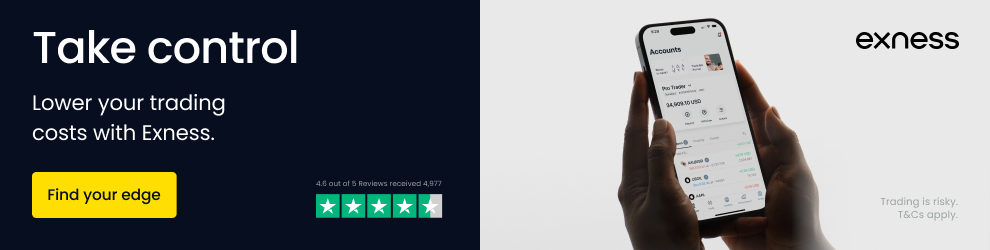
The app home screen displays your trading accounts with real-time balances. Tapping an account shows open positions, pending orders, and a simplified chart. You can deposit and withdraw directly in the app using the same payment methods available in the web Personal Area. The app also provides market news, economic calendar, and trading signals from Trading Central. For traders who primarily manage positions on a phone, the Exness app is often more convenient than the MetaTrader mobile apps.
One limitation: the Exness app does not support the full depth of MetaTrader features such as custom indicators, expert advisors, or advanced charting. It is designed for essential trade management and account administration. If you rely on algorithmic trading or complex technical analysis, you will still need MetaTrader 4 or 5. The app also does not provide access to the partner portal; for that, use the web Personal Area.
MetaTrader 4 and MT5 Login
MetaTrader platforms are where actual trading happens for most Exness clients. The login credentials for MT4 and MT5 are different from your Personal Area email and password. Each trading account has its own login number (account number) and a trading password set during account creation or reset later in the Personal Area. The server name is also required and depends on the account type and entity.
To find your MetaTrader credentials, log into the Personal Area, select the trading account, and look for the "Account Information" or "MT4/MT5 Login" section. The login number is typically an 8- to 10-digit number. The trading password is the one you created when opening the account; if forgotten, you can reset it from the same screen. The server field shows something like "Exness-MT5-Real" or "Exness-MT5-Demo". Copy these exactly.
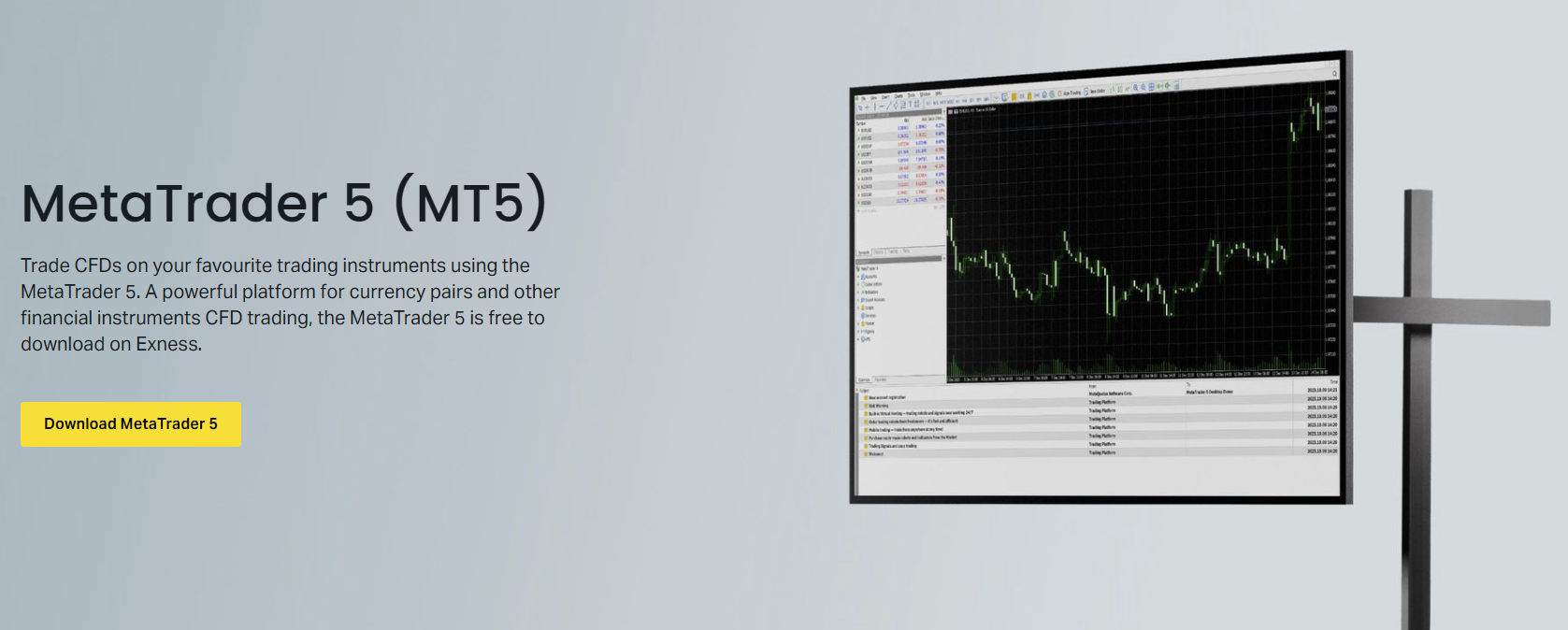
In MetaTrader 5 desktop terminal, click File > Login to Trade Account. Enter the login number, trading password, and select the correct server from the dropdown. If your server is not listed, type it manually. Check "Save Password" if you want the terminal to remember it. Click Login. The connection status in the bottom right corner will show "Connected" with ping time when successful.
MetaTrader 4 follows the same process. The login number and password are specific to the MT4 account; they do not work for MT5 and vice versa. If you have both MT4 and MT5 accounts, each has separate credentials. The server names differ as well (e.g., "Exness-MT4-Real" vs "Exness-MT5-Real"). Do not mix them up. A common mistake is trying to log into an MT5 account using MT4 credentials or the wrong server.
Mobile MetaTrader apps (MT4 and MT5 for iOS/Android) use the same credentials. Open the app, tap the settings or account icon, choose "Login to Existing Account," search for "Exness" in the broker list, select the appropriate server, and enter login and password. The mobile apps support biometric unlock after the first login. They also support multiple accounts; you can add several and switch between them without re-entering credentials each time.
Exness Web Terminal Access
The Exness Web Terminal is a browser-based version of MetaTrader that requires no installation. It runs directly in the Personal Area and provides a trading interface similar to the desktop terminal but with a reduced feature set. This is useful when you cannot install software — for example, on a work computer, a public terminal, or a Chromebook.
To access the Web Terminal, log into the Personal Area, select a trading account, and click the "Web Terminal" or "Trade" button. The terminal loads in a new tab or modal window. It automatically uses the selected account's credentials; you do not need to re-enter login and password. The interface includes charts, order entry, position management, and basic indicators. It supports both MT4 and MT5 accounts, though the feature parity is closer to MT5.
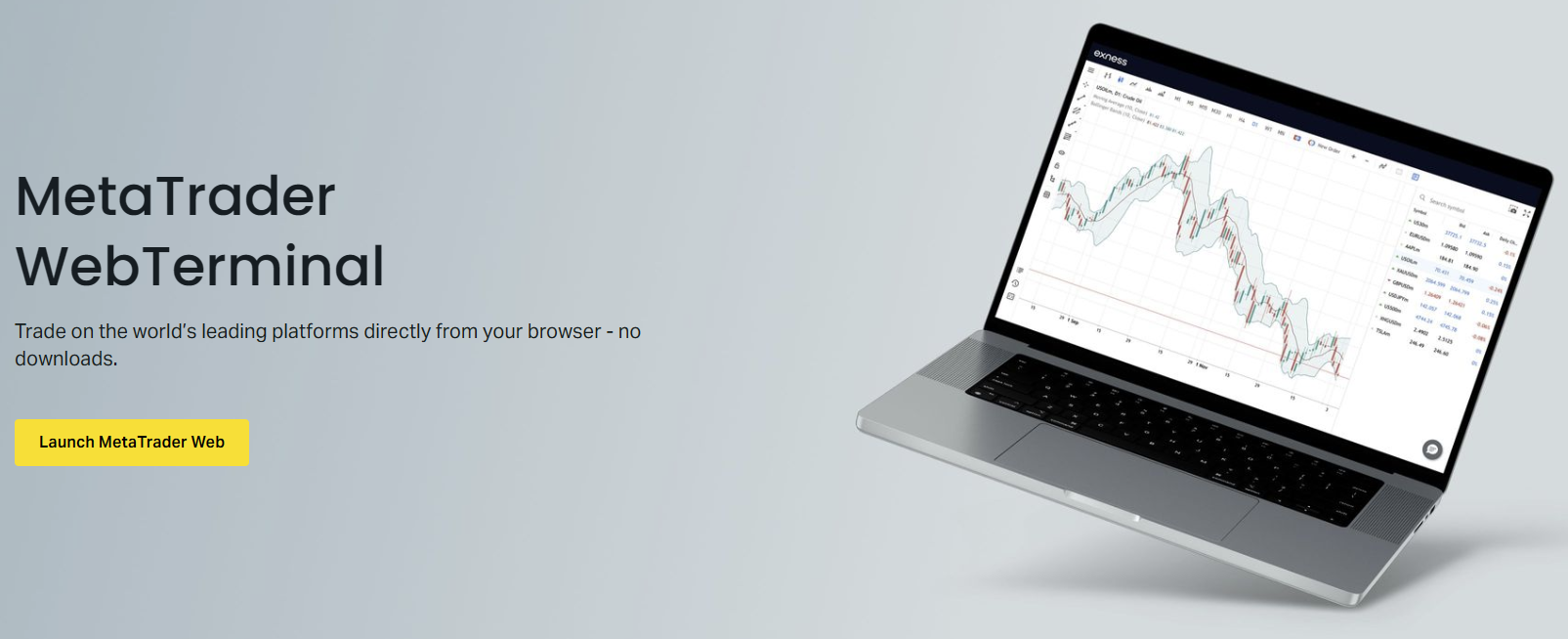
The Web Terminal does not support expert advisors, custom indicators, or advanced scripting. It also lacks some charting tools available in the desktop version. For discretionary trading with standard indicators and manual order execution, it is fully functional. Sessions persist for a period of inactivity; you may need to re-authenticate if the session expires. Always log out when using a shared or public device.
Demo Account Login
Demo accounts follow the same login patterns as live accounts but use separate credentials. When you open a demo account from the Personal Area, you receive a demo login number, password, and server (typically "Exness-MT5-Demo" or "Exness-MT4-Demo"). These work in MetaTrader desktop, mobile, and Web Terminal exactly like live credentials.
Demo accounts do not expire at Exness as long as there is some activity. If a demo account is completely inactive for an extended period (usually 90 days or more), it may be archived. You can always open a new demo account from the Personal Area. There is no limit on the number of demo accounts you can create. This is useful for testing different strategies, account types, or leverage settings without risk.
The Exness Trade app also supports demo login. After logging into the app with your main credentials, you can switch to a demo account from the account selector. The app treats demo and live accounts similarly, though the deposit and withdrawal functions are disabled for demo accounts. Market conditions, spreads, and execution on demo are designed to mirror live conditions, but slippage and requotes may differ during high volatility.
Common Login Problems and Solutions
Login issues usually fall into a few categories. The most frequent is entering the wrong credentials. Double-check that you are using the correct email for Personal Area login, or the correct account number and trading password for MetaTrader. Passwords are case-sensitive. A caps lock key left on is a common culprit. If you are copying and pasting, ensure no extra spaces are included.
- Invalid credentials: verify email, account number, password, and server name
- Two-factor authentication code expired: authenticator apps refresh every 30 seconds
- Wrong server selected: match the server to your account type (Real vs Demo, MT4 vs MT5)
- Account archived due to inactivity: contact support to restore or open a new account
- Regional restriction: ensure you are logging into the correct Exness entity for your account
- Browser cache or cookies interfering: clear cache or try incognito mode
- App outdated: update Exness Trade or MetaTrader app to latest version
- Network or firewall blocking connection: try a different network or VPN
If you receive an "Invalid Account" or "Authorization Failed" error in MetaTrader, the issue is almost always the login number, password, or server combination. Reset the trading password from the Personal Area and try again. Copy the server name exactly as shown. If the server is not in the dropdown, type it manually. Ensure you are using the correct terminal version (MT4 credentials do not work in MT5).
Two-factor authentication problems usually stem from time synchronization. Authenticator apps rely on the device clock being accurate. If your phone time is off by more than a few seconds, codes will not match. Enable automatic time sync in your phone settings. If you lost access to your 2FA device, use the backup codes provided during 2FA setup, or contact Exness support with identity verification to reset 2FA.
Regional login issues occur when a trader tries to access an account held by one Exness entity through another entity's portal. For example, an account registered under Exness (SC) Ltd (Seychelles) may not be accessible via the EU entity's domain. The Personal Area typically handles this automatically by redirecting, but if you bookmarked a specific regional login page, it may not work. Always start from the main exness.com domain or the domain provided in your welcome email.
Security Features and Account Protection
Exness provides several security layers beyond the basic password. Two-factor authentication is the most important. Enable it in the Personal Area under Security Settings. Choose between authenticator app (TOTP) and SMS. The authenticator app is more secure because it is not vulnerable to SIM swap attacks. After enabling 2FA, you will need the code for every login to the Personal Area, the Exness Trade app, and the partner portal. MetaTrader login uses the trading password only; 2FA does not apply there.
Login history is available in the Personal Area. It shows recent login attempts with IP address, device, browser, location, and timestamp. Review this periodically. If you see unfamiliar activity, change your password immediately and contact support. You can also set up login notifications via email to be alerted on every successful login.
API keys for third-party trading tools are managed in the same security section. Each key has specific permissions (read-only, trade, withdraw). Create separate keys for each service and revoke keys you no longer use. Never share API keys with anyone. Exness staff will never ask for your password, 2FA code, or API keys.
Device management lets you see and revoke trusted devices. When you log in from a new device or browser, you may be asked to confirm via email. This prevents unauthorized access even if someone obtains your password. You can remove old devices from the list. The Exness Trade app also uses device binding; after the first login with 2FA, the device itself becomes a factor for subsequent biometric logins.
Regional Login Considerations
Exness operates through multiple legal entities: Exness (SC) Ltd in Seychelles, Exness B.V. in Curaçao, Exness (UK) Ltd in the UK, Exness (CY) Ltd in Cyprus, Exness (ZA) Ltd in South Africa, and Exness (KE) Ltd in Kenya, among others. Each entity serves specific regions and offers slightly different trading conditions, leverage limits, and regulatory protections. Your account is opened under one entity based on your country of residence at registration.
The login credentials work across all Exness domains, but the Personal Area interface may show different available products, payment methods, and leverage options depending on which entity's portal you access. For example, a client registered under the Kenyan entity (Exness KE) will see M-Pesa as a deposit method and leverage up to 1:2000 (subject to regulatory caps), while a client under the Cyprus entity (Exness CY) sees EU payment methods and leverage capped at 1:30 for retail clients under ESMA rules.
If you relocate to a different country, your account entity does not change automatically. You may need to contact support to discuss migration to the appropriate entity for your new residence. This can affect your trading conditions. Do not create a second account under a different entity without informing support, as this may violate the terms of service regarding multiple accounts.
Some regions have dedicated login pages (exness.ke, exness.ng, exness.za, exness.in, etc.). These are entry points to the same Personal Area but pre-configured for the local entity. Using the correct regional domain can avoid confusion with payment methods and support language. However, the global exness.com domain works for all clients and redirects appropriately after login.
Account Recovery and Password Reset
If you forget your Personal Area password, use the "Forgot Password" link on the login page. Enter your registered email. A reset link is sent to that email. The link expires after a short period (typically one hour). Click it, set a new password, and log in. The new password must meet complexity requirements: at least 8 characters, mixed case, numbers, and special characters. Do not reuse recent passwords.
If you no longer have access to the registered email, contact Exness support. You will need to verify your identity with documents (passport or national ID, proof of address). Support can update the email on file after verification. This process takes time and is a security measure to prevent account takeover. Do not share your login credentials with anyone claiming to be support; Exness staff never ask for passwords.
For MetaTrader trading password reset, log into the Personal Area, select the trading account, and use the "Change Trading Password" option. Enter a new password twice. The change takes effect immediately. You must then use the new password in MetaTrader desktop, mobile, and Web Terminal. The old password stops working at once. If you have saved the password in MetaTrader, update it there as well.
If you forget your MetaTrader login number (account number), it is displayed in the Personal Area next to each trading account. It is also in the welcome email sent when the account was opened. The login number never changes for the life of the account. You cannot customize it. If you need a different login number, you must open a new trading account.
Switching Between Multiple Accounts
Many traders maintain multiple Exness accounts — for example, a Standard account for general trading, a Raw Spread account for scalping, a Cent account for testing small positions, and a demo account for strategy development. The Personal Area shows all accounts under one profile. Switching between them in the web interface is instant: click the account card or use the account selector dropdown.
In MetaTrader desktop, you can only be logged into one account at a time per terminal instance. To trade multiple accounts simultaneously, you have two options: run multiple terminal installations (each in a separate folder), or use the MetaTrader multi-terminal feature (available for MT4 only). The multi-terminal lets you manage several accounts from one window but has limitations: it does not support expert advisors and has reduced charting.
The MetaTrader mobile apps support multiple accounts more elegantly. Add each account via the account management screen. Once added, switch between them with a tap. The app remembers credentials for each. This is the most convenient way to monitor and trade multiple accounts on the go. The Exness Trade app also supports multiple accounts under one login; select the account from the home screen.
Web Terminal works with one account at a time. To switch, return to the Personal Area, select a different account, and launch Web Terminal again. Each session is independent. You can open multiple browser tabs with Web Terminal for different accounts, but each tab consumes resources and may hit browser limits. For serious multi-account trading, desktop MetaTrader or the mobile apps are better suited.
Final Assessment of Exness Login Experience
Exness provides a comprehensive set of login options that cover virtually every trader's needs. The Personal Area serves as a capable central hub for account administration, funding, and security. The proprietary Exness Trade app delivers a polished mobile experience for account management and basic trading. MetaTrader 4 and 5 remain the standard for serious execution, algorithmic trading, and advanced analysis, with full desktop, mobile, and web access. The Web Terminal fills the gap for no-install scenarios. Security features including 2FA, login history, device management, and API key controls are solid and meet industry expectations.
The main friction points are the credential separation between Personal Area (email/password) and MetaTrader (account number/trading password/server), which confuses newcomers, and the entity-based regional differences that can affect available features. Both are inherent to how regulated brokers operate across jurisdictions. Documentation and in-app guidance have improved but could still be clearer on the distinction between login types. For experienced traders, the system works well. For beginners, expect a short learning curve to understand which credentials go where.
Frequently Asked Questions
What is the difference between my Personal Area password and my MetaTrader trading password?
Your Personal Area password (with your email) accesses the web dashboard for deposits, withdrawals, verification, and account settings. Your MetaTrader trading password (with your account number and server) accesses the trading platforms (MT4, MT5, Web Terminal) for placing trades. They are separate credentials set independently.
Can I use the same login for Exness Trade app and MetaTrader mobile apps?
No. The Exness Trade app uses your Personal Area email and password. MetaTrader mobile apps use your trading account number, trading password, and server name. They are different systems, though both ultimately connect to your Exness accounts.
Why does MetaTrader say "Invalid Account" when I enter my credentials?
This usually means the account number, trading password, or server is incorrect. Verify all three in your Personal Area under the specific trading account. Ensure you are using MT4 credentials for MT4 and MT5 credentials for MT5 — they are not interchangeable. Reset the trading password if unsure.
How do I enable two-factor authentication on my Exness account?
Log into the Personal Area, go to Security Settings, and choose Two-Factor Authentication. Select authenticator app (recommended) or SMS. Scan the QR code with your authenticator app (Google Authenticator, Authy, etc.) and enter the six-digit code to confirm. Save the backup codes provided.
Can I log into multiple Exness trading accounts at the same time?
In the Personal Area and Exness Trade app, you can view and switch between all accounts instantly. In MetaTrader desktop, you can only be logged into one account per terminal instance; run multiple terminals or use MT4 multi-terminal for simultaneous access. MetaTrader mobile apps support multiple saved accounts with quick switching.
What should I do if I lose access to my two-factor authentication device?
Use the backup codes you saved when enabling 2FA. If you do not have backup codes, contact Exness support with identity verification (passport/ID and proof of address). Support can reset 2FA after verifying you are the account owner. This process is manual and takes time for security reasons.
Does Exness Web Terminal support expert advisors or custom indicators?
No. The Web Terminal is a simplified browser-based platform for manual trading with standard indicators only. It does not support expert advisors, custom indicators, scripts, or the MQL5 marketplace. For automated trading, use the desktop MetaTrader terminal or a VPS.
Why am I redirected to a different Exness domain when I log in?
Exness operates multiple regulated entities. Your account belongs to the entity for your country of residence. The system redirects you to that entity's portal to show the correct trading conditions, payment methods, and leverage limits. Your credentials work across all domains.