

Trading Platforms
How to Download and Set Up Exness MT5 on Desktop
Complete installation walkthrough with login details and platform features.


Senior Forex Trader & Market Analyst
Daniel Chen is an experienced forex trader and financial market analyst with over 15 years of experience in currency trading. He specializes in technical analysis, risk management, and developing practical trading strategies to help traders make informed decisions.
MetaTrader 5 remains one of the most widely used trading platforms globally, and Exness offers a customized build that connects directly to its pricing engine. The download process is straightforward, but a few details — account type selection, server choice, and login credentials — can trip up new users. This guide covers the full flow from download to first trade, including desktop installation on Windows and Mac, login mechanics, and the web terminal alternative.
Contents
- 1. System Requirements for Exness MT5
- 2. Downloading Exness MT5 from the Official Website
- 3. Installing Exness MT5 on Windows
- 4. Installing Exness MT5 on Mac
- 5. Logging Into Your Exness MT5 Account
- 6. Exness MT5 Platform Features Overview
- 7. Exness MT5 vs MT4 Key Differences
- 8. Troubleshooting Common Exness MT5 Issues
- 9. Exness MT5 Web Terminal Alternative
- 10. Mobile Trading with Exness MT5 App
- 11. Account Types and MT5 Compatibility
- 12. Security Considerations for Exness MT5
- 13. Final Assessment of Exness MT5 Platform
Exness provides MT5 across multiple channels: a direct download from the Exness website, the MetaQuotes marketplace, and a browser-based web terminal that requires no installation. The desktop version delivers the full feature set — depth of market, advanced charting, algorithmic trading via MQL5, and multi-asset support across forex, metals, energies, indices, stocks, and crypto CFDs. The web terminal covers most manual trading needs but lacks expert advisor support and some analytical tools.
System Requirements for Exness MT5
Before downloading, verify your system meets the minimum specifications. The platform runs on Windows 7 or later, though Windows 10 and 11 provide the smoothest experience. Mac users need macOS 10.14 (Mojave) or newer. At least 2 GB of RAM is required, but 4 GB or more is recommended for running multiple charts and indicators. A stable broadband connection with latency under 100 ms to Exness servers ensures reliable order execution. Disk space requirements are modest — roughly 300 MB for the base installation plus additional space for log files and custom indicators.
- Windows 7/8/10/11 (64-bit recommended)
- macOS 10.14 Mojave or later
- Minimum 2 GB RAM (4 GB+ recommended)
- 100 MB free disk space minimum
- Screen resolution 1024x768 or higher
- Stable internet connection
Linux users can run MT5 through Wine or PlayOnLinux, though Exness does not provide a native Linux build. Performance varies by distribution and Wine version. For production trading on Linux, many traders prefer the web terminal or a Windows VPS hosted near Exness data centers.
Downloading Exness MT5 from the Official Website
The safest download source is the Exness website. Navigate to the trading platforms section and select MetaTrader 5. You will see separate buttons for Windows and macOS. Clicking the Windows button downloads an executable installer (typically named exness5setup.exe). The Mac button downloads a DMG file. Both are digitally signed by Exness. Avoid third-party sites offering "Exness MT5 download" links — they may bundle unwanted software or outdated builds.
The installer file size is approximately 100–120 MB. After download, verify the file signature by right-clicking the file, selecting Properties, and checking the Digital Signatures tab. The signer should read "Exness" or "Nymstar Limited." This step prevents supply-chain attacks where malicious actors replace legitimate installers with compromised versions.
Installing Exness MT5 on Windows
Run the exness5setup.exe file. Windows SmartScreen may display a warning if the publisher is not recognized — click "More info" then "Run anyway" after verifying the signature. The setup wizard presents a license agreement, then asks for an installation directory. The default path (C:\Program Files\Exness MT5) works for most users. You can change it if you maintain multiple MT5 installations from different brokers. The installer creates a Start Menu folder and a desktop shortcut by default.
During installation, the wizard downloads additional components — language packs, updated libraries, and the latest price history for default symbols. This requires an active internet connection. The process typically completes in under two minutes on a modern connection. Once finished, launch the platform from the desktop shortcut or Start Menu. The first launch opens a login dialog prompting for account credentials and server selection.
Installing Exness MT5 on Mac
Open the downloaded DMG file. A Finder window appears showing the Exness MT5 application icon and an Applications folder shortcut. Drag the application icon onto the Applications folder shortcut to copy it. The first launch triggers macOS Gatekeeper verification. If you see "Exness MT5 cannot be opened because the developer cannot be verified," right-click the app in Applications, select Open, and confirm at the dialog. This is standard for apps not distributed through the Mac App Store.
The Mac build runs natively on both Intel and Apple Silicon (M1/M2/M3) Macs via Rosetta 2 translation on the latter. Performance is comparable to Windows. Some traders report minor UI rendering differences — chart tooltips occasionally flicker on high-refresh-rate displays — but core functionality remains intact. The application bundle is self-contained; no separate Wine or CrossOver installation is needed.
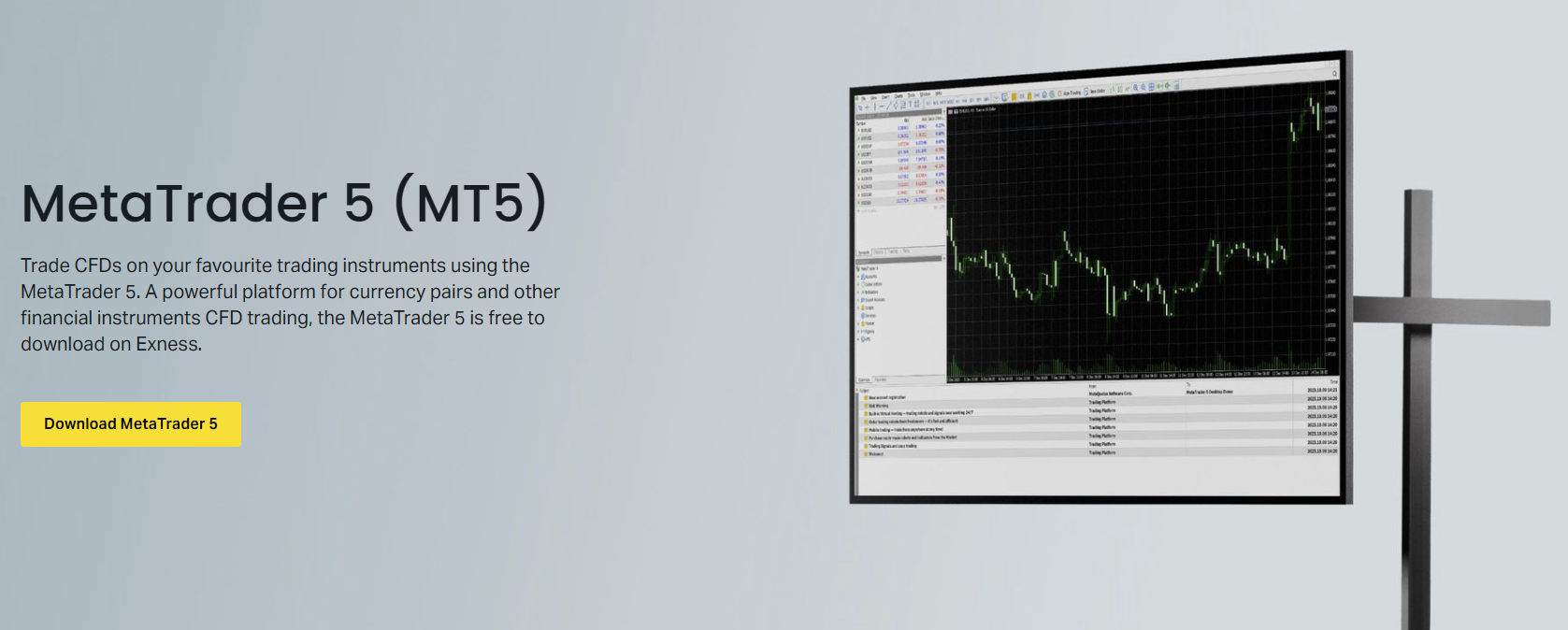
After installation, the platform checks for updates automatically on each launch. Exness pushes updates through the MetaQuotes update channel, so you receive the same core MT5 updates as other brokers, plus any Exness-specific configuration changes. You can disable auto-update in Tools > Options > Charts, though staying current is recommended for security and compatibility.
Logging Into Your Exness MT5 Account
The login dialog requires three pieces of information: login (account number), password, and server. Your account number is found in the Exness Personal Area under "My Accounts." The password is the trading password you set during account creation — not your Personal Area password. If you forgot it, reset it in the Personal Area under account settings. The server field is critical: Exness operates multiple trade servers (e.g., Exness-MT5-Trial, Exness-MT5-Real, Exness-MT5-Pro). Select the one matching your account type. Demo accounts use trial servers; live accounts use real or pro servers depending on the account tier.
- Login: Your MT5 account number (8–11 digits)
- Password: Trading password from Personal Area
- Server: Match account type (Trial for demo, Real/Pro for live)
- Save password: Optional, stores encrypted credentials locally
After successful login, the platform downloads symbol specifications and recent price history. This may take 10–30 seconds on first connection. The Market Watch window populates with default symbol sets — major forex pairs, gold, silver, and a few indices. Right-click anywhere in Market Watch and select "Show All" to see the full instrument list available on your account type. Professional accounts (Raw Spread, Zero, Pro) typically offer more symbols than Standard accounts.
Exness MT5 Platform Features Overview
The Exness MT5 build includes the full MetaTrader 5 feature set with no broker-imposed restrictions on hedging, scalping, or expert advisors. You get 21 timeframes (from 1-minute to monthly), 38 built-in technical indicators, 44 analytical objects, and an economic calendar integrated into the platform. Depth of Market (Level 2 pricing) is available for all symbols, showing bid/ask volumes at each price level — useful for assessing liquidity during news events.
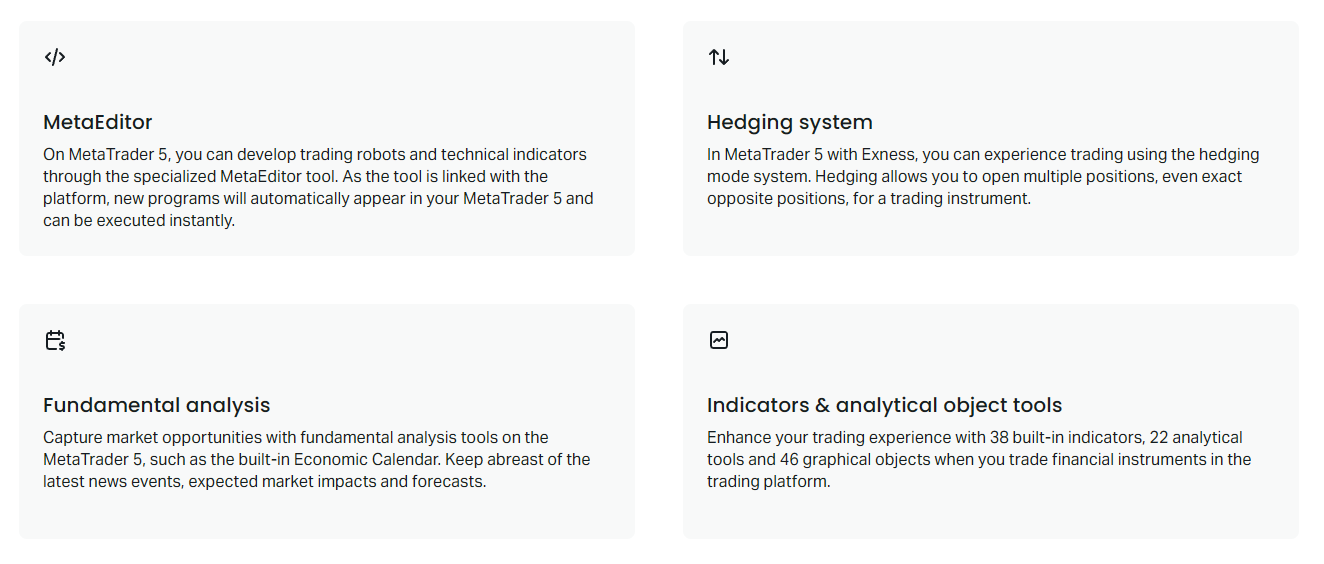
Algorithmic trading uses the MQL5 language, which supports object-oriented programming, multithreading, and network functions. The MetaEditor IDE is built into the platform (press F4). Exness does not restrict EA usage, but note that the trade server enforces standard margin and stop-out rules regardless of automation. The Strategy Tester supports multi-currency backtesting and optimization using local agents or the MQL5 Cloud Network (paid).
Scroll horizontally to see all columns
| Feature | Specification |
|---|---|
| Timeframes | 21 (M1 to MN) |
| Built-in Indicators | 38 |
| Analytical Objects | 44 |
| Order Types | Market, Limit, Stop, Stop Limit |
| Execution Modes | Instant, Request, Market, Exchange |
| Hedging Allowed | Yes |
| EAs Permitted | Yes, no restrictions |
| Depth of Market | Available all symbols |
Exness MT5 vs MT4 Key Differences
Traders migrating from MT4 notice several structural changes. MT5 uses a different order accounting system — positions are netted by default, though hedging mode can be enabled per account (Exness enables hedging on all MT5 accounts). The MQL5 language is not backward-compatible with MQL4; indicators and EAs must be rewritten or replaced. MT5 adds a built-in economic calendar, more timeframes, additional pending order types (Buy Stop Limit, Sell Stop Limit), and a DOM display. The Strategy Tester is significantly faster and supports multi-threaded optimization.
- Hedging mode enabled by default on Exness MT5
- MQL5 not compatible with MQL4 code
- 21 timeframes vs 9 in MT4
- 6 pending order types vs 4 in MT4
- Built-in economic calendar and DOM
- Multi-threaded strategy tester
- Netting and hedging position accounting
For discretionary traders, the day-to-day experience is similar — charts, indicators, and order entry work the same way. The main adjustment is learning the updated navigator layout and the additional order types. Algorithmic traders face a steeper transition: MQL5's object-oriented structure and event model differ fundamentally from MQL4's procedural approach. Most popular MT4 indicators have MT5 equivalents in the MetaTrader Market or Code Base.
Troubleshooting Common Exness MT5 Issues
Connection failures are the most frequent support topic. If the platform shows "No connection" in the bottom-right status bar, verify your internet connection, then check the Exness server status page. Firewall or antivirus software sometimes blocks the MT5 terminal (terminal64.exe). Add an exception for the installation folder. If you recently changed your trading password in the Personal Area, update it in MT5 via File > Login to Trade Account — the platform does not auto-sync password changes.
- "No connection" — check internet, firewall, Exness server status
- "Invalid account" — verify login, password, and server match exactly
- "Trade context busy" — close other MT5 instances or restart terminal
- Charts not updating — right-click chart > Refresh, or reopen chart
- EA not trading — check AutoTrading button, EA settings, and journal logs
The Journal tab (Ctrl+T) logs every platform event — connection attempts, order executions, EA errors. It is the first place to look when something behaves unexpectedly. Right-click in the journal and select "Open" to save a text file for support tickets. Exness support typically requests journal logs when investigating execution or connection complaints.
Exness MT5 Web Terminal Alternative
The Exness web terminal runs in any modern browser — Chrome, Firefox, Safari, Edge — with no installation. It shares the same login credentials and server selection as the desktop version. The interface mirrors the desktop layout: Market Watch on the left, chart center, toolbox at the bottom. Most manual trading functions are present: one-click trading, pending orders, stop loss/take profit modification, and basic chart analysis with indicators and drawing tools.
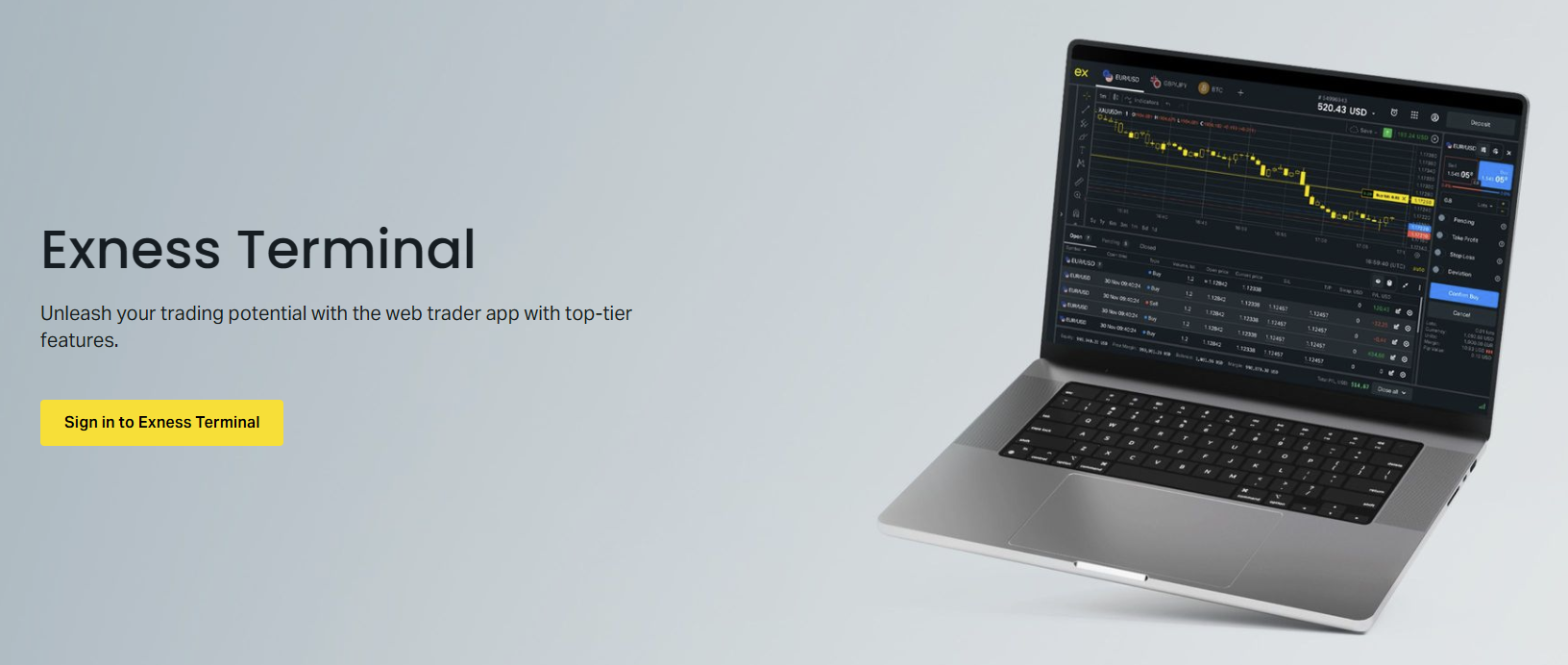
Key limitations compared to desktop MT5: no expert advisor support, no custom indicator installation, no Strategy Tester, and a reduced indicator library (approximately 30 vs 38). The web terminal also lacks the MQL5 IDE and cannot run scripts. For traders who primarily execute manual strategies across multiple devices, the web terminal is a capable companion. It syncs chart templates and drawings with the desktop version when you log in with the same account.
Mobile Trading with Exness MT5 App
The Exness MT5 mobile app is available on iOS (App Store) and Android (Google Play). Search for "MetaTrader 5" by MetaQuotes — the Exness-branded version is the same core app pre-configured with Exness servers. After installation, tap "Login to existing account," search for "Exness," and select the appropriate server (Trial, Real, or Pro). The mobile app supports charting, full order management, price alerts, and push notifications for order fills and margin calls.
Mobile charts are functional but limited by screen real estate. You get 9 timeframes (vs 21 on desktop), 30 indicators, and basic drawing tools. The app does not support EAs or custom indicators. Many traders use mobile for position monitoring and emergency management while relying on desktop or web for analysis. The app syncs chart settings and drawings with other MT5 instances on the same account.
Account Types and MT5 Compatibility
All Exness account types — Standard, Standard Cent, Pro, Raw Spread, Zero — support MT5. The platform experience is identical across types; differences appear in trading conditions. Standard and Standard Cent accounts use market execution with spreads from 0.3 pips (EURUSD) and no commission. Pro accounts offer similar spreads with no commission but higher minimum deposits. Raw Spread and Zero accounts charge commission ($3.5 per lot per side on Raw Spread, fixed $0.2 on Zero) in exchange for tighter spreads, often starting from 0.0 pips on major pairs.
Scroll horizontally to see all columns
| Account Type | Min Deposit | Commission | Typical EURUSD Spread |
|---|---|---|---|
| Standard | $1 | None | From 0.3 pips |
| Standard Cent | $1 | None | From 0.3 pips |
| Pro | $200 | None | From 0.1 pips |
| Raw Spread | $200 | $3.5/lot/side | From 0.0 pips |
| Zero | $200 | $0.2/lot/side | From 0.0 pips |
Islamic (swap-free) accounts are available on all types and work identically on MT5. The platform displays swap rates as zero for all symbols. Demo accounts mirror live conditions but use trial servers and simulated liquidity. They are useful for platform familiarization and strategy testing, though execution quality differs from live markets — demo fills are typically faster and without slippage.
Security Considerations for Exness MT5
The MT5 terminal stores encrypted login credentials locally if you check "Save password." The encryption uses Windows DPAPI on Windows and Keychain on macOS. While convenient, saved credentials pose a risk if your device is compromised. For shared or portable devices, leave the box unchecked and enter credentials manually. Exness also supports two-factor authentication (2FA) on the Personal Area, but 2FA does not extend to MT5 login — the trading password is the sole credential for platform access.
- Avoid saving passwords on shared devices
- Use a password manager for trading credentials
- Enable 2FA on Personal Area for account management
- Monitor login history in Personal Area > Security
- Log out of MT5 when not actively trading (File > Logout)
Exness trade servers use TLS 1.2+ for all client-terminal communication. Certificate pinning in the terminal prevents man-in-the-middle attacks on compromised networks. If you trade from public Wi-Fi, consider a reputable VPN — not for bypassing geo-restrictions, but for encrypting traffic between your device and the VPN endpoint. The MT5 protocol itself is secure, but the surrounding network may not be.
The platform is only as secure as the device it runs on. A compromised OS undermines every layer of application-level encryption.
Final Assessment of Exness MT5 Platform
Exness MT5 delivers the complete MetaTrader 5 experience with no broker-imposed feature restrictions. The download and installation process is standard, login mechanics are straightforward once you understand the server-account mapping, and the platform runs reliably on Windows and Mac. The web terminal provides a credible no-install alternative for manual trading, and the mobile app covers position management on the go. Traders moving from MT4 face a learning curve on MQL5 and the updated interface, but the expanded toolset — more timeframes, DOM, economic calendar, better backtesting — justifies the transition for most serious users. The main friction points remain password management (trading password vs Personal Area password) and server selection, both solvable by checking the Personal Area before first login.
Frequently Asked Questions
Where do I find my Exness MT5 login and server?
Log into your Exness Personal Area, go to My Accounts, and click the account number. The trading account details show the login (account number), server name, and allow trading password reset.
Can I use the same MT5 account on desktop, web, and mobile simultaneously?
Yes. You can be logged into the same Exness MT5 account on multiple platforms at once. Chart templates and drawings sync across instances when saved.
Why does MT5 show "Invalid account" when my credentials are correct?
The server field must match your account type. Demo accounts require a Trial server (e.g., Exness-MT5-Trial). Live Standard accounts use Real servers. Pro, Raw Spread, and Zero accounts use Pro servers. Check your Personal Area for the exact server name.
Does Exness MT5 support expert advisors and custom indicators?
Yes. Exness places no restrictions on EAs, custom indicators, or scripts. The desktop platform includes the full MQL5 development environment. The web terminal and mobile app do not support EAs or custom indicators.
How do I update Exness MT5 to the latest version?
The platform checks for updates automatically on launch and applies them in the background. You can also trigger a manual check via Help > Check for Updates. The update channel is managed by MetaQuotes, so you receive the same core updates as all MT5 users.
Can I run Exness MT5 on Linux?
There is no native Linux build. You can run the Windows version via Wine or PlayOnLinux, but stability varies. For production trading on Linux, the web terminal or a Windows VPS near Exness data centers is more reliable.
What is the difference between trading password and Personal Area password?
The Personal Area password logs you into the Exness website for deposits, withdrawals, and account settings. The trading password (set separately) logs you into MT4/MT5 and the web terminal. They can be different and are reset independently.