

Trading Platforms
Exness WebTrader: Complete Guide to the Browser Platform
A practical breakdown of the Exness web terminal for traders who prefer no-download access.

Senior Forex Trader & Market Analyst
Daniel Chen is an experienced forex trader and financial market analyst with over 15 years of experience in currency trading. He specializes in technical analysis, risk management, and developing practical trading strategies to help traders make informed decisions.
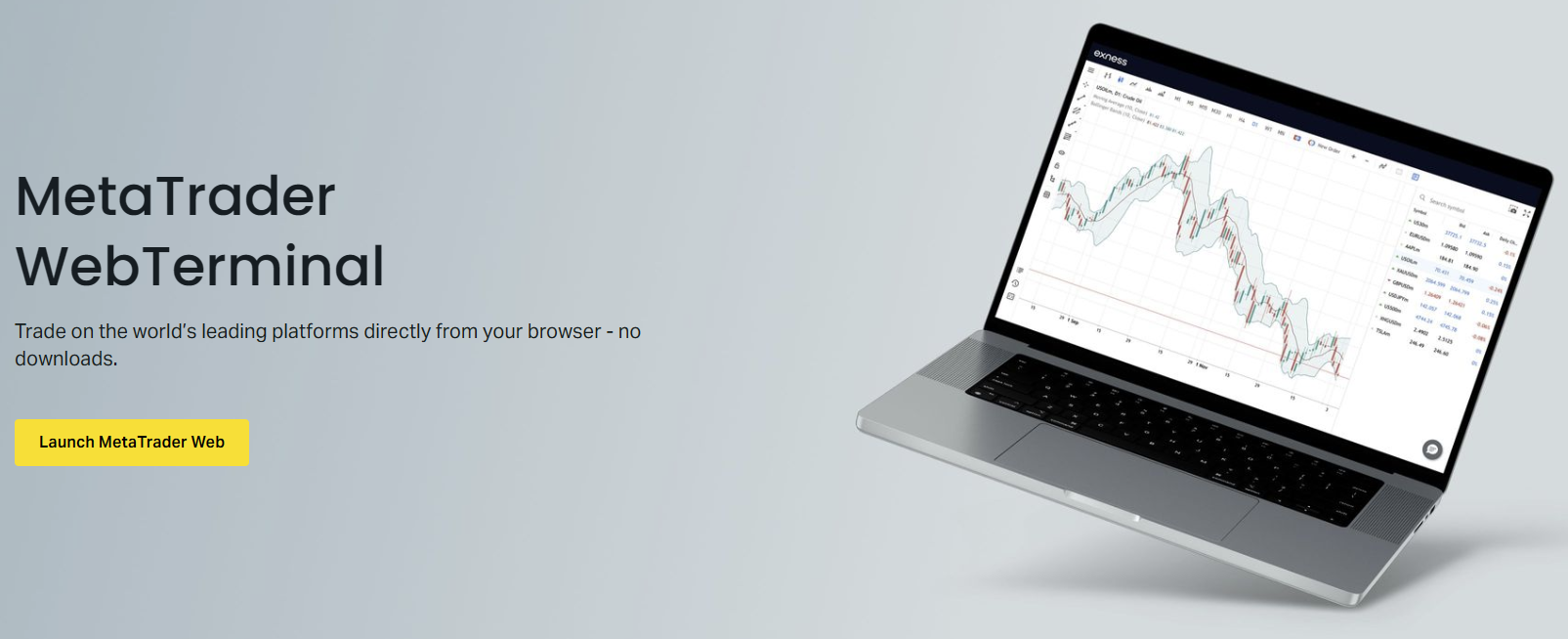
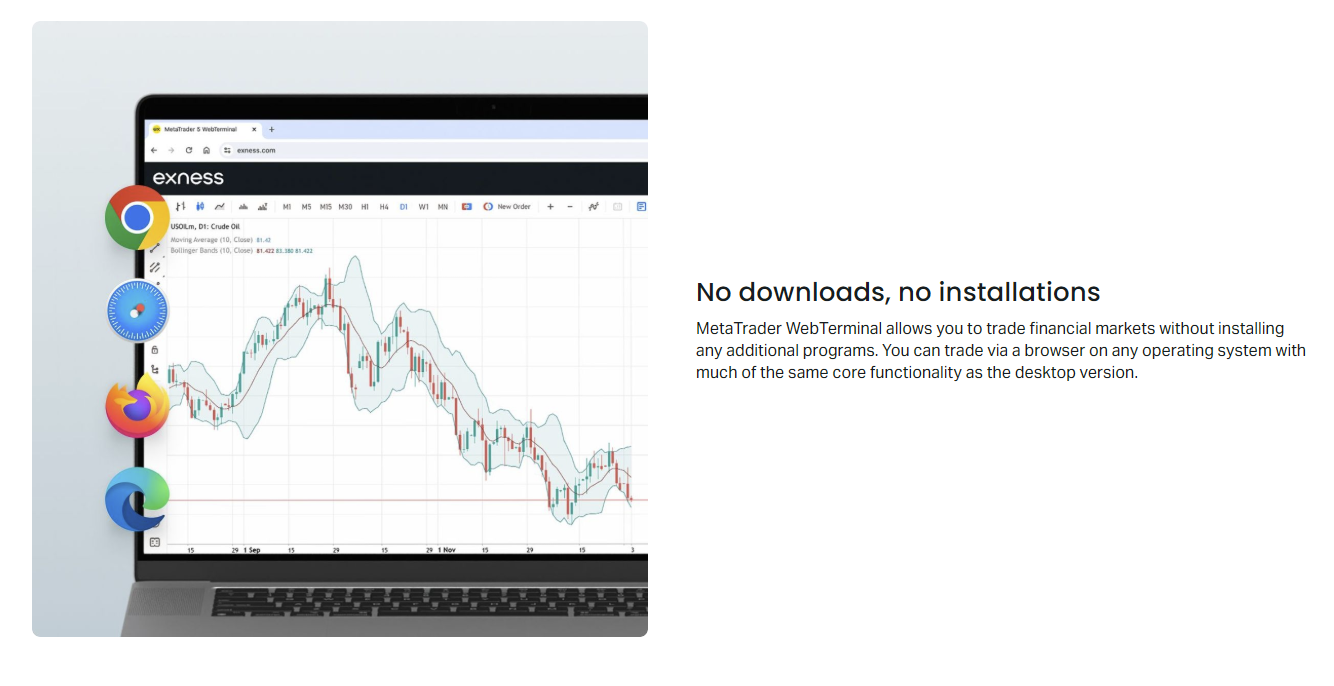
Exness WebTrader is the broker's proprietary browser-based trading terminal. It runs directly in a web browser without requiring any software installation, making it accessible from virtually any device with an internet connection. The platform was built to give traders a lightweight alternative to MetaTrader 4 and MetaTrader 5 while still providing access to the full range of Exness trading instruments and account types.
Contents
- 1. What Is Exness WebTrader
- 2. Key Features of the Web Terminal
- 3. Getting Started with Exness WebTrader
- 4. Trading Instruments Available
- 5. Charting and Analysis Tools
- 6. Order Types and Execution
- 7. Account Management in the Browser
- 8. Mobile Experience
- 9. Security and Reliability
- 10. Comparing WebTrader to MT4 and MT5
- 11. Limitations to Consider
- 12. Who Should Use Exness WebTrader
- 13. Final Assessment of Exness WebTrader
Many traders first encounter the web terminal when they log into their Exness Personal Area and click the trade button. There is no separate download page, no installer, and no need to manage updates. The interface loads in seconds and presents a clean workspace with charts, a market watch list, and order entry tools. For anyone who has used MetaTrader, the layout feels familiar but simplified.
This guide covers how the platform works, what it does well, where it falls short, and how to decide whether it fits your trading routine. The focus is on practical details — execution, charting, account management, and the differences that matter when you are deciding between the web terminal and the desktop or mobile apps.
What Is Exness WebTrader
Exness WebTrader is a web application served over HTTPS from Exness infrastructure. It connects to the same pricing and execution engines that power the broker's MetaTrader offerings. When you place an order in the web terminal, it routes through the same trade servers used by MT4 and MT5 clients. There is no separate liquidity pool or different pricing model for web users.
The terminal supports both Standard and Professional account types. That includes Standard, Standard Cent, Raw Spread, Zero, and Pro accounts. You can switch between accounts in the platform header without logging out. The same login credentials used for the Personal Area work for the web terminal — there is no separate password or two-factor prompt unless you have enabled 2FA on your Exness account globally.
Because it runs in the browser, the platform works on Windows, macOS, Linux, and Chrome OS. It also loads on tablets and phones, though the mobile experience is more limited than the dedicated Exness Trade app. The interface is responsive and adjusts to screen width, but complex chart layouts with multiple indicators can feel cramped on smaller displays.
One practical advantage is that the web terminal bypasses some corporate firewall restrictions that block the MetaTrader desktop applications. Since it uses standard web ports (80 and 443), it often works on networks where the MT4/MT5 terminals cannot establish a connection. This makes it a viable fallback for traders who travel or work in restricted IT environments.
Key Features of the Web Terminal
The feature set covers the essentials most traders need for day-to-day execution and analysis. It is not a feature-for-feature clone of MetaTrader, and that is by design. Exness stripped away the more obscure tools to keep the interface responsive and the learning curve short.
- Real-time streaming quotes for all Exness instruments
- Multiple chart types: candlestick, bar, line, and Heikin Ashi
- Nine built-in timeframes from one minute to one month
- Over 30 technical indicators including moving averages, RSI, MACD, Bollinger Bands, and Ichimoku
- Drawing tools: trend lines, channels, Fibonacci retracements, and shapes
- One-click trading from the chart and from the market watch panel
- Market, limit, stop, and stop-limit order types
- Trailing stop and take-profit/stop-loss modification on open positions
- Economic calendar integrated into the platform
- Trading Central signals and technical analysis overlays
- Account summary with equity, margin, free margin, and margin level
- Deposit and withdrawal shortcuts to the Personal Area
The charting engine renders in HTML5 canvas and performs well with a moderate number of indicators. Loading five charts with three indicators each stays smooth on a modern laptop. Performance degrades if you open dozens of charts simultaneously — a limitation of browser memory management rather than the platform itself. For heavy multi-chart setups, the desktop MetaTrader terminals remain more stable.
Getting Started with Exness WebTrader
Accessing the terminal takes two steps. First, log into your Exness Personal Area at exness.com. Second, click the "Trade" button next to any live or demo account. The web terminal opens in a new tab. There is no separate URL to bookmark — the session is tied to your authenticated Personal Area session.
If you have multiple accounts, a dropdown in the top toolbar lets you switch between them. The platform remembers the last account you used. Demo accounts are fully functional in the web terminal and use the same pricing feed as live accounts. This makes it easy to test the interface before committing real capital.
- Log into your Exness Personal Area
- Locate the account you want to trade (live or demo)
- Click the green "Trade" button beside the account number
- Allow pop-ups if your browser blocks the new tab
- The terminal loads — select instruments from Market Watch to start charting
First-time users should spend a few minutes adjusting the default layout. The Market Watch panel can be docked left, right, or hidden. Charts can be arranged in tabs or tiled. Right-click a chart to change timeframe, chart type, or add indicators. The settings gear icon opens preferences for color scheme, one-click trading confirmation, and sound alerts.
One detail that catches new users: the web terminal does not support expert advisors (EAs) or custom indicators written in MQL4/MQL5. If your strategy depends on automated scripts, you will need the desktop MetaTrader terminals or the Exness VPS service. The web platform is strictly manual execution and visual analysis.
Trading Instruments Available
Every instrument offered by Exness is tradable through the web terminal. The Market Watch list groups symbols by asset class, and you can create a custom favorites list by starring individual pairs. The search box filters by name, so typing "gold" or "XAU" brings up XAUUSD immediately.
Scroll horizontally to see all columns
| Asset Class | Examples | Typical Spread (Standard) | Trading Hours |
|---|---|---|---|
| Major Forex | EURUSD, GBPUSD, USDJPY | From 0.3 pips | 24/5 |
| Minor Forex | EURGBP, AUDJPY, CADCHF | From 0.5 pips | 24/5 |
| Exotic Forex | USDTRY, EURZAR, USDMXN | From 3 pips | 24/5 |
| Metals | XAUUSD, XAGUSD, XPTUSD | From 0.5 pips (gold) | 24/5 with daily break |
| Energies | USOIL, UKOIL, XNGUSD | From 3 pips | Nearly 24/5 |
| Indices | US30, US500, USTEC, DE40 | From 0.4 points | Follows exchange hours |
| Stocks | AAPL, TSLA, AMZN, NVDA | From 0.1% commission | Exchange hours only |
| Cryptocurrencies | BTCUSD, ETHUSD, LTCUSD | From 0.5% spread | 24/7 |
Spreads and commissions match what you see on the equivalent MetaTrader account. A Raw Spread account in the web terminal shows the same near-zero spreads with the same commission per lot. There is no markup for using the browser platform. Swap rates are also identical and visible in the symbol specification dialog (right-click a symbol in Market Watch → Specification).
Charting and Analysis Tools
The charting package is the strongest part of the web terminal. It uses a custom rendering engine built on WebGL for hardware acceleration. Zooming and panning feel responsive, and candles redraw cleanly when you change timeframes. You can open up to 16 charts in a grid layout, though four to six is more practical on a standard monitor.
- Timeframes: M1, M5, M15, M30, H1, H4, D1, W1, MN
- Chart types: Candles, Bars, Line, Heikin Ashi, Area
- Indicators: Trend, Oscillators, Volatility, Volume, Bill Williams, Custom
- Drawing tools: Lines, Channels, Gann, Fibonacci, Elliott Wave, Shapes, Text
- Templates: Save and load chart templates (stored locally)
- Crosshair: Price, time, and bar index readout
- Data export: Not available in web terminal
Indicator configuration opens in a modal dialog with input parameters, colors, and visualization options. You can add the same indicator multiple times with different settings — for example, two moving averages with periods 50 and 200. The indicator list shows active indicators on the current chart with a toggle to hide or remove each one.
The charting is good enough for discretionary technical analysis. It is not a replacement for TradingView if you rely on custom Pine Script indicators or multi-symbol layouts.
Trading Central integration adds a layer of automated pattern recognition and analyst commentary. When enabled, the platform overlays support/resistance levels, chart patterns (triangles, wedges, head and shoulders), and short-term directional signals on the chart. A side panel shows the rationale behind each signal. This feature is free for all Exness clients and works across all account types.
Order Types and Execution
Order entry is straightforward. Click "New Order" in the toolbar, right-click a chart and select "Trade", or double-click a symbol in Market Watch. The order dialog lets you choose symbol, volume, order type, stop loss, take profit, and deviation (slippage tolerance). One-click trading places market orders with a single click on the bid/ask buttons in the chart corner or Market Watch.
- Market Execution — fills at the next available price
- Buy Limit / Sell Limit — pending orders at a better price
- Buy Stop / Sell Stop — pending orders at a worse price
- Buy Stop Limit / Sell Stop Limit — stop-triggered limit orders
- Stop Loss and Take Profit — set at order entry or modified later
- Trailing Stop — follows price at a fixed distance in points
Execution speed is comparable to the desktop terminals because the order routing is identical. Exness publishes execution statistics showing median execution times under 100 milliseconds for major pairs. The web terminal adds negligible latency — the network hop from your browser to the Exness trade server is the same whether the request originates from MT4, MT5, or the web app.
Partial fills are supported. If liquidity is thin at your requested price, the order fills for the available volume and the remainder stays pending. This behavior matches MetaTrader. There is no "fill or kill" or "immediate or cancel" order type in the web terminal — those are only available via the FIX API or institutional connectivity.
Account Management in the Browser
The web terminal includes a compact account dashboard showing balance, equity, margin, free margin, and margin level in real time. Open positions and pending orders appear in a tabbed panel at the bottom. You can modify or close positions directly from this panel — right-click a position to adjust stop loss, take profit, or trailing stop, or click the "X" to close at market.
Deposit and withdrawal buttons open the Personal Area in a new tab. The web terminal does not process payments directly — it hands off to the secure Personal Area where all payment methods, limits, and verification steps are handled. This separation keeps the trading interface lightweight and avoids duplicating the complex payment logic.
- Real-time equity and margin updates
- Position list with unrealized P/L, swap, and commission
- Pending order queue with price and expiration
- Trade history filterable by date, symbol, and type
- Account switching without re-login
- Leverage display (fixed per account, not adjustable in terminal)
One limitation: you cannot change account leverage from the web terminal. Leverage adjustments must be done in the Personal Area under account settings. The same applies to converting between account types (e.g., Standard to Raw Spread) — those requests go through the client area and may require support approval.
Mobile Experience
The web terminal loads on mobile browsers and the layout adapts to portrait and landscape orientations. On phones, the Market Watch collapses into a bottom sheet, charts go full-screen, and the order panel slides up from the bottom. It is usable for checking positions, closing trades, or placing a quick order when you are away from your desk.
However, the mobile web experience is not a substitute for the Exness Trade app. The native app offers push notifications, biometric login, offline chart caching, and a more touch-optimized interface. The web terminal on mobile lacks gesture controls for chart navigation (pinch-to-zoom works, but swipe-to-pan is inconsistent across browsers). Battery drain is also higher because the browser keeps a persistent WebSocket connection alive.
Security and Reliability
The web terminal runs over TLS 1.2+ with HSTS and secure cookie flags. Session cookies are HttpOnly and SameSite=Strict. Authentication relies on the Personal Area session — there is no separate login form in the terminal itself. If your Personal Area session expires, the terminal prompts you to re-authenticate.
Two-factor authentication (2FA) configured in the Personal Area protects the web terminal automatically. Supported methods include Google Authenticator, Authy, SMS, and email codes. There is no option to disable FA for the terminal only — it is account-wide.
- TLS encryption for all data in transit
- No credentials stored in browser local storage
- Session timeout after 30 minutes of inactivity
- Automatic logout when Personal Area session ends
- IP allowlist configurable in Personal Area security settings
- Login history and active sessions visible in Personal Area
Reliability is tied to Exness infrastructure uptime. The web terminal shares the same trade servers as MT4/MT5, so platform-wide outages affect all platforms simultaneously. Scheduled maintenance windows (usually weekends) are announced in advance. During maintenance, the terminal displays a notice and prevents new orders while allowing you to view existing positions.
Client funds are segregated and protected under the same regulatory framework regardless of which platform you use. The web terminal does not introduce additional counterparty risk — it is simply a different front end to the same brokerage backend.
Comparing WebTrader to MT4 and MT5
Choosing between the web terminal and the MetaTrader platforms comes down to workflow. The table below summarizes the practical differences that affect daily trading.
Scroll horizontally to see all columns
| Feature | Exness WebTrader | MT4 | MT5 |
|---|---|---|---|
| Installation | None (browser) | Desktop install | Desktop install |
| Expert Advisors | Not supported | Full support | Full support |
| Custom Indicators | Not supported | MQL4 | MQL5 |
| Chart Sync Across Devices | No (local only) | Via profile/Cloud | Via profile/Cloud |
| Timeframes | 9 | 9 | 21 |
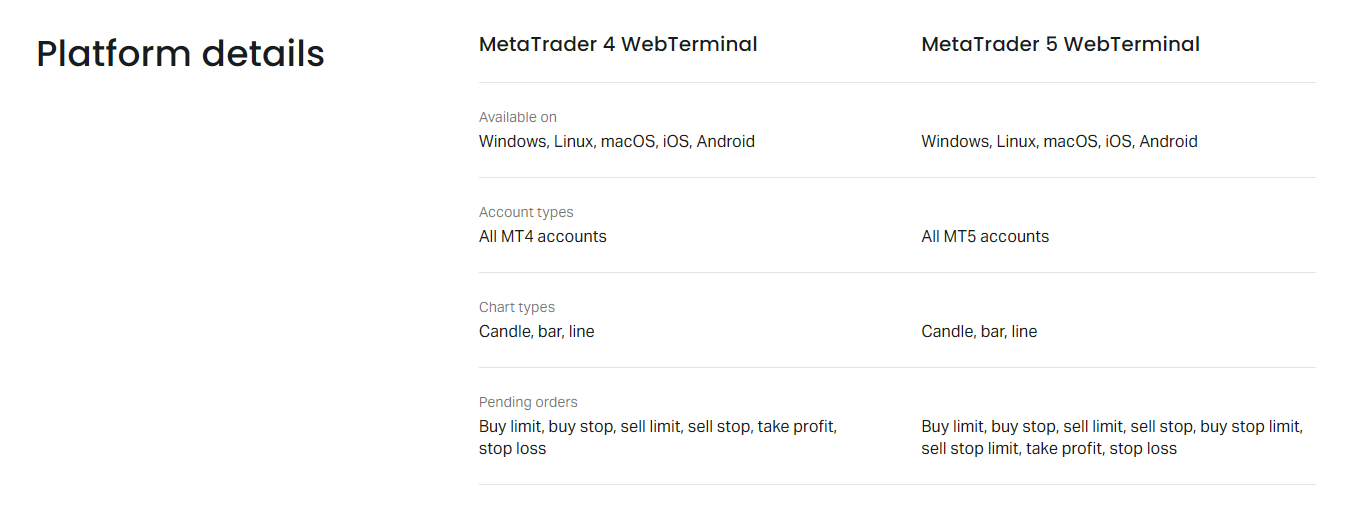
| Pending Order Types | 6 | 4 | 6 |
| Depth of Market | No | No | Yes |
| Economic Calendar | Built-in | Add-on required | Built-in |
| Trading Central Signals | Built-in | Plugin required | Plugin required |
| Mobile App | Browser only | Native iOS/Android | Native iOS/Android |
| VPS Compatibility | N/A | Full | Full |
| Multi-Account Manager | No | Via MAM software | Via MAM software |
For discretionary traders who analyze charts manually and place their own orders, the web terminal covers 90% of what MT4/MT5 offer with zero setup. For algorithmic traders, copy trading followers, or anyone managing multiple accounts via MAM/PAMM, the desktop terminals (or VPS-hosted instances) are necessary.
Limitations to Consider
The web terminal is not a full replacement for everyone. These are the constraints that matter in practice:
- No automated trading — EAs, scripts, and copy trading signals cannot run in the browser
- No custom indicators — limited to the built-in library of 30+ indicators
- Chart layouts do not sync across devices or browsers
- No strategy tester or backtesting environment
- Limited keyboard shortcuts compared to desktop terminals
- Browser memory limits restrict the number of concurrent charts
- No offline mode — requires active internet connection
- Mobile browser experience is inferior to native apps
- Cannot manage VPS or install custom tools remotely
- No API access for third-party integrations
If any of these are dealbreakers, the web terminal becomes a supplementary tool rather than your primary platform. Many traders use it as a secondary access point — checking positions on a work laptop, placing a quick hedge while traveling, or testing a new strategy on a demo account without installing MetaTrader.
Who Should Use Exness WebTrader
The platform fits a few clear profiles. Discretionary day traders and swing traders who rely on price action, standard indicators, and manual execution will find it complete. Traders who value zero-install access — whether because they switch devices frequently, use locked-down corporate machines, or simply prefer not to maintain software — get a capable terminal with no friction.
New traders benefit from the reduced complexity. There are no navigator panels, no expert advisor folders, no strategy tester, and no confusing context menus. The learning curve is shorter, which means less time figuring out the software and more time learning markets.
Algorithmic traders, professional money managers using MAM/PAMM, and anyone who depends on custom MQL tools should stick with MT4 or MT5. The web terminal does not support that ecosystem, and no amount of workarounds will bridge the gap.
Frequently Asked Questions
Does Exness WebTrader work on Safari and Firefox?
Yes. The terminal supports current versions of Chrome, Firefox, Safari, and Edge. Chrome and Firefox tend to have the best WebGL performance for chart rendering.
Can I use expert advisors with the web terminal?
No. The web terminal does not support EAs, custom indicators, or scripts written in MQL4/MQL5. Automated trading requires the desktop MetaTrader platforms or a VPS.
Are spreads different on WebTrader compared to MT4?
No. Spreads, commissions, and swap rates are identical across all Exness platforms for the same account type. The web terminal connects to the same pricing engine.
Do my chart templates save if I clear browser cache?
No. Chart layouts, indicators, and drawings are stored in browser local storage. Clearing cache or site data removes them. They do not sync to the cloud or across devices.
Can I deposit and withdraw directly in the web terminal?
The terminal has deposit and withdrawal buttons that open the Personal Area in a new tab. Payment processing happens in the Personal Area, not inside the trading terminal.
Is there a standalone URL for Exness WebTrader?
No. You access it by logging into your Personal Area and clicking the Trade button next to an account. The session is tied to your authenticated Personal Area session.
Does the web terminal support hedging and netting modes?
Account hedging/netting mode is set at the account level in the Personal Area. The web terminal respects whichever mode your account uses — it does not let you switch modes.
Final Assessment of Exness WebTrader
Exness WebTrader delivers on its core promise: a capable, no-install trading terminal that runs anywhere with a browser. It covers the essentials — real-time quotes, solid charting, standard order types, and full instrument access — without the bloat of features most discretionary traders never use. The execution quality matches the desktop platforms because it uses the same backend. For manual traders who value accessibility over automation, it is a legitimate primary platform. For algorithmic traders, it remains a convenient secondary access point. The main trade-off is the lack of custom tools and cloud sync, which matters only if your workflow depends on them.