
Trading Platforms
Exness App Download: Complete Guide for PC and Mobile
Learn how to get the latest Exness app version for desktop and mobile trading.

Senior Forex Trader & Market Analyst
Daniel Chen is an experienced forex trader and financial market analyst with over 15 years of experience in currency trading. He specializes in technical analysis, risk management, and developing practical trading strategies to help traders make informed decisions.
The Exness app gives traders a direct line to the markets from almost any device. Whether you prefer a full desktop setup or need to check positions from a phone, the broker provides native applications for Windows, macOS, iOS, and Android. This guide walks through every download option, installation step, and platform difference so you can get running without guesswork.
Contents
- 1. Exness Trading App Overview
- 2. Downloading Exness App for Windows PC
- 2.1. System Requirements for Windows
- 2.2. Installation Steps for Windows 10 and 11
- 3. Exness App for Mac Users
- 4. Mobile App Download for iOS and Android
- 4.1. iOS App Store Installation
- 4.2. Android APK and Play Store Options
- 5. Exness Web Terminal Alternative
- 6. MetaTrader 4 and 5 Integration
- 7. Account Management Through the App
- 8. Trading Tools and Features
- 9. Security and Data Protection
- 10. Troubleshooting Common Download Issues
- 11. Updating the Exness App
- 12. Final Assessment of Exness App Download
Most traders start by searching for the Exness app download page, but the right file depends on your operating system and whether you want the proprietary Exness Trade app or the MetaTrader 4 and 5 terminals. Each has distinct features, and mixing them up wastes time. Below you will find the exact links, system requirements, and common pitfalls for every supported platform.
Exness also offers a browser-based Web Terminal that requires no installation. It works well for quick access on shared or restricted computers, though it lacks some advanced charting tools found in the desktop apps. Understanding when to use each option helps you match the tool to your workflow.
Exness Trading App Overview
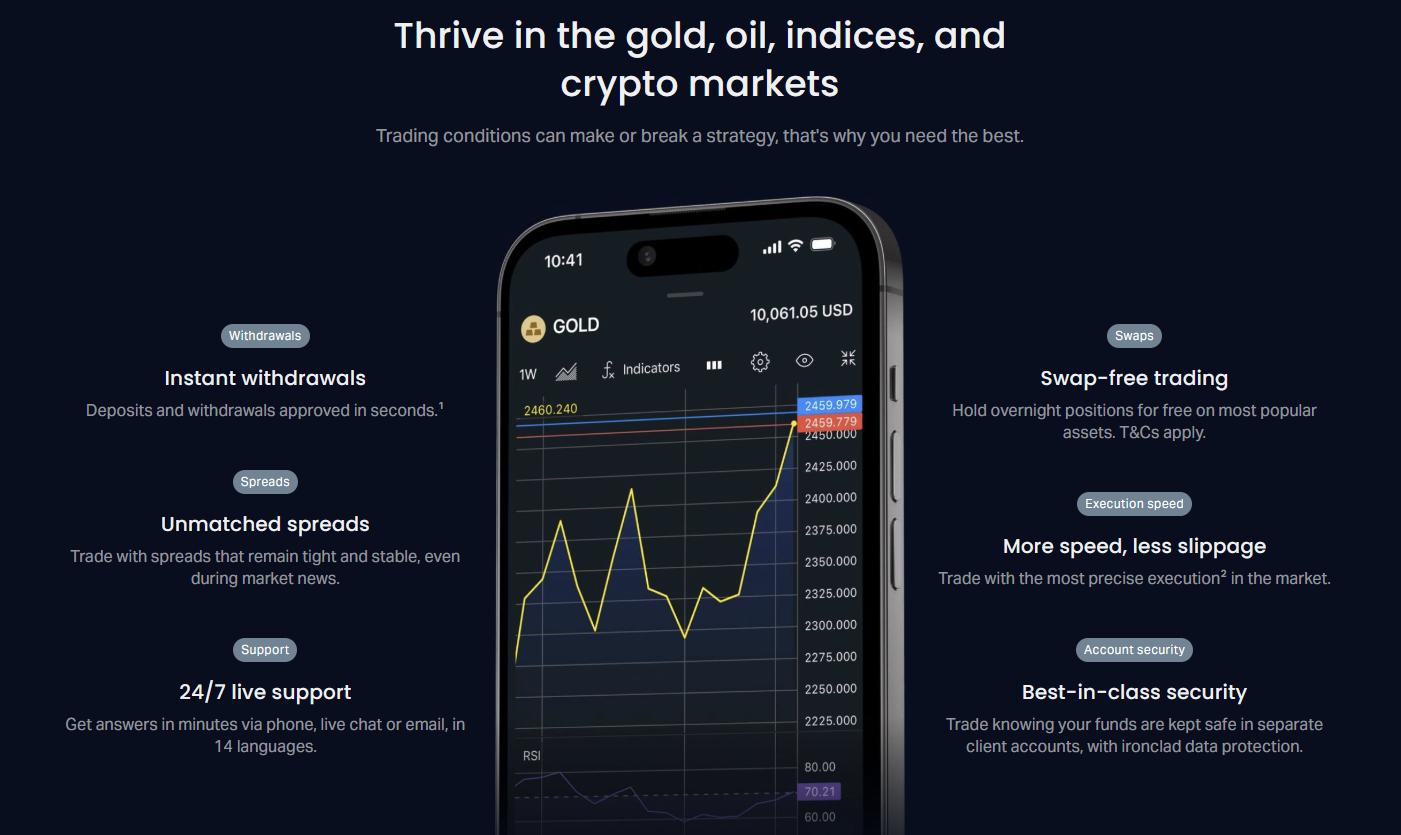
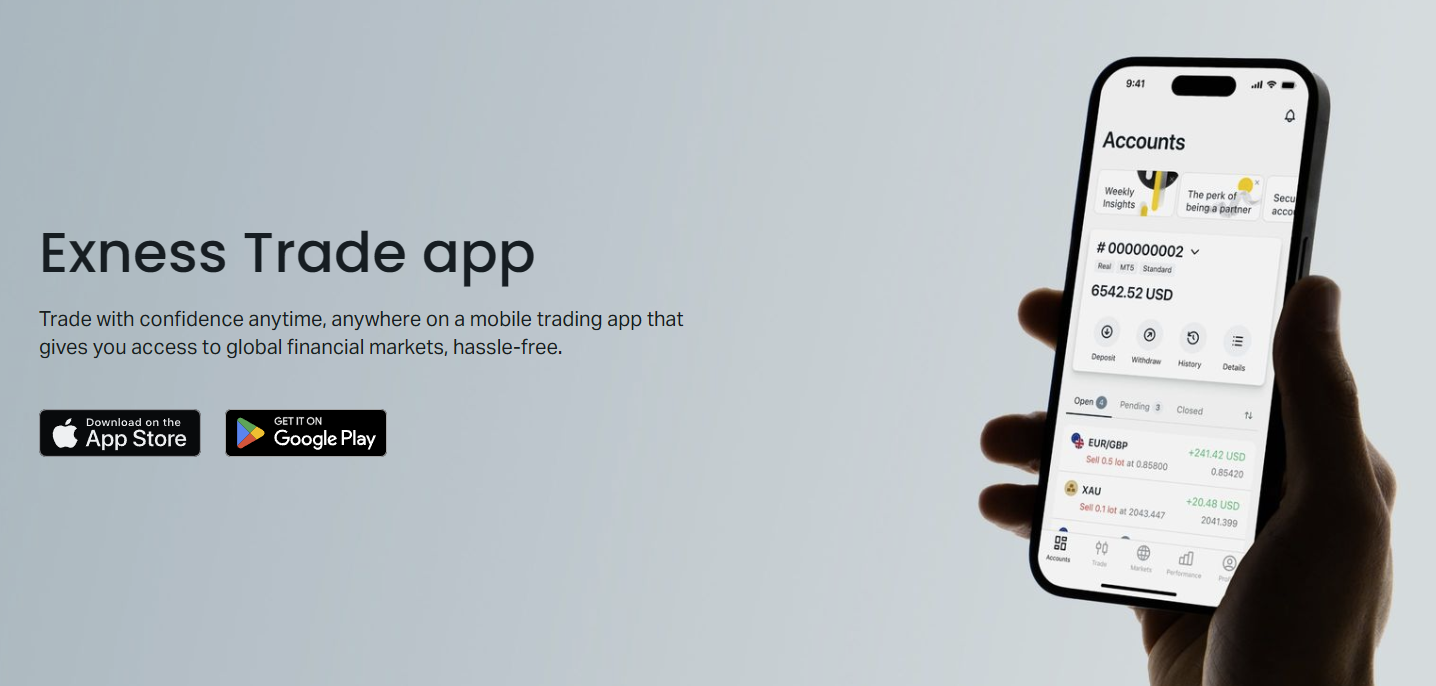
The Exness Trade app is the broker's own mobile-first platform. It combines account management, deposits, withdrawals, and trading in one interface. Unlike MetaTrader, it does not support custom indicators or expert advisors, but it excels at speed and simplicity. The app shows real-time quotes, one-tap trading, and built-in economic calendar alerts.
For desktop users, Exness provides a dedicated Windows installer and a macOS package. Both wrap the same trading engine used in the mobile version, so your watchlists, alerts, and chart templates sync across devices when you log in with the same credentials. The desktop apps also support multiple monitor layouts and keyboard shortcuts that mobile cannot.
MetaTrader 4 and 5 remain available as separate downloads. Many experienced traders prefer them for algorithmic trading, deep backtesting, and the massive library of third-party indicators. Exness hosts its own MT4 and MT5 builds with pre-configured server settings, so you do not need to enter IP addresses manually.
Downloading Exness App for Windows PC
The Windows installer is a single .exe file, roughly 120 MB. It runs on Windows 10 and 11, both 64-bit only. Exness no longer provides a 32-bit build. The installer places a shortcut on the desktop and in the Start menu. First launch prompts for your login credentials or offers a demo account creation flow.
System Requirements for Windows
Minimum specs are modest: a dual-core 2 GHz processor, 4 GB RAM, and 500 MB free disk space. A dedicated GPU is not required, but a DirectX 11 compatible graphics card improves chart rendering when you run multiple charts with heavy indicators. Internet stability matters more than raw speed; a wired connection or strong Wi-Fi prevents order latency.
- OS: Windows 10 64-bit (version 1909 or later) or Windows 11 64-bit
- CPU: 2 GHz dual-core or better
- RAM: 4 GB minimum, 8 GB recommended for multi-chart setups
- Storage: 500 MB for installation, plus space for log files
- Display: 1366 x 768 minimum, 1920 x 1080 recommended
- Network: stable broadband, latency under 100 ms to Exness servers
Installation Steps for Windows 10 and 11
Download the installer from the official Exness website or your Personal Area. Avoid third-party sites; they sometimes bundle outdated versions or adware. Run the .exe as administrator if you install to Program Files, though the default user-level install works fine without elevated rights. Follow the wizard, accept the license, and choose the destination folder. The installer downloads the latest runtime components automatically, so an active internet connection is required during setup.
After installation, launch the app and log in with your Exness credentials. If you have two-factor authentication enabled, enter the code from your authenticator app. The first sync downloads your account list, watchlists, and chart templates. This usually takes under 30 seconds on a decent connection.

Windows Defender or third-party antivirus may flag the installer on first run because it is not widely distributed through the Microsoft Store. This is a false positive. You can safely allow it. If your corporate IT policy blocks unsigned executables, use the Web Terminal instead or request an exception.
Exness App for Mac Users
The macOS package is a .dmg file, notarized by Apple, so Gatekeeper allows it without extra steps. It supports macOS 11 Big Sur and later on both Intel and Apple Silicon (M1, M2, M3) Macs. The app runs natively on Apple Silicon; no Rosetta translation layer is needed. Installation is the standard drag-to-Applications routine.
Feature parity with Windows is nearly identical. The only notable difference is the menu bar integration: the Mac version places account switching and notification controls in the macOS menu bar rather than inside the window. Keyboard shortcuts follow macOS conventions (Command instead of Control). Multi-monitor support works well, though full-screen spaces behave differently than Windows virtual desktops.
Mobile App Download for iOS and Android
The iOS app lives on the App Store. Search "Exness Trade" or use the direct link from the Exness website. It requires iOS 14 or later and works on iPhone and iPad. The iPad version supports split view and slide-over multitasking. Face ID and Touch ID login are supported for quick access.
iOS App Store Installation
Tap Get, authenticate with Face ID or Apple ID password, and wait for the download. The app is about 80 MB. First launch asks for notification permission — enable it if you want price alerts and margin call warnings. Log in with your Exness credentials. The app does not store passwords; it uses a secure token that refreshes automatically.
Android APK and Play Store Options
Android users have two paths: Google Play Store or the direct APK from the Exness site. The Play Store version auto-updates and passes Google Play Protect scans. The APK version is useful in regions where the Play Store is restricted or when you need a specific version for compatibility testing. Both builds are signed with the same certificate, so you can switch between them without losing data.
To install the APK, enable "Install unknown apps" for your browser or file manager in Settings > Apps > Special access. Download the APK, open it, and confirm installation. The app requests storage permission for chart screenshots and log exports. It does not request contacts, location, or microphone access.
Android 8 Oreo is the minimum supported version. The app runs on phones, tablets, and Chrome OS devices with Android app support. On foldables and large tablets, the layout adapts to show more chart area and a persistent watchlist panel.
Exness Web Terminal Alternative
The Web Terminal loads in any modern browser — Chrome, Firefox, Safari, Edge — with no installation. It shares the same backend as the desktop apps, so prices, spreads, and execution speed are identical. The interface is lighter: fewer drawing tools, no custom indicator support, and a maximum of four chart windows. It works well for checking positions, closing trades, or placing orders when you cannot install software.
Login uses your Exness credentials with optional 2FA. The terminal remembers your layout per browser, not per device. If you switch from Chrome on Windows to Safari on Mac, you reset to the default workspace. This can be annoying if you rely on a specific multi-chart setup.
One advantage: the Web Terminal works on Linux, Chrome OS, and even some mobile browsers without an app install. It also bypasses corporate firewall rules that block executable downloads. For occasional access, it is often the fastest route.
MetaTrader 4 and 5 Integration
Exness hosts custom MT4 and MT5 builds on its download page. These builds come with the correct server addresses pre-filled, so you select "Exness-MT4 Trial" or "Exness-MT5 Real" from the server dropdown without typing IPs. The installers are standard MetaQuotes packages, about 300 MB each.
You can run MT4, MT5, and the Exness Trade app simultaneously on the same account. Positions opened in one appear in the others after a brief sync. However, hedging mode differs: MT4 always allows hedging; MT5 defaults to netting but can be switched per account. The Exness Trade app follows the account setting configured in your Personal Area.
Scroll horizontally to see all columns
| Feature | Exness Trade App | MT4 | MT5 | Web Terminal |
|---|---|---|---|---|
| Custom Indicators | No | Yes | Yes | No |
| Expert Advisors | No | Yes | Yes | No |
| Cross-Device Sync | Yes | Manual | Manual | Per Browser |
| One-Tap Trading | Yes | Via Panel | Via Panel | Yes |
| Economic Calendar | Built-in | External | Built-in | External |
| Multi-Monitor | Desktop Only | Yes | Yes | Limited |
Account Management Through the App
The Exness Trade app includes a full account management suite. You can open new real or demo accounts, switch leverage, enable swap-free status, and request withdrawals without leaving the app. Deposits support cards, e-wallets, and local bank transfers depending on your region. The app shows pending, processing, and completed transactions with timestamps.
Verification documents upload directly from the phone camera or file picker. The KYC review status updates in real time. Push notifications alert you when verification completes or when additional documents are needed. This is faster than the web portal for most users because the camera integration is smoother.
Trading Tools and Features
The app includes 15 chart types, 30 built-in indicators, and 20 drawing tools. You can save chart templates and apply them to any symbol. The economic calendar filters by currency and impact level, with push alerts for high-impact events. Trading Central signals appear as overlays on charts when enabled.
Order types: market, limit, stop, stop-limit, and trailing stop. OCO (one-cancels-other) is not natively supported in the Exness Trade app; use MT4 or MT5 for that. Partial close works by dragging the volume slider on an open position. The profit calculator, margin calculator, and pip value calculator are built into the trade ticket.
The built-in calculators save a surprising amount of time. You no longer need to switch to a browser or spreadsheet to check margin requirements before sizing a position.
Security and Data Protection
All Exness apps use TLS 1.3 for network traffic. Login credentials are never stored locally; the app keeps an encrypted OAuth token that rotates every 30 days. Biometric unlock (Face ID, Touch ID, fingerprint) encrypts the token with the device secure enclave or TPM. On desktop, the token is encrypted with DPAPI on Windows and Keychain on macOS.
Two-factor authentication supports TOTP (Google Authenticator, Authy, Microsoft Authenticator) and SMS. The app prompts for 2FA on new device login and on sensitive actions like withdrawal requests or leverage changes. You can mark a device as trusted for 30 days to reduce prompts.
Troubleshooting Common Download Issues
If the Windows installer fails with a network error, check that your firewall or antivirus is not blocking the downloader. The installer contacts cdn.exness.com and api.exness.com on port 443. Corporate proxies that inspect SSL traffic often break the download. Try a personal hotspot or request IT to whitelist those domains.
On macOS, a "cannot be opened because the developer cannot be verified" message means the notarization check failed. Re-download the .dmg from the official site; a corrupted download is the usual cause. Do not disable Gatekeeper globally — it protects against actual malware.
Android APK installs may fail if you have a version conflict. Uninstall the Play Store version first, or vice versa. Both share the same package name (com.exness.trade), so they cannot coexist. Your data remains on the server, so nothing is lost.
iOS users in some regions may not see the app in the App Store due to local financial regulations. The direct link from the Exness website redirects to the correct regional store. If that fails, the Web Terminal is the fallback.
Scroll horizontally to see all columns
| Error | Platform | Likely Cause | Fix |
|---|---|---|---|
| Network error during install | Windows | Firewall/proxy blocking CDN | Whitelist cdn.exness.com or use hotspot |
| Developer cannot be verified | macOS | Corrupted download | Re-download .dmg from official site |
| App not installed | Android | Version conflict (Play vs APK) | Uninstall other version first |
| App not found in store | iOS | Regional restriction | Use direct link or Web Terminal |
| Login fails with correct password | All | 2FA code expired or wrong | Resync authenticator app time |
Most download problems are not bugs — they are network policy or version conflicts. A clean re-download from the official source fixes 90 percent of cases.
Updating the Exness App
Windows and macOS apps check for updates on launch and prompt to install. The update is a delta patch, usually under 20 MB. You can defer it, but older versions eventually lose server compatibility. The app shows a banner when a mandatory update is required.
Mobile apps update through the App Store or Play Store. Enable auto-update in store settings to avoid manual checks. The APK version does not auto-update; you must download the new APK from the Exness site. The app warns you when the installed APK is more than two versions behind.
Final Assessment of Exness App Download
The Exness app ecosystem covers every common device with native builds that feel purpose-built rather than wrapped web views. The proprietary Trade app wins on convenience: one-tap trading, integrated account management, and seamless cross-device sync. MetaTrader 4 and 5 remain the choice for automation and deep technical analysis. The Web Terminal fills the gap when installation is impossible. Download from the official site or your Personal Area, verify the file signature if you are cautious, and you will be trading in minutes.
Frequently Asked Questions
Where do I download the official Exness app for Windows?
Download the Windows installer from the Exness website download page or your Personal Area. The file is named ExnessTradeSetup.exe and is digitally signed by Exness.
Can I use the Exness app on Linux?
There is no native Linux build. Use the Web Terminal in Chrome or Firefox, or run the Windows version via Wine. Some traders use a Windows VPS for MT4/MT5 on Linux.
Does the Exness Trade app support expert advisors?
No. The proprietary Exness Trade app does not support custom indicators or expert advisors. For algorithmic trading, use MetaTrader 4 or 5.
How do I update the Exness app on Android if I installed the APK?
The APK version does not auto-update. Visit the Exness download page on your phone, download the latest APK, and install it over the existing app. Your login and data remain intact.
Is the Exness app free to download?
Yes. All Exness apps — Trade app, MT4, MT5, and Web Terminal — are free. You only need an Exness account, which is also free to open.
Can I trade on the Exness app without verification?
You can deposit and trade on a demo account without verification. Real account withdrawals require completed KYC verification, which you can do inside the app.
What is the difference between Exness Trade app and MetaTrader?
Exness Trade app is a streamlined platform with built-in account management, one-tap trading, and cross-device sync. MetaTrader 4 and 5 support custom indicators, expert advisors, and advanced backtesting but require separate account management.