

Forex Trading Platforms
Exness Personal Area: Complete Guide to Account Management
Your dashboard for managing Exness trading accounts, funds, and preferences

Senior Forex Trader & Market Analyst
Daniel Chen is an experienced forex trader and financial market analyst with over 15 years of experience in currency trading. He specializes in technical analysis, risk management, and developing practical trading strategies to help traders make informed decisions.
The Exness Personal Area serves as the central control panel for everything related to your trading accounts. Whether you need to open a new account, deposit funds, withdraw profits, adjust leverage, or verify your identity, this dashboard handles it all. Most traders log in daily, yet many only scratch the surface of what the platform offers.
Contents
- 1. Dashboard Layout and Navigation
- 2. Creating and Managing Trading Accounts
- 3. Deposits and Payment Methods
- 4. Withdrawals and Processing Times
- 5. Internal Transfers Between Accounts
- 6. Account Verification and KYC
- 7. Security Settings and Two-Factor Authentication
- 8. Trading Analytics and Performance Tracking
- 9. Partner and IB Dashboard
- 10. Mobile App vs Web Personal Area
- 11. Troubleshooting Common Login Issues
- 12. Regional Differences and Restrictions
- 13. Managing Multiple Accounts Efficiently
- 14. Tax Reporting and Statement Generation
- 15. Final Assessment of Exness Personal Area
This guide walks through every major section of the Personal Area, explains how to complete common tasks, and highlights features that can save time or prevent mistakes. The information applies to both the web version and the mobile app, since they share the same core functionality.
If you have never logged in before, start at the Exness website and click the login button in the top right corner. Enter your registered email and password. If you enabled two-factor authentication, you will also need the code from your authenticator app or SMS. After a successful login, you land on the main dashboard showing all your trading accounts at a glance.
Dashboard Layout and Navigation
The dashboard uses a left sidebar for primary navigation and a top bar for account switching, notifications, and profile access. The center area changes based on the selected menu item. On mobile, the sidebar collapses into a hamburger menu, but the same sections exist.
- Accounts — list of all live and demo accounts with balances, equity, and quick actions
- Deposit — funding methods, limits, and processing times for your region
- Withdrawal — request withdrawals, view history, and check status
- Transfer — move funds between your own accounts instantly
- Verification — upload documents for identity and address confirmation
- Settings — security, notifications, API tokens, and partner links
- Analytics — trading statistics, performance charts, and risk metrics
- Partner — IB dashboard, referral links, and commission reports
Each section loads as a single-page application, so switching between them feels fast. The account selector at the top right lets you jump between accounts without returning to the main list. This is useful when you manage multiple strategies across different account types.
The dashboard also surfaces important alerts. Margin calls, stop-out warnings, verification requests, and promotion notifications appear as badges on the relevant menu items. You can dismiss most alerts, but verification and margin warnings persist until resolved.
Creating and Managing Trading Accounts
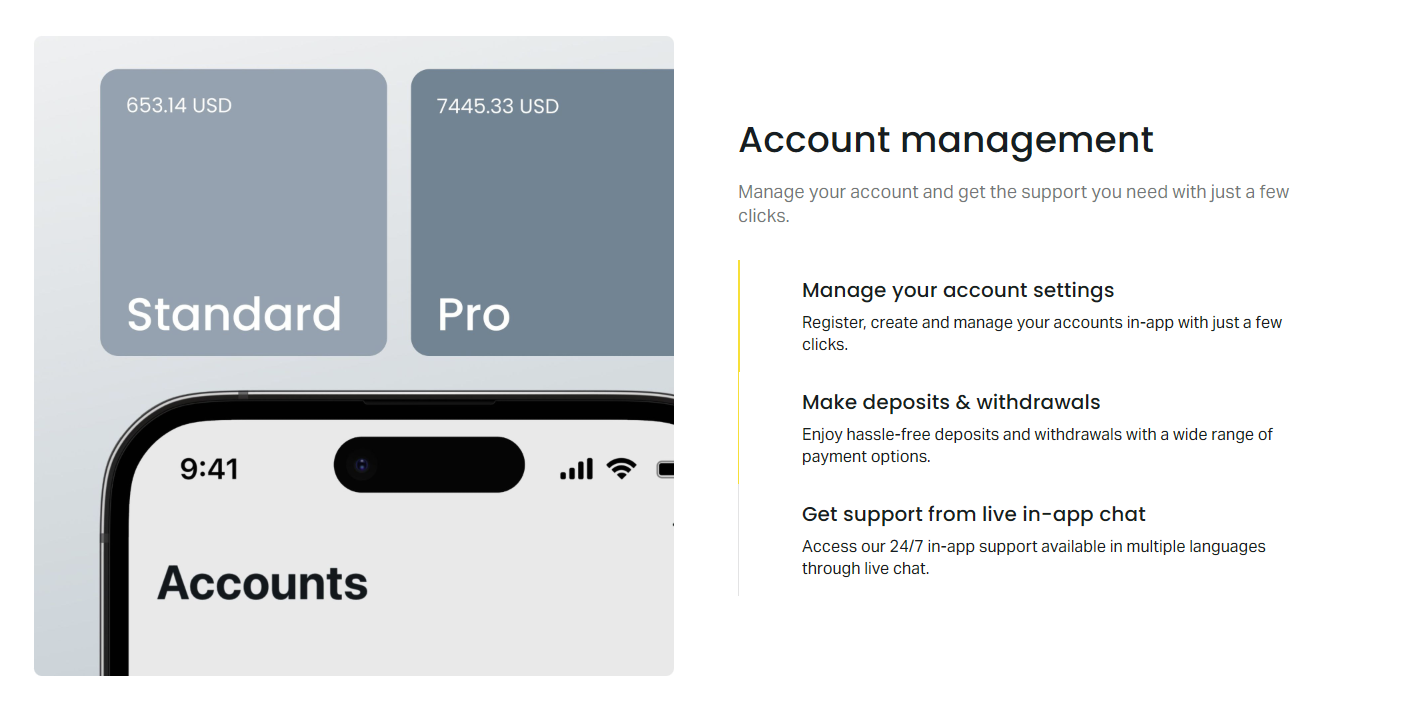
Opening a new account takes less than a minute from the Accounts tab. Click Open New Account, choose the account type, select your base currency, and set leverage. The platform recommends a default leverage based on the account type, but you can adjust it within allowed limits. Professional accounts offer higher leverage than Standard accounts.
Each account gets a unique login number (MT4/MT5 login) and server assignment. These credentials work in MetaTrader 4, MetaTrader 5, the Exness Web Terminal, and the mobile apps. The Personal Area shows the server name next to each account — for example, Exness-MT5-Real-7 or Exness-MT4-Demo-3.
Scroll horizontally to see all columns
| Account Type | Min Deposit | Max Leverage | Commission | Typical Spread EURUSD |
|---|---|---|---|---|
| Standard | $1 | 1:2000 | None | From 0.3 pips |
| Standard Cent | $1 | 1:2000 | None | From 0.3 pips |
| Pro | $200 | 1:2000 | None | From 0.1 pips |
| Raw Spread | $200 | 1:2000 | $3.5 per lot/side | From 0.0 pips |
| Zero | $200 | 1:2000 | $3.5 per lot/side | From 0.0 pips |
You can archive accounts you no longer use. Archiving hides them from the main list and MetaTrader login screens but preserves all history. Archived accounts can be restored later. To permanently close an account, contact support — the Personal Area does not have a self-service closure button for regulatory reasons.
Deposits and Payment Methods
The Deposit section shows every payment method available in your country of residence. Exness supports bank cards, electronic wallets, bank transfers, and local payment systems. The list updates automatically based on your verified address. If you move countries, you must re-verify your address to see the correct methods.
Most electronic methods process instantly. Bank cards typically take a few minutes. Bank transfers can take 1-3 business days depending on the bank and country. The Personal Area displays the exact minimum and maximum per transaction for each method, plus any fees. Exness does not charge deposit fees, but some payment providers may.
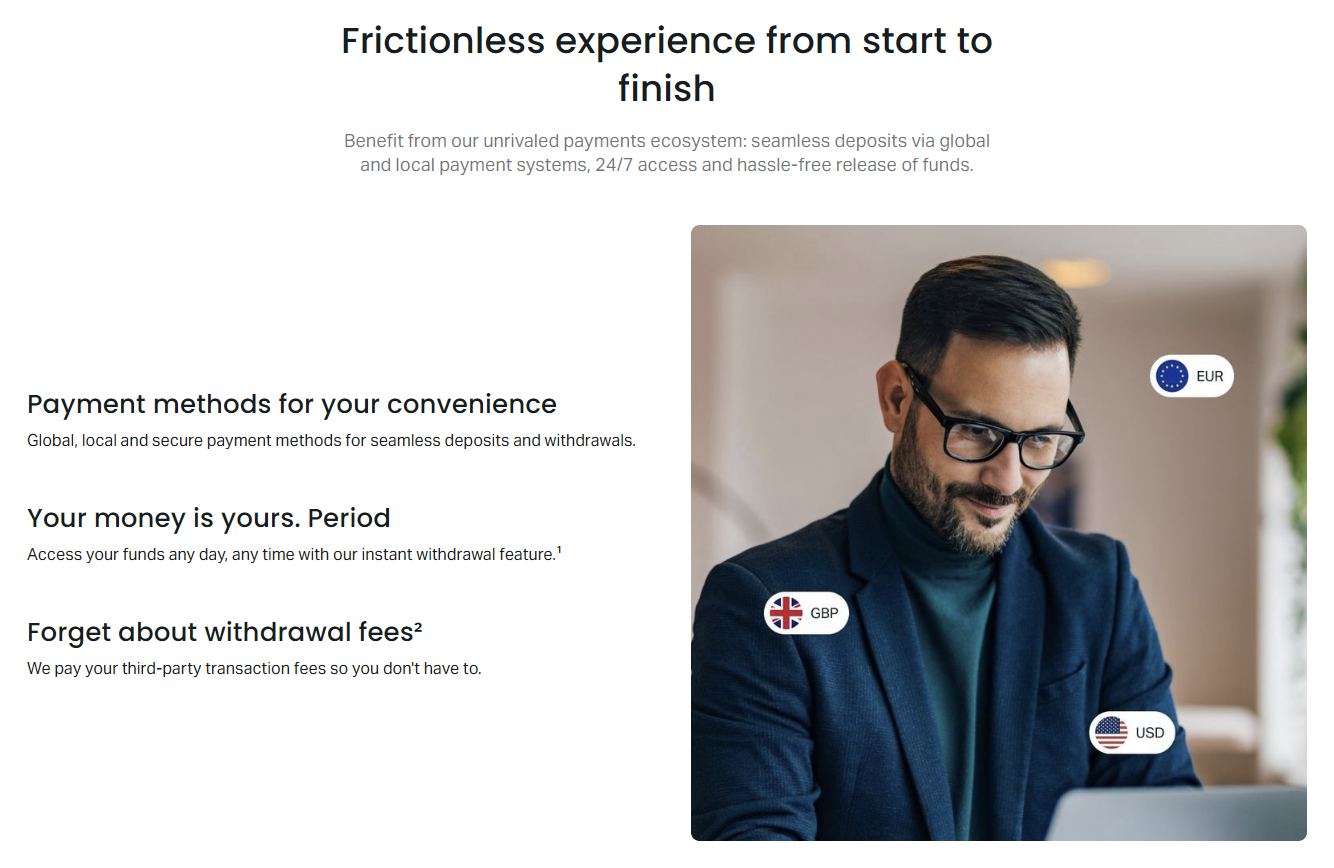
To deposit, select a method, enter the amount, and confirm. You will be redirected to the payment provider's page. After completing the payment, you return to the Personal Area and the funds appear in your account balance. The transaction ID and timestamp are recorded in the deposit history.
- Visa/Mastercard — instant, widely available
- Skrill, Neteller, WebMoney — instant, popular in Europe and CIS
- Perfect Money, Payeer — instant, common in certain regions
- Bank transfer — 1-3 days, higher limits
- Local methods (Pix, UPI, PromptPay, etc.) — instant, country-specific
- Cryptocurrency (USDT, BTC, ETH) — blockchain confirmation time varies
The Personal Area enforces a closed-loop policy: you must withdraw to the same method used for deposits, in the same currency, up to the deposited amount. Profits can be withdrawn to any verified method. This anti-money-laundering rule applies globally and cannot be bypassed.
Withdrawals and Processing Times
Withdrawals work similarly to deposits. Select the method, choose the account to withdraw from, enter the amount, and confirm. The Personal Area shows the available balance — equity minus margin used. You cannot withdraw more than the free margin.
Exness processes withdrawal requests 24/7, including weekends and holidays. Most electronic withdrawals complete within minutes. Bank card refunds take 1-14 business days depending on the issuing bank. Bank transfers take 1-5 business days. Cryptocurrency withdrawals depend on network congestion.
Scroll horizontally to see all columns
| Method | Exness Processing | Total Time to Receive |
|---|---|---|
| Electronic wallets | Instant to 1 hour | Instant to 1 hour |
| Bank cards | Instant to 1 hour | 1-14 business days |
| Bank transfer | Up to 24 hours | 1-5 business days |
| Cryptocurrency | Instant to 1 hour | Network dependent |
| Local payment systems | Instant to 1 hour | Instant to 1 hour |
If a withdrawal is delayed beyond the stated timeframe, check the transaction status in the withdrawal history. Statuses include Pending, Processing, Completed, and Rejected. Rejected withdrawals show a reason — usually insufficient free margin, unverified account, or mismatched payment details.
Internal Transfers Between Accounts
The Transfer section lets you move funds instantly between your own trading accounts. This is useful for allocating capital to different strategies, moving profits to a safer account, or meeting margin requirements on an account near stop-out. Transfers are free and settle immediately.
You can transfer between any two accounts registered under the same Personal Area. The base currencies may differ — the system converts at the current interbank rate with no markup. The conversion rate and fee (zero) are shown before confirmation.
- Select source account and destination account
- Enter amount in source account currency
- Review conversion rate if currencies differ
- Confirm — funds arrive instantly
- Both accounts show the transaction in history
Transfers do not count as deposits or withdrawals for the closed-loop policy. You can deposit via Skrill, transfer to another account, and withdraw from that account to a bank card — as long as the card is verified in your name.
Account Verification and KYC
Verification unlocks higher deposit limits, enables all withdrawal methods, and is required for regulatory compliance. The Verification section shows your current status and any pending requirements. Most traders complete verification within a day if documents are clear.
Two levels exist: identity verification and address verification. Identity requires a government-issued photo ID (passport, national ID, or driver's license). Address requires a document issued within the last three months showing your name and residential address — utility bill, bank statement, or government letter.
Upload clear photos or scans. All four corners must be visible. Text must be readable. For passports, upload the photo page. For ID cards, upload both sides. The system uses automated checks first; if something is unclear, a compliance officer reviews manually. You receive an email and in-app notification when the status changes.
Once verified, you rarely need to re-verify unless your documents expire or you change your legal name or address. The Personal Area shows expiry dates for each document. You can upload replacements proactively before expiry to avoid interruption.
Security Settings and Two-Factor Authentication
The Settings section contains security controls that protect your account from unauthorized access. The most important is two-factor authentication (2FA). Exness supports authenticator apps (Google Authenticator, Authy, Microsoft Authenticator) and SMS codes. Authenticator apps are more secure because they cannot be intercepted via SIM swapping.
To enable 2FA, go to Settings → Security → Two-Factor Authentication. Scan the QR code with your authenticator app, enter the generated code, and confirm. Save the backup codes shown on screen — they are the only way to regain access if you lose your phone. Each backup code works once.
- Authenticator app (recommended) — time-based codes, works offline
- SMS — convenient but vulnerable to SIM swap attacks
- Backup codes — 10 single-use codes for emergency access
- Trusted devices — skip 2FA on known browsers for 30 days
The Security page also shows active sessions — every device and browser currently logged into your Personal Area. You can revoke any session instantly. This is useful if you logged in on a public computer and forgot to log out. Password changes automatically revoke all sessions except the current one.
Trading Analytics and Performance Tracking
The Analytics section provides a detailed breakdown of your trading performance across all accounts. You can filter by account, date range, instrument, and trade direction. Metrics include net profit, win rate, profit factor, average win/loss, maximum drawdown, and Sharpe ratio.
Charts visualize equity curve, balance history, monthly returns, and drawdown periods. Hover any point to see the exact value and date. The data updates in near real-time — closed trades appear within seconds. Open positions show unrealized P/L in the equity chart.
Scroll horizontally to see all columns
| Metric | What It Shows | Good Benchmark |
|---|---|---|
| Net Profit | Total closed P/L minus fees | Positive over meaningful period |
| Win Rate | Percentage of profitable trades | Above 50% for most strategies |
| Profit Factor | Gross profit / gross loss | Above 1.5 |
| Max Drawdown | Largest peak-to-trough decline | Below 20% of peak equity |
| Sharpe Ratio | Risk-adjusted return | Above 1.0 |
| Average R:R | Average reward-to-risk ratio | Above 1.5 for trend strategies |
You can export analytics data as CSV for external analysis. The export includes every trade with entry/exit time, price, volume, swap, commission, and profit. This is useful for tax reporting or feeding into third-party journaling software.
Analytics reveal patterns you miss when looking at individual trades. A strategy that feels profitable may have a negative profit factor once commissions and swaps are included.
Partner and IB Dashboard
If you participate in the Exness Partner Program, the Partner section shows your referral performance. You see registered clients, active traders, trading volume, and earned commissions. The dashboard updates daily. Commission rates depend on your partner tier and the account types your referrals use.
You can generate referral links with custom sub-IDs for tracking different marketing channels. The Personal Area provides banners, landing pages, and promotional materials in multiple languages. Payouts are processed automatically to your Personal Area balance — you can withdraw them like trading profits.
- Overview — total clients, active traders, volume, commissions
- Clients — list with registration date, status, and lifetime volume
- Reports — daily, weekly, monthly breakdowns by instrument
- Marketing — referral links, banners, landing pages, widgets
- Payouts — history and pending amounts
The partner dashboard is separate from your trading accounts. You can be a partner without trading, or trade without being a partner. The same Personal Area login accesses both.
Mobile App vs Web Personal Area
The Exness mobile app includes the full Personal Area functionality. You can deposit, withdraw, transfer, verify, change leverage, view analytics, and manage security settings. The interface is optimized for smaller screens — the sidebar becomes a bottom navigation bar with five tabs: Accounts, Transactions, Analytics, Partner, and More.
Push notifications replace email for critical alerts: margin calls, stop-outs, verification updates, and withdrawal completions. You can customize which notifications push to your phone in Settings → Notifications. The app also supports biometric login (Face ID, fingerprint) after the initial password entry.
One difference: the web version shows more analytics charts simultaneously due to screen width. On mobile, you swipe between charts. The underlying data is identical. Some traders prefer the web version for deep analysis and the app for quick checks and urgent actions like adding margin.
Troubleshooting Common Login Issues
Most login problems fall into a few categories. Wrong password — use the Forgot Password link to reset via email. 2FA code not working — ensure your phone time is set to automatic; time drift breaks authenticator codes. Account locked — too many failed attempts triggers a temporary lock; wait 15 minutes or contact support.
If you lost access to your 2FA device and have no backup codes, you must contact support and complete identity verification manually. This process takes 1-3 business days. Support will ask for a selfie with your ID and a handwritten note with the current date and "Exness" — this prevents account takeover attempts.
- Clear browser cache and cookies if the page loads incorrectly
- Try incognito/private mode to rule out extensions
- Check internet connection — the Personal Area requires stable connectivity
- Update the mobile app to the latest version
- Disable VPN if the IP location conflicts with your verified country
The Personal Area works on all modern browsers: Chrome, Firefox, Safari, Edge. Internet Explorer is not supported. On mobile, iOS 14+ and Android 10+ are required for the app. The web version works on any mobile browser with JavaScript enabled.
Regional Differences and Restrictions
Exness operates under multiple regulatory entities. The Personal Area experience varies slightly depending on which entity your account falls under — typically determined by your country of residence. Traders in the EU (CySEC entity) have leverage limits of 1:30 for major forex pairs on retail accounts. Traders under the Seychelles or other entities can access up to 1:2000.
Payment methods differ significantly by region. European traders see SEPA transfers, Trustly, and local cards. Southeast Asian traders see local e-wallets and bank transfers. African traders see mobile money options. The Personal Area automatically filters methods based on your verified address.
Scroll horizontally to see all columns
| Regulatory Entity | Major Forex | Minor Forex | Gold/Indices | Crypto |
|---|---|---|---|---|
| CySEC (EU) | 1:30 | 1:20 | 1:10 | 1:2 |
| FCA (UK) | 1:30 | 1:20 | 1:10 | 1:2 |
| FSA (Seychelles) | 1:2000 | 1:2000 | 1:2000 | 1:400 |
| CBCS (Curaçao) | 1:2000 | 1:2000 | 1:2000 | 1:400 |
Professional clients can apply for higher leverage regardless of entity. The application requires proof of trading experience, portfolio size, or professional qualifications. Once approved, the leverage limits in the Personal Area update automatically.
Your regulatory entity is not a choice — it follows your legal residence. Moving countries requires re-verification and may change your trading conditions.
Managing Multiple Accounts Efficiently
Traders running multiple strategies often use several accounts. The Personal Area supports this with features that reduce friction. You can rename accounts with custom labels — "Scalping EURUSD," "Swing Gold," "Copy Trading" — instead of relying on login numbers. Labels appear in the account selector, dashboard, and analytics filters.
The account list shows key metrics at a glance: balance, equity, free margin, margin level, and open positions count. Click any account to see its detailed view with trading history, current positions, and pending orders. You can switch the default account that loads first — useful if you primarily trade one account.
For traders using the Exness Web Terminal or MetaTrader, the Personal Area provides one-click login links. Click the terminal icon next to any account to launch the Web Terminal pre-logged into that account. For desktop MetaTrader, the login and server details are shown — copy them with one click.
Tax Reporting and Statement Generation
The Personal Area generates account statements for any date range. Statements include all transactions: deposits, withdrawals, transfers, trades, swaps, commissions, and adjustments. They are available in PDF and CSV formats. The PDF version includes the Exness letterhead and is accepted by most tax authorities.
To generate a statement, go to Accounts → select an account → Statements. Choose the period and format. The statement downloads immediately. For consolidated statements across all accounts, use the Analytics export — it combines trades from every account into one CSV.
- Monthly statements — auto-generated on the 1st of each month
- Custom date range — any start and end date
- PDF — formatted for official use, includes broker details
- CSV — raw data for spreadsheet analysis or tax software
- Trade-only export — excludes deposits/withdrawals, focuses on P/L
Exness does not provide tax advice or country-specific tax forms. The statements give you the raw data. Consult a tax professional for your jurisdiction's requirements. Some countries require reporting of every trade; others only need annual net profit.
Final Assessment of Exness Personal Area
The Exness Personal Area is a comprehensive, well-designed dashboard that handles everything a trader needs without requiring external tools. Its strengths are instant internal transfers, 24/7 withdrawal processing, detailed analytics, and a mobile app that matches web functionality. The verification process is straightforward if documents are prepared correctly. Regional differences in leverage and payment methods are handled automatically based on verified residence. For most traders, the Personal Area becomes a daily tool — not just for deposits and withdrawals, but for monitoring margin, analyzing performance, and managing risk across multiple accounts.
Frequently Asked Questions
How do I log into my Exness Personal Area?
Go to the Exness website, click Login in the top right, enter your registered email and password, and complete two-factor authentication if enabled.
What is the difference between my Exness Personal Area login and my MT4/MT5 login?
Your Personal Area login is your email and password for the dashboard. Each trading account has a separate numeric MT4/MT5 login and server for use in MetaTrader platforms.
Can I change my leverage after opening an account?
Yes, go to Accounts, click the account settings icon, and adjust leverage. Changes apply immediately to open and new positions.
Why is my withdrawal pending for more than 24 hours?
Electronic withdrawals usually complete within hours. Delays can come from payment provider processing, compliance checks, or bank holidays. Check the withdrawal history for status details.
Do I need to verify my account before trading?
You can deposit and trade without full verification, but withdrawal limits are restricted and some payment methods are unavailable until verification completes.
How do I transfer money between my Exness accounts?
Use the Transfer section in the Personal Area. Select source and destination accounts, enter the amount, and confirm. Transfers are instant and free.
What happens if I lose access to my two-factor authentication device?
Use a backup code to log in, then disable and re-enable 2FA. If you have no backup codes, contact support for manual identity verification.
Can I have multiple Exness Personal Areas?
No, one email address corresponds to one Personal Area. You can manage unlimited trading accounts within a single Personal Area.