

Forex Trading Education
Exness Demo Account: Complete Guide for Traders
Step-by-step guide to Exness demo accounts including MT4, MT5, registration, and practical trading practice

Senior Forex Trader & Market Analyst
Daniel Chen is an experienced forex trader and financial market analyst with over 15 years of experience in currency trading. He specializes in technical analysis, risk management, and developing practical trading strategies to help traders make informed decisions.
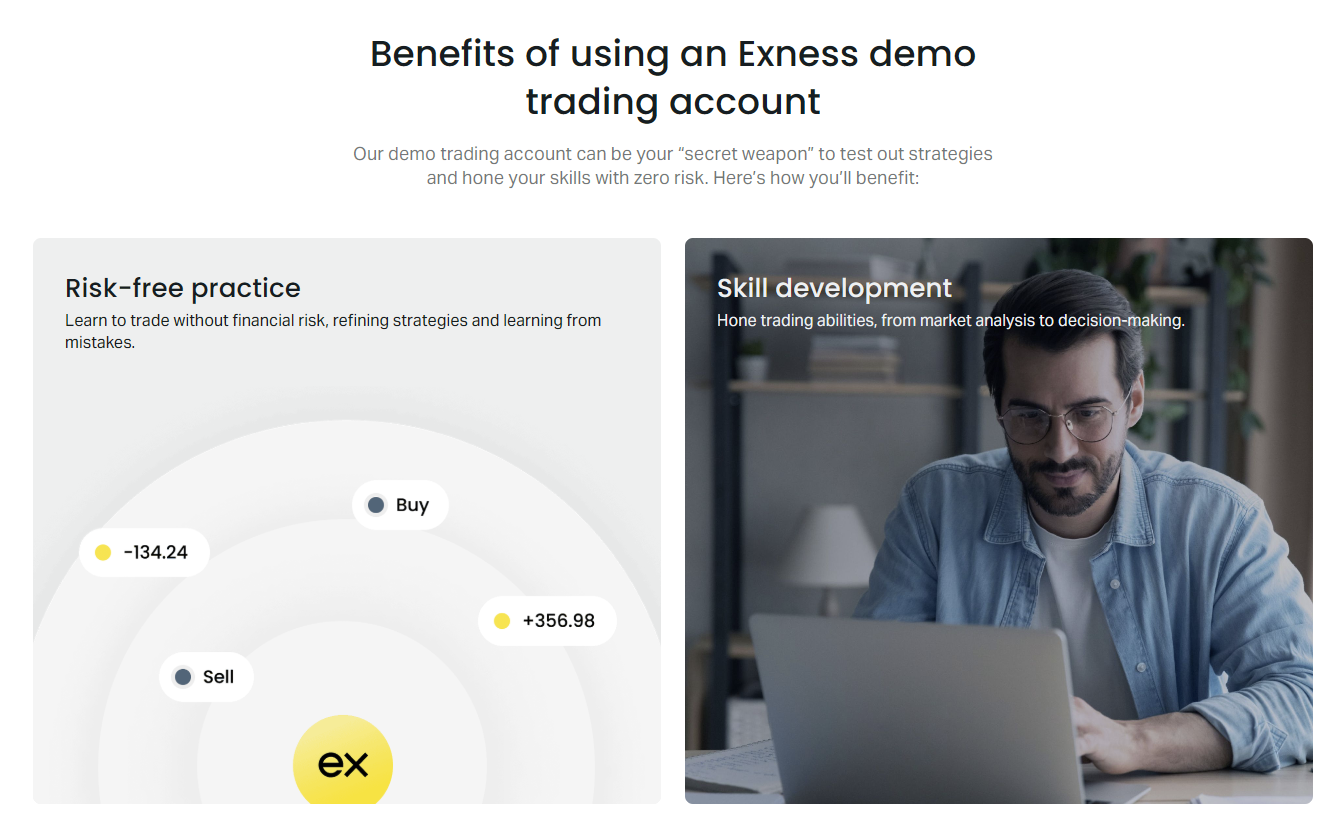
An Exness demo account gives traders a risk-free environment to practice strategies, test the platform, and understand market mechanics without putting real capital on the line. It replicates live market conditions including spreads, execution speeds, and available instruments, making it a valuable tool for both beginners and experienced traders evaluating the broker.
Contents
- 1. How to Open an Exness Demo Account
- 2. Exness Demo Account Login Process
- 3. MT4 vs MT5 Demo Accounts on Exness
- 4. Demo Account Types and Trading Conditions
- 5. Features Available in Exness Demo Accounts
- 6. Exness Demo Competitions and Challenges
- 7. Managing Multiple Demo Accounts
- 8. Transitioning from Demo to Live Trading
- 9. Common Mistakes with Demo Accounts
- 10. Exness Demo Account on Mobile Devices
- 11. Using Exness Analytical Tools with Demo
- 12. Demo Account Expiration and Renewal
- 13. Final Assessment of Exness Demo Account
The demo account comes preloaded with virtual funds, typically $10,000, though you can request different amounts. You can open multiple demo accounts across different account types — Standard, Standard Cent, Pro, Raw Spread, and Zero — to compare trading conditions side by side. Each demo account works on MetaTrader 4, MetaTrader 5, the Exness Web Terminal, and the mobile apps.
Unlike some brokers that limit demo access to 30 days, Exness demo accounts do not expire as long as you log in at least once every 90 days. This makes them suitable for long-term strategy development and ongoing platform familiarization rather than just a brief trial.
How to Open an Exness Demo Account
Opening a demo account takes a few minutes and does not require identity verification. The process is identical whether you start from the Exness website, the mobile app, or directly inside MetaTrader.
- Go to the Exness website and click Open Demo Account or Register.
- Enter your email address and create a password.
- Select your account type: Standard, Standard Cent, Pro, Raw Spread, or Zero.
- Choose your platform: MT4 or MT5.
- Set your preferred leverage and base currency.
- Click Create Account. Your login credentials appear immediately.
- Download the platform or use the Web Terminal to log in with the provided details.
You can also open a demo account directly from the MetaTrader platform. In MT4 or MT5, click File > Open an Account, select Exness as the broker, choose Demo, and fill in the registration form. The platform will connect automatically once the account is created.
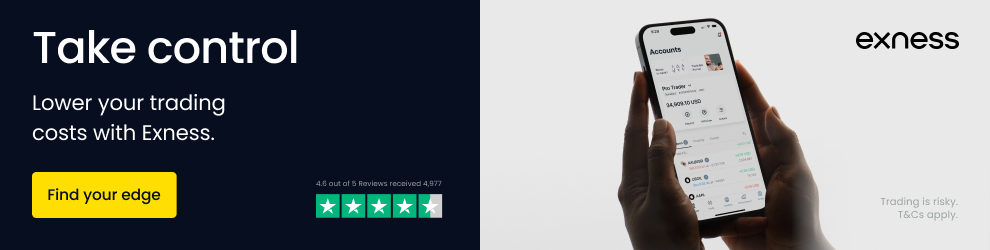
After registration, you receive a trading account number, investor password (read-only access), and server name. Save these credentials. The investor password is useful if you want to share performance with a mentor or signal service without giving trading access.
Exness Demo Account Login Process
Logging into your demo account works the same way across all supported platforms. You need three pieces of information: the account number (login), the trading password you set during registration, and the correct server name.
- MetaTrader 4: File > Login to Trade Account > enter login, password, select Exness-Demo server.
- MetaTrader 5: File > Login to Trade Account > enter login, password, select Exness-MT5-Demo server.
- Exness Web Terminal: Visit terminal.exness.com, enter login and password, server auto-detects.
- Exness Mobile App: Tap Login, enter credentials, choose Demo server.
- MT4/MT5 Mobile Apps: Tap + > Login to existing account > search Exness > select Demo server.
If you forget your trading password, you can reset it from the Exness Personal Area. The investor password cannot be changed but can be viewed in the Personal Area under account settings. Server names are fixed: Exness-Demo for MT4 and Exness-MT5-Demo for MT5.
MT4 vs MT5 Demo Accounts on Exness
Exness offers demo accounts on both MetaTrader 4 and MetaTrader 5. The choice affects available features, timeframes, order types, and the overall trading experience. Most traders choose based on their preferred platform for live trading.
Scroll horizontally to see all columns
| Feature | MT4 Demo | MT5 Demo |
|---|---|---|
| Timeframes | 9 | 21 |
| Pending Order Types | 4 | 6 |
| Technical Indicators | 30 built-in | 38 built-in |
| Economic Calendar | No | Yes (integrated) |
| Depth of Market | No | Yes |
| Hedging/Netting | Hedging only | Both supported |
| Strategy Tester | Single-threaded | Multi-threaded, cloud |
MT4 remains popular for its simplicity, large community of custom indicators, and extensive Expert Advisor library. MT5 adds more analytical tools, a built-in economic calendar, and better backtesting. For a beginner, MT4 is often easier to learn. For algorithmic traders or those wanting more timeframes, MT5 is stronger.
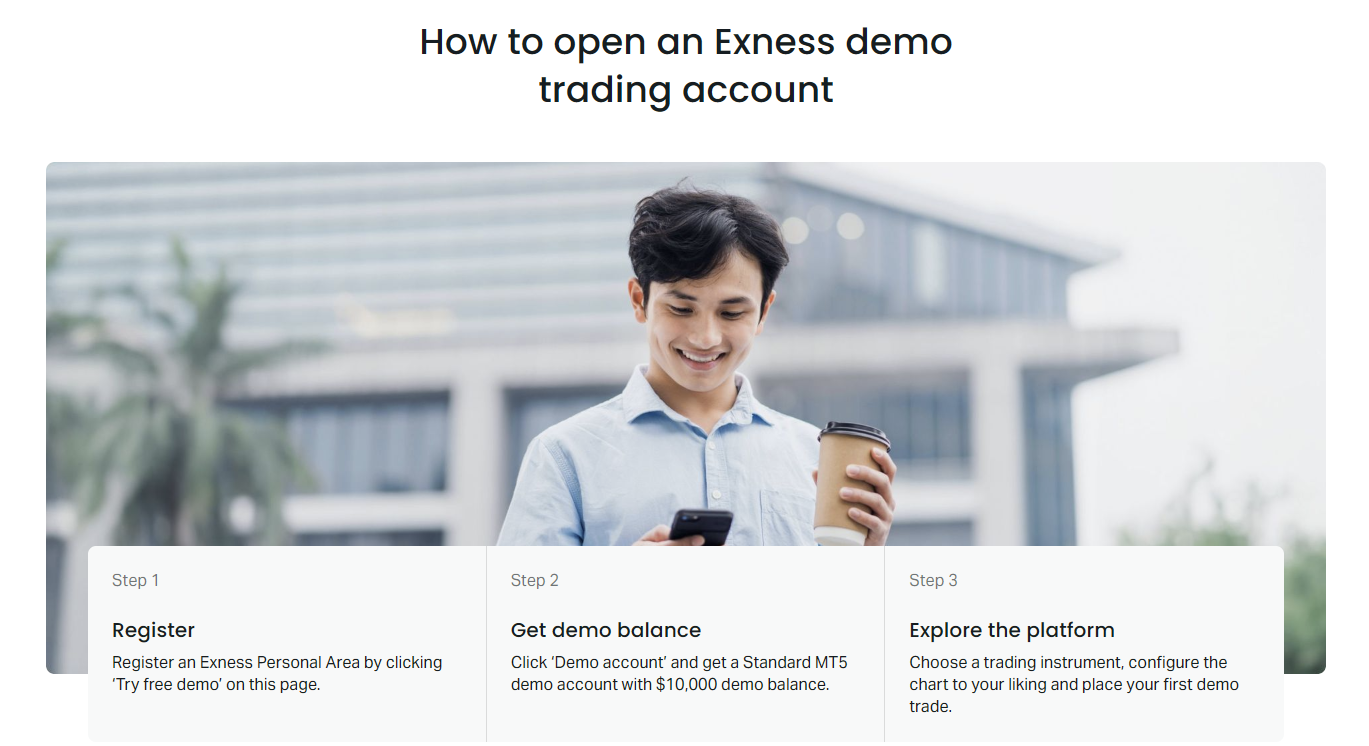
You can run both MT4 and MT5 demo accounts simultaneously. Many traders open one of each to compare execution, test platform-specific EAs, or practice different strategies. There is no limit on the number of demo accounts you can create.
Demo Account Types and Trading Conditions
Exness mirrors its live account types in the demo environment. This means you can test the exact spreads, commissions, and leverage you would encounter with real money. The five main account types each serve different trading styles.
Scroll horizontally to see all columns
| Account Type | Min Deposit (Live) | Spreads From | Commission | Best For |
|---|---|---|---|---|
| Standard | $1 | 0.3 pips | None | Beginners, simple pricing |
| Standard Cent | $1 | 0.3 pips | None | Micro lots, low risk practice |
| Pro | $200 | 0.1 pips | None | Experienced traders, tight spreads |
| Raw Spread | $200 | 0.0 pips | $3.5/lot/side | Scalpers, high volume |
| Zero | $200 | 0.0 pips | $3.5/lot/side (fixed) | Algorithmic, predictable costs |
The Standard Cent account is unique — it denominates balance in cents rather than dollars. A $10,000 demo balance shows as 1,000,000 cents. This lets you practice position sizing with micro lots (0.01 cent lots = 0.0001 standard lots) which is useful for testing precise risk management.
Testing on the same account type you plan to trade live eliminates surprises when you switch. Spread behavior, commission impact, and margin requirements all match.
Features Available in Exness Demo Accounts
Demo accounts include nearly all features available to live clients. This includes access to the full instrument catalog — forex pairs, metals, energies, indices, stocks, and cryptocurrencies. Trading hours, swap rates, and margin requirements match live conditions.
- Full instrument list: 100+ forex pairs, gold, silver, oil, major indices, stocks, crypto
- Leverage up to 1:unlimited (subject to equity thresholds)
- All order types: market, limit, stop, stop-limit (MT5)
- One-click trading from charts
- Expert Advisors and custom indicators
- VPS hosting eligibility (after live deposit history)
- Trading Central signals and analytics
- Economic calendar (MT5 and Web Terminal)
- Exness Calculator for margin, pip value, profit
The Exness Web Terminal works with demo accounts without any software installation. It runs in a browser and supports charting, indicators, and one-click trading. This is convenient for quick practice sessions or trading from devices where you cannot install MetaTrader.
Exness Demo Competitions and Challenges
Exness periodically runs demo trading competitions with real cash prizes. These contests let traders compete on demo accounts under tournament rules. Winners receive actual money credited to live accounts, which can be withdrawn after meeting volume requirements.
- Competitions announced on Exness website and social channels
- Registration typically requires a live Exness account
- Trading period ranges from one week to one month
- Prizes: cash credits to live accounts, sometimes $1,000+ for first place
- Rules often restrict max leverage, max positions, or specific instruments
- Results based on highest ROI or absolute profit during the period
The demo challenge format varies. Some are pure profit percentage contests. Others use a points system factoring in risk-adjusted returns. Read the specific terms before entering. These competitions are a good way to practice competitive discipline, but the aggressive strategies that win contests often fail in real trading.
Demo contests reward high risk over short periods. The strategies that win are rarely sustainable. Treat them as entertainment, not education.
Managing Multiple Demo Accounts
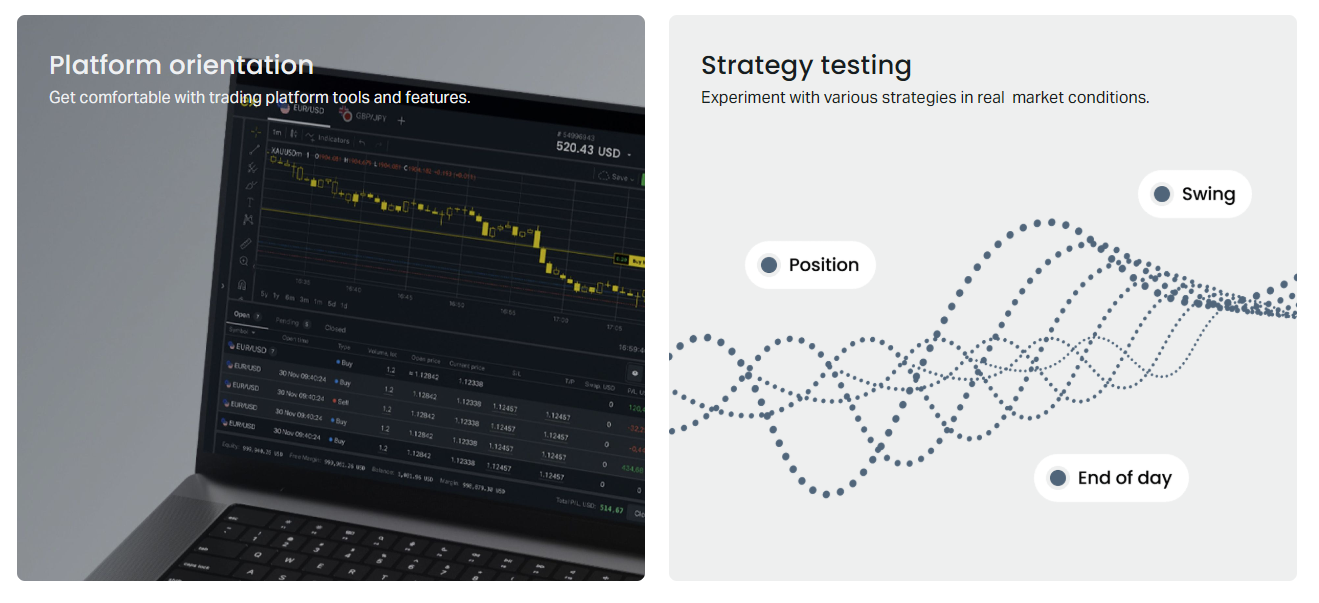
Traders often maintain several demo accounts for different purposes. You might have one for testing a scalping strategy on Raw Spread, another for swing trading on Pro, and a third for learning MT5 features. The Exness Personal Area lets you create, rename, and archive demo accounts.
- Create new demo accounts anytime from Personal Area > My Accounts > Open New Account
- Rename accounts for clarity (e.g., "Scalping Test", "Swing Practice")
- Archive unused accounts to declutter the list
- Switch between accounts in MetaTrader via File > Login
- Each account has independent balance, history, and settings
You can reset a demo account balance from the Personal Area if you want to start fresh without creating a new account. This preserves the account number and history but restores the virtual balance to the default amount.
If you no longer need a demo account, you can delete it from the Personal Area. Deletion is permanent and removes all trading history. There is no recovery. Consider archiving instead if you might want the history later for analysis.
Transitioning from Demo to Live Trading
Moving from demo to live is where many traders struggle. The technical process is simple — open a live account, verify identity, deposit funds — but the psychological shift is significant. Real money introduces fear, greed, and hesitation that do not exist in simulation.
- Complete KYC verification in Personal Area (ID + proof of address)
- Choose the same account type you tested on demo
- Start with a deposit size you can afford to lose
- Use the same risk parameters: position size, stop loss, daily loss limit
- Keep a trading journal comparing demo vs live decisions
- Expect worse fills: slippage, requotes, spread widening on news
Exness allows instant withdrawals on most payment methods once verified. Test this with a small deposit and withdrawal before committing significant capital. It confirms the payment flow works and builds confidence in the broker's reliability.
Common Mistakes with Demo Accounts
Demo accounts are tools. Misusing them creates bad habits that transfer to live trading. The most common mistakes stem from treating virtual money as meaningless.
- Overleveraging because losses don't hurt
- Ignoring stop losses since you can always reset
- Revenge trading after losses with no consequence
- Testing unrealistic position sizes
- Switching strategies daily without proper evaluation
- Not tracking performance metrics (win rate, risk-reward, expectancy)
- Trading instruments or sessions you would never trade live
Treat the demo account as if it were real. Set a virtual daily loss limit and stop trading when hit. Use position sizing that matches your planned live deposit. Record every trade with reasoning. Review weekly. This discipline carries over.
The trader who blows up a $100,000 demo account in a week will blow up a $1,000 live account in a day. The numbers change. The behavior doesn't.
Exness Demo Account on Mobile Devices
The Exness Trade app and MetaTrader mobile apps both support demo accounts. The Exness app is simpler — it shows positions, balance, and basic charts. MetaTrader mobile gives full terminal functionality including indicators, drawing tools, and EA monitoring.
- Exness Trade app: download from App Store or Google Play, login with demo credentials
- MT4/MT5 mobile: search for Exness servers, select Demo, enter login and password
- Push notifications for price alerts and margin calls work on demo
- Chart sync: drawings and indicators sync between desktop and mobile MT4/MT5
- One-tap trading available on both platforms
Mobile demo trading is useful for practicing trade management away from your desk — moving stops, taking partial profits, monitoring news events. However, analysis on a phone screen is limited. Use mobile for execution and monitoring, desktop for planning.
Using Exness Analytical Tools with Demo
Exness provides several analytical resources that work with demo accounts. Trading Central signals appear in the Personal Area and inside MetaTrader as indicators. The economic calendar shows upcoming events with forecast and previous values. The Exness Calculator computes margin, pip value, swap, and profit for any position size.
- Trading Central: technical analysis signals for major instruments
- Economic Calendar: filter by currency, impact, time zone
- Exness Calculator: web-based and integrated in Personal Area
- Market News: FXStreet feed in Web Terminal and app
- Analytical Resources: daily outlooks, weekly reviews
These tools help build a routine. Check the calendar each morning. Review Trading Central ideas against your own analysis. Use the calculator before every trade to confirm position size and risk. Doing this on demo makes it automatic for live.
Demo Account Expiration and Renewal
Exness demo accounts remain active indefinitely with one condition: you must log in at least once every 90 days. If 90 days pass without a login, the account is archived and the virtual balance resets. The account number remains reserved but you must reactivate it.
- Log in via any platform (MT4, MT5, Web Terminal, mobile) to reset the 90-day timer
- Archived accounts can be reactivated from Personal Area
- Reactivation restores the account but resets balance to default
- Trading history is preserved after reactivation
- No limit on reactivation cycles
This policy is more generous than many brokers who delete demo accounts after 30 days of inactivity. It supports long-term strategy development where you might trade intermittently.
Final Assessment of Exness Demo Account
The Exness demo account is a capable practice environment that closely mirrors live trading conditions across all account types and platforms. Its strengths include no expiration with periodic login, access to the full instrument catalog, support for both MT4 and MT5, and integration with Exness analytical tools. The main limitations are the absence of real slippage, no psychological pressure, and exclusion from promotions. For a trader evaluating Exness or developing strategies, it provides sufficient fidelity to make informed decisions before committing real capital. The transition to live is straightforward but demands respect for the psychological differences that no demo can replicate.
Frequently Asked Questions
How do I open an Exness demo account?
Visit the Exness website, click Open Demo Account, enter your email and password, choose account type and platform (MT4 or MT5), set leverage and currency, then click Create Account. Credentials appear instantly.
Does the Exness demo account expire?
No, Exness demo accounts do not expire as long as you log in at least once every 90 days. Inactive accounts are archived but can be reactivated from the Personal Area.
Can I use MT4 and MT5 with the same demo account?
No, each demo account is tied to either MT4 or MT5. You can create separate demo accounts for each platform and run them simultaneously.
What is the difference between Exness demo and live accounts?
Demo accounts use virtual funds, have no real slippage or requotes, lack psychological pressure, and cannot access promotions or VPS. Trading conditions (spreads, commissions, instruments) otherwise match live.
How do I reset my Exness demo account balance?
Log into your Personal Area, go to My Accounts, select the demo account, and choose the reset balance option. This restores the default virtual balance while keeping the account number and history.
Can I join Exness demo competitions?
Yes, Exness runs periodic demo trading competitions with real cash prizes. Registration usually requires a live Exness account. Check the promotions page for current contests.
What server do I use for Exness demo login?
Use Exness-Demo for MT4 and Exness-MT5-Demo for MT5. The Web Terminal and mobile apps auto-detect the correct server when you enter your demo credentials.
Is the Exness demo account free?
Yes, opening and using an Exness demo account is completely free. No deposit or payment information is required.