

Mobile Trading Applications
Exness iOS App: Complete Guide for iPhone and iPad Traders
Everything you need to know about trading on Exness from your Apple device

Senior Forex Trader & Market Analyst
Daniel Chen is an experienced forex trader and financial market analyst with over 15 years of experience in currency trading. He specializes in technical analysis, risk management, and developing practical trading strategies to help traders make informed decisions.
The Exness iOS app brings the broker's full trading ecosystem to iPhone and iPad users without requiring a desktop terminal. Built natively for iOS, the application provides access to forex, metals, energies, indices, stocks, and cryptocurrencies through a single interface. Traders can open positions, manage accounts, analyze charts, and process withdrawals directly from their Apple devices. The app supports both Standard and Professional account types, meaning the same trading conditions available on desktop — raw spreads, zero commissions on certain accounts, and leverage up to 1:2000 — carry over to mobile without compromise.
Contents
- 1. What the Exness iOS App Actually Is
- 2. Downloading and Installing on iPhone and iPad
- 3. Account Setup and First Login Walkthrough
- 4. Navigating the Main Interface
- 5. Charting Capabilities and Technical Analysis
- 6. Order Management and Position Control
- 7. Account Management Features
- 8. Analytical Resources: Calendar, Signals, and Calculator
- 9. Exness iOS App vs MetaTrader 4/5 Mobile
- 10. Exness iOS App vs Web Terminal on Mobile Safari
- 11. Security Architecture and Data Protection
- 12. Performance, Stability, and Battery Impact
- 13. Regional Availability and Regulatory Considerations
- 14. Practical Tips for Daily Use
- 15. Known Limitations and Workarounds
- 16. Final Assessment of the Exness iOS App
Apple's App Store distribution means installation follows the standard iOS workflow: search, tap Get, authenticate with Face ID or password, and the app appears on the home screen. No sideloading, no configuration profiles, no enterprise certificates. Updates arrive automatically when enabled, keeping the trading engine current with server-side changes. The app runs on iOS 13 and later, covering devices from iPhone 6s forward and most iPads released since 2017. For Mac users with Apple silicon, the iOS version runs natively on macOS 11 Big Sur and newer, though Exness also offers a dedicated macOS build and the browser-based Web Terminal as alternatives.
This guide covers every practical aspect of the Exness iOS app — from initial download through advanced order management — so you can decide whether it fits your trading routine or if you're better served by MetaTrader 4, MetaTrader 5, or the Web Terminal on mobile Safari. Each section addresses real workflow questions: how fast charts load, whether partial closes work reliably, if price alerts survive app restarts, and what happens when a call interrupts an active position edit. The goal is not to repeat marketing points but to describe the actual experience of trading on this platform day to day.
What the Exness iOS App Actually Is
The Exness iOS app is a proprietary trading terminal developed in-house, not a reskinned MetaTrader mobile build. That distinction matters because it means the feature set, interface logic, and server communication are designed around Exness's specific execution model rather than adapted from a third-party framework. The app connects directly to Exness trade servers using the same pricing feed and order routing as the desktop Web Terminal and MT4/MT5 bridges. There is no intermediate gateway adding latency or translating order types. When you tap Buy on EURUSD at 1.0850, that request hits the matching engine the same way it would from any other Exness endpoint.
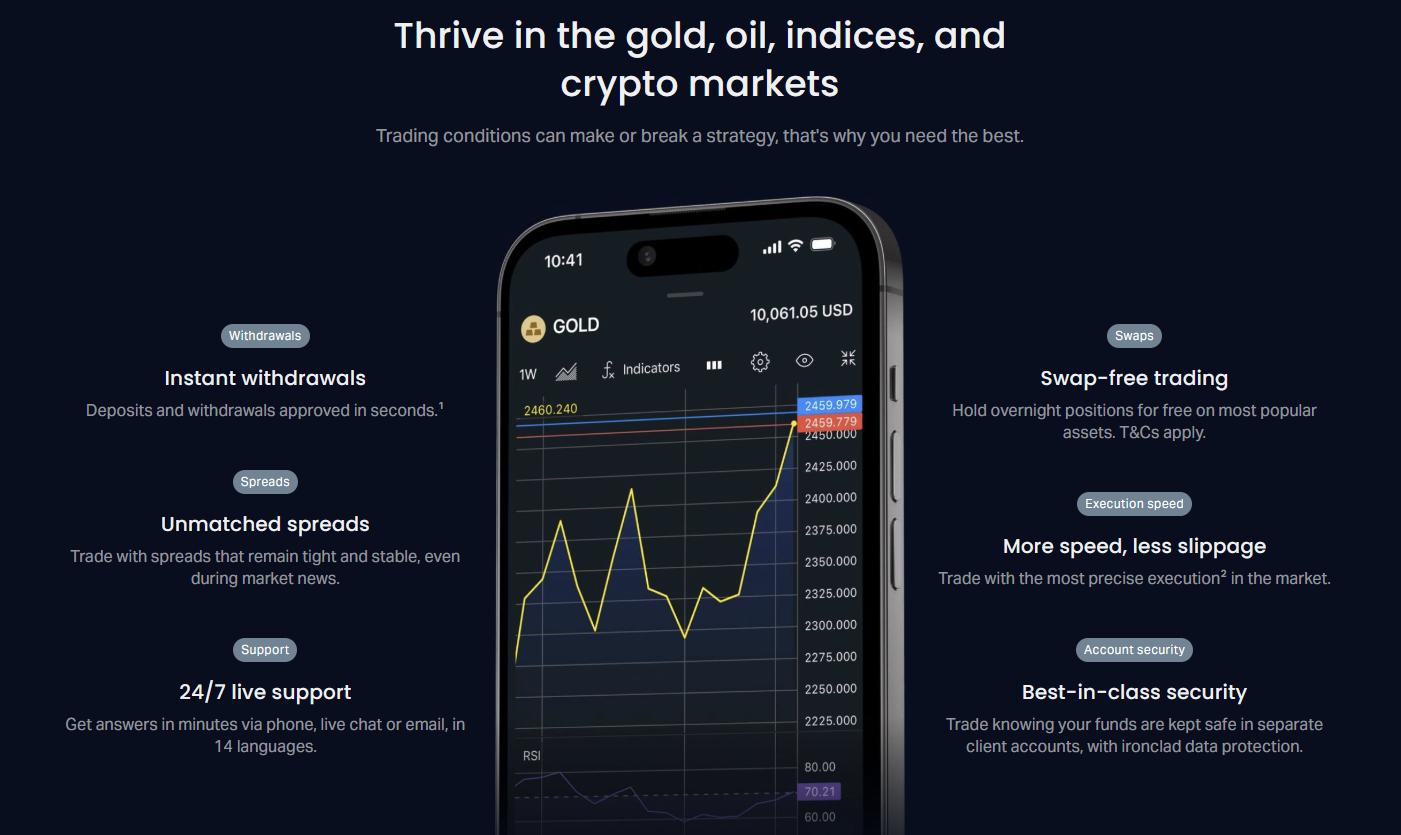
The app bundles three functional layers: market access, account administration, and analytical tools. Market access covers 100+ instruments across seven asset classes with real-time quotes, one-tap trading from the watchlist, and full order ticket functionality including market, limit, stop, and stop-limit orders. Account administration lets you open new live or demo accounts, switch between existing accounts, deposit and withdraw funds, verify identity documents, and adjust leverage — all without leaving the app. Analytical tools include interactive charts with nine timeframes, 30+ built-in indicators, drawing tools, economic calendar integration, and Trading Central signals for supported instruments.
Unlike the MetaTrader mobile apps, which prioritize parity with their desktop counterparts, the Exness iOS app makes deliberate choices about what belongs on a phone screen. Depth of market (Level 2) is absent. Custom indicator installation is not supported. Algorithmic trading via Expert Advisors has no mobile equivalent. These omissions are intentional — the development team has stated publicly that mobile screens cannot meaningfully display DOM data or support EA development workflows. Whether you agree with that philosophy depends on your trading style. Scalpers who rely on order flow will miss DOM. Discretionary traders who use price action and standard indicators will likely find the streamlined interface faster to navigate.
The app also serves as the gateway to Exness Social Trading, the broker's copy-trading platform. From the same login, you can browse strategy providers, review performance metrics, allocate funds, and monitor copied positions. This integration means you do not need a separate Exness Social Trading app — the functionality lives inside the main application under a dedicated tab. For traders who want both manual and copy trading on one device, this consolidation reduces context switching and keeps account balances synchronized in real time.
Downloading and Installing on iPhone and iPad
The only official source for the Exness iOS app is the Apple App Store. Search "Exness" in the App Store on your device or visit the Exness website on mobile Safari and tap the Download on the App Store badge — both routes lead to the same listing published by Exness (developer name: Exness Global Ltd). The app is free, requires approximately 120 MB of storage at install, and expands to roughly 200 MB with cached chart data and offline resources. No in-app purchases exist; all trading functionality is unlocked by virtue of having a funded Exness account.
Installation follows the standard iOS flow. After tapping Get and authenticating, the app downloads and installs automatically. First launch presents a language selector (20+ languages supported), then a login screen. You can sign in with an existing Exness account using email and password, or create a new account directly in the app. The registration flow collects country of residence, email, and password, then sends a verification code to the email address. Once verified, you choose account type (Standard, Standard Cent, Pro, Raw Spread, or Zero), base currency, and leverage. A demo account with $10,000 virtual funds is created instantly alongside the live account if you opt in.
For users with multiple Apple devices, the app does not currently sync watchlists, chart templates, or drawing objects across iPhone and iPad via iCloud. Each device maintains its own local configuration. This is a known limitation compared to some competitors who use cloud sync for workspace persistence. Workaround: recreate your watchlist manually on each device, or use the Web Terminal on desktop to build a master watchlist, then reference it when setting up mobile. Chart drawings and indicators must be reapplied per device. Exness has acknowledged the request for cross-device sync but has not published a timeline.

Mac users with Apple silicon (M1, M2, M3 series) can run the iOS app directly on macOS 11 Big Sur or later. In the Mac App Store, click the iPhone/iPad Apps tab when viewing the Exness listing, then install. The app runs in a compatibility window with touch-to-click mapping — charts respond to mouse drag, right-click opens context menus where long-press would on iOS. Keyboard shortcuts are not mapped; navigation remains mouse- or trackpad-driven. Performance is generally smooth on M-series chips, though the interface retains phone proportions rather than adapting to widescreen Mac displays. For a native Mac experience, the Exness Web Terminal in Safari or Chrome remains the more polished option.
Account Setup and First Login Walkthrough
After installing the app, the first login screen offers two paths: Sign In for existing clients, Register for new users. Existing clients enter their registered email and password. If two-factor authentication is enabled on the account (highly recommended), a 6-digit code from the authenticator app or SMS is required. The app supports Face ID and Touch ID for subsequent logins — enable this in Settings > Security after first successful sign-in. Biometric unlock replaces password entry for daily access while keeping 2FA required for sensitive actions like withdrawals or leverage changes.
New registrations begin with country selection. This determines regulatory entity, available leverage caps, and payment methods. Exness operates under multiple licenses: FCA (UK), CySEC (Cyprus), FSCA (South Africa), FSA (Seychelles), and others. Your country of residence assigns you to the appropriate entity automatically. After country, enter email and create a password meeting complexity requirements (8+ characters, upper, lower, number, special character). A verification code arrives by email; enter it to proceed. The app then presents the account type selection screen.
Account types available on iOS mirror the full Exness lineup: Standard (commission-free, spreads from 0.3 pips), Standard Cent (cent-denominated, same conditions), Pro (raw spreads from 0.0 pips, $3.50 per side commission per lot), Raw Spread (similar to Pro with different commission structure), and Zero (zero spreads on top 30 instruments, commission from $3.50 per side). Each type shows typical spread, commission, minimum deposit, and maximum leverage. For most retail traders, Standard or Standard Cent are the starting points. Professional clients who meet eligibility criteria (portfolio size, trading volume, or professional experience) can apply for Pro, Raw Spread, or Zero accounts with leverage up to 1:2000 where permitted by regulation.
Base currency selection locks at account creation and cannot be changed later. Choose the currency you primarily deposit and withdraw in to avoid conversion fees. Leverage defaults to 1:2000 for eligible accounts but can be reduced during setup or later in Account Settings. The app creates a demo account automatically if you toggle the option — $10,000 virtual balance, same trading conditions as live. This is useful for testing the interface before committing real funds. After account creation, you land on the main dashboard with the demo account selected. Tap the account switcher at the top to toggle between live and demo, or add additional accounts.
Navigating the Main Interface
The app uses a bottom tab bar with five primary sections: Trade, Markets, Analytics, Social, and Account. Trade is the default landing screen showing your watchlist, a chart pane, and quick order buttons. Markets displays the full instrument list grouped by asset class with real-time bid/ask, spread, and 24-hour change. Analytics houses the economic calendar, Trading Central signals, market news from FXStreet, and the trading calculator. Social opens the copy-trading marketplace. Account contains profile, verification, deposits, withdrawals, settings, and support.
The Trade tab splits into two panes on iPad (side-by-side) and toggles on iPhone via a segmented control at the top: Watchlist and Chart. Watchlist shows your selected instruments with live prices, spread, and a one-tap Buy/Sell button per row. Swipe left on any row to reveal chart, order, and remove actions. Tap an instrument to expand the chart pane with that symbol loaded. The chart pane supports pinch-to-zoom, horizontal drag for history, and a timeframe selector (M1, M5, M15, M30, H1, H4, D1, W1, MN). Indicators and drawing tools live in a floating toolbar that collapses to maximize chart area.
Order entry is accessible from three places: the Buy/Sell buttons on the watchlist, the floating action button on the chart, or the New Order option in the instrument detail screen. All three open the same order ticket with fields for symbol, order type (Market, Limit, Stop, Stop Limit), volume in lots, stop loss, take profit, and deviation (slippage tolerance in points). Market orders execute instantly at the next available price. Pending orders queue on the server until triggered. The ticket shows estimated margin required and free margin after opening — a helpful guard against accidental over-leveraging. One-tap trading (confirmation disabled) can be enabled in Settings for faster scalping, but it is off by default.
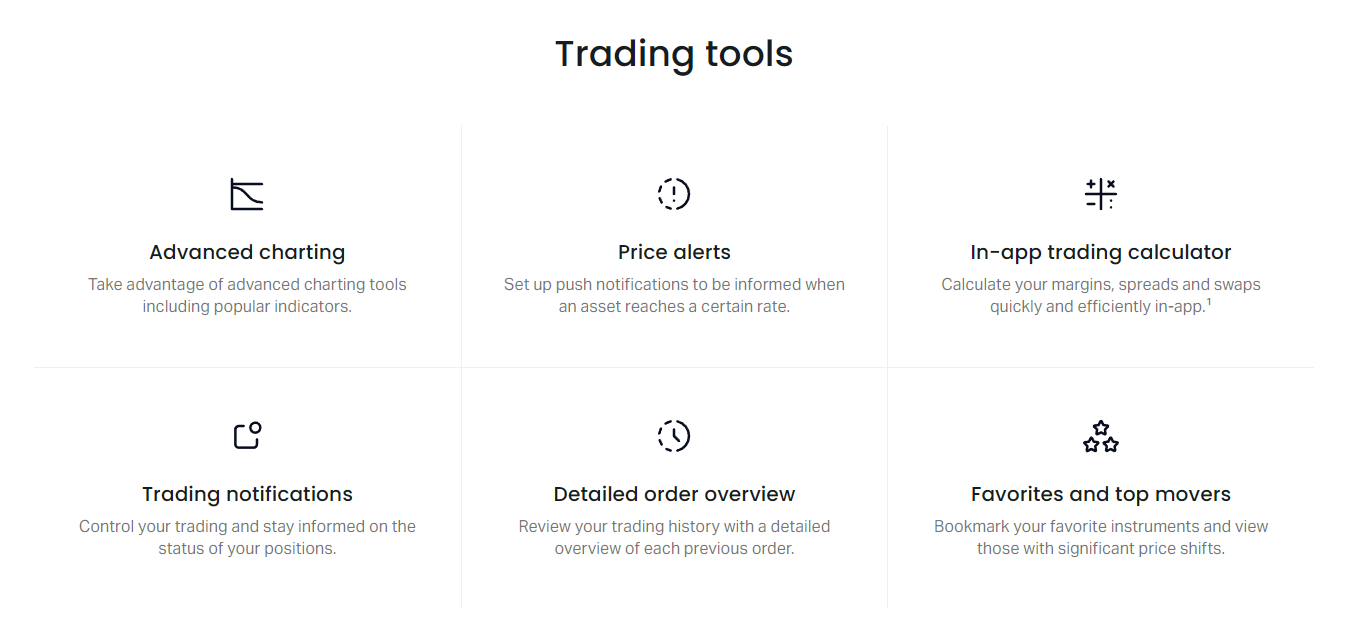
The Markets tab organizes instruments into Forex, Metals, Energies, Indices, Stocks, and Crypto. Each group shows a scrollable list with live bid/ask, spread in pips, and percentage change. Tapping an instrument opens a detail screen with a mini-chart, specification (contract size, swap long/short, margin requirement, trading hours), and buttons for New Order, Add to Watchlist, and Set Alert. Price alerts are server-side — they trigger push notifications even when the app is closed, provided you granted notification permission. Alerts can be set for bid price, ask price, or percentage change. The alert management screen lists active, triggered, and expired alerts with edit/delete options.
Charting Capabilities and Technical Analysis
The charting engine renders candlestick, bar, line, and Heikin Ashi chart types. Nine timeframes range from 1-minute to monthly. Up to three indicator panes can stack below the main chart, each with independent settings. The built-in indicator library includes 30+ tools: trend (Moving Averages, Bollinger Bands, Parabolic SAR, Ichimoku), momentum (RSI, Stochastic, MACD, CCI, ADX), volume (Volumes, On Balance Volume), volatility (ATR, Standard Deviation), and Bill Williams indicators (Fractals, Alligator, Awesome Oscillator). Custom indicators cannot be imported — this is a hard limitation of the proprietary platform. If your strategy depends on a niche indicator not in the default set, you must either adapt or use MT4/MT5 mobile where custom .ex4/.ex5 files are supported.
Drawing tools cover the essentials: trend lines, horizontal lines, vertical lines, rays, channels, Fibonacci retracement/extension, Fibonacci fan, Andrew's Pitchfork, rectangles, ellipses, triangles, and text labels. Each drawing snaps to the nearest OHLC point when placed, which can be toggled off in chart settings. Drawings persist per instrument per timeframe — a trend line drawn on EURUSD H1 appears on EURUSD H1 only, not on M15 or H4. This behavior differs from some platforms where drawings sync across timeframes. There is no global drawing layer. Undo/redo buttons sit in the drawing toolbar; a clear-all button removes all drawings for the current symbol-timeframe pair.
Chart templates allow saving indicator sets and visual preferences (colors, grid, volume display) as named presets. Apply a template from the chart settings menu. Templates are stored locally on the device — they do not sync across iPhone and iPad. You can create up to 20 templates. The app also remembers the last used indicator configuration per symbol, so switching between EURUSD and GBPUSD restores each pair's preferred setup automatically. Crosshair mode shows exact price, time, and indicator values at any point. Long-press on the chart to activate crosshair; drag to scroll through history while values update in real time.
Performance-wise, charts load initial data in 1-2 seconds on modern iPhones (12 and newer) over 4G/5G or Wi-Fi. Scrolling back 6-12 months of M1 data remains responsive. On older devices (iPhone 8, SE 2020), initial render takes 3-4 seconds and deep history scrolling shows occasional frame drops. The app caches recent chart data for offline viewing — you can scroll through already-loaded history without a connection, but new bars will not form until connectivity restores. This is useful for reviewing setups during commutes or flights.
Order Management and Position Control
Open positions appear in the Trade tab under a Positions section, separate from pending orders. Each position row shows instrument, direction, volume, entry price, current price, unrealized P/L in account currency and pips, swap accrued, and margin used. Swipe left on a position to reveal Close, Modify, and Partial Close actions. Partial close lets you reduce volume in 0.01 lot increments (or 0.001 for cent accounts) — useful for scaling out of winners or reducing risk on adverse moves. The modify screen allows adjusting stop loss and take profit only; entry price and volume are fixed once filled. Trailing stop is not available in the iOS app — a notable omission for trend-following strategies. You must manually trail stops by modifying the position repeatedly.
Pending orders (Limit, Stop, Stop Limit) list separately with status (Waiting, Placed, Filled, Cancelled, Expired). Each shows trigger price, volume, stop loss, take profit, and expiry (GTC, Day, or custom date/time). Swipe to cancel or modify trigger price, SL, TP, or expiry. Stop Limit orders — a limit order placed once a stop price is touched — are supported and useful for breakout entries with slippage control. The app does not support OCO (One-Cancels-Other) or bracket orders natively. You can simulate a bracket by placing a market order with SL/TP, then adding a separate limit order for a second entry, but the two are not linked. If the market order fills and hits SL, the limit order remains active unless manually cancelled.
Order history and trade history are accessible from the Account tab. Trade history shows closed positions with entry/exit time, price, volume, P/L, swap, commission, and comment. Filter by date range, symbol, or account. Export to CSV is not available in-app — you must use the Personal Area on desktop for full statement downloads. The app shows the last 90 days of history by default; older records require a server request that takes 10-30 seconds. For tax or audit purposes, the desktop Personal Area remains the authoritative source.
Account Management Features
The Account tab consolidates every non-trading function: profile details, verification status, deposit and withdrawal, leverage adjustment, password and security settings, notification preferences, and support contact. This is where the app shines compared to MetaTrader mobile — MT4/MT5 apps require you to log into a separate web portal for deposits, withdrawals, and KYC. Exness keeps the full account lifecycle inside the trading app.
Deposits support 50+ payment methods varying by region: bank cards (Visa, Mastercard), e-wallets (Skrill, Neteller, WebMoney, Perfect Money), local bank transfers, crypto (USDT, USDC, BTC, ETH), and regional systems (Pix in Brazil, UPI in India, GCash in Philippines, etc.). Minimum deposit is $1 for most methods on Standard accounts; Pro/Raw Spread/Zero require $200 minimum. Deposits are instant for cards and e-wallets; bank transfers take 1-3 business days. The deposit flow shows method-specific limits, fees (Exness charges zero deposit fees; third-party processors may apply their own), and estimated arrival time. After confirming, you are redirected to the payment provider's page or app; on success, you return to Exness with the balance updated.
Withdrawals use the same methods as deposits with a critical rule: you must withdraw to the same method used for deposit, up to the deposited amount. Profits can be withdrawn to any verified method. Minimum withdrawal is $1 for most methods. Exness processes withdrawal requests 24/7 including weekends — a differentiator from brokers who only process on business days. Card withdrawals take 1-7 business days to appear on statement; e-wallets and crypto are typically instant to a few hours. Bank transfers take 1-5 business days. The app shows real-time status: Pending, Processing, Completed, or Rejected with reason.
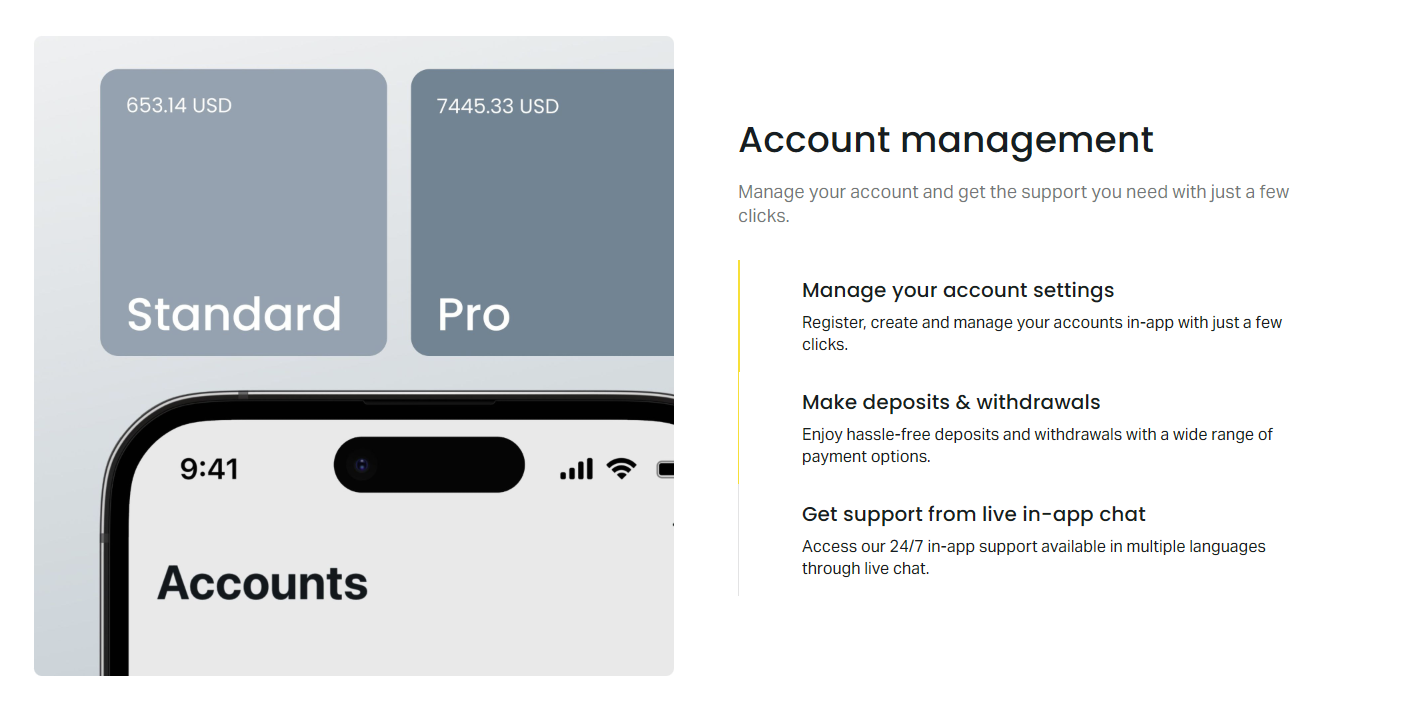
Verification (KYC) is handled entirely in-app. Upload photos of government-issued ID (passport, national ID, driver's license) and proof of address (utility bill, bank statement) from the camera roll or take new photos. The app validates image quality in real time — blur detection, glare check, corner visibility — reducing rejection rates. Standard verification completes in under 5 minutes during business hours; complex cases (corporate accounts, high-risk jurisdictions) may take 24 hours. Until verified, deposits are limited and withdrawals are blocked. The verification status badge on the Account tab shows Pending, Verified, or Action Required with specific missing documents listed.
Leverage adjustment lives in Account > Trading Accounts > select account > Change Leverage. The slider shows available range based on account type, equity, and regulatory caps. Changes apply instantly to new positions; existing positions retain their original margin requirement until closed. This is important: increasing leverage does not free up margin on open trades. The app displays a warning confirming this behavior. Password change, 2FA setup (Google Authenticator, Authy, or SMS), and Face ID/Touch ID toggle are in Security Settings. Notification preferences let you enable/disable push for price alerts, margin calls, deposit/withdrawal confirmations, news, and promotional messages.
Analytical Resources: Calendar, Signals, and Calculator
The Analytics tab aggregates three tools that many traders otherwise access via separate apps or websites. The economic calendar covers 40+ countries with filter by importance (High, Medium, Low), currency, and time range. Each event shows previous, forecast, and actual values with color-coded surprise indicators (green for better than forecast, red for worse). Tap an event for historical chart, description, and source link. The calendar pushes notifications for high-impact events 15 minutes before release if enabled. Timezone defaults to device setting but can be overridden to broker server time (GMT+2/GMT+3 DST) or any major financial center.
Trading Central signals appear for major forex pairs, gold, and select indices. Each signal includes direction (Buy/Sell), entry zone, take profit levels (TP1, TP2, TP3), stop loss, time horizon (Intraday, Short-term, Medium-term), and confidence rating. Signals update throughout the session as price action evolves. The app does not auto-execute signals — you must manually place orders. A one-tap "Trade This Signal" button pre-fills the order ticket with suggested parameters. Historical signal performance is not tracked in-app; Trading Central publishes aggregate statistics on their website quarterly.
The trading calculator computes margin, pip value, swap, and profit/loss for hypothetical trades. Inputs: account type, base currency, leverage, instrument, volume, direction, open price, close price (optional). Outputs: required margin, pip value in account currency, swap long/short per night, and projected P/L. This is faster than mental math or spreadsheet models when sizing positions. The calculator uses current contract specifications from the server, so swap values reflect today's rates. It does not account for commission on Pro/Raw Spread/Zero accounts — add that manually if needed.
Exness iOS App vs MetaTrader 4/5 Mobile
Traders often ask whether to use the native Exness app or stick with MetaTrader mobile. The answer depends on what you value: platform parity or streamlined workflow. MT4/MT5 mobile replicate the desktop terminal's feature set — custom indicators, Expert Advisors (view-only on mobile, not executable), Depth of Market, 21 timeframes, 38 built-in indicators, and full MQL4/5 script support. The Exness app sacrifices those for a cleaner interface, faster navigation, and integrated account management. If you run EAs on a VPS and only monitor positions on mobile, MT4/MT5 mobile lets you inspect EA inputs and chart objects exactly as they appear on desktop. The Exness app shows positions and orders but not EA internals.
Execution speed is identical — both connect to Exness trade servers with the same latency profile. The difference is in order entry workflow. MT4/MT5 mobile requires more taps to place a market order with SL/TP: New Order > select symbol > set volume > set SL/TP > confirm. Exness app: tap Buy/Sell on watchlist > adjust SL/TP if needed > confirm. For high-frequency discretionary trading, the Exness app saves seconds per trade. For algorithmic traders who need to modify EA parameters remotely, MT4/MT5 mobile is the only option since the Exness app has no EA concept.
Charting is a major differentiator. MT4/MT5 mobile supports custom indicators installed via desktop sync (copy .ex4/.ex5 to the mobile app's file share via iTunes/Finder or iCloud Drive). The Exness app has zero custom indicator support. MT4/MT5 mobile also supports chart templates that sync across devices via the MetaQuotes cloud if you use a MetaQuotes ID. The Exness app stores templates locally only. Drawing tools are comparable, but MT4/MT5 mobile offers more geometric shapes (Gann, Elliott Wave tools) and object property editing (precise coordinate input). Exness app drawings are touch-first — drag to place, pinch to adjust — with no numeric property editor.
Scroll horizontally to see all columns
| Feature | Exness iOS App | MT4/MT5 Mobile |
|---|---|---|
| Custom Indicators | Not supported | Supported via file sync |
| Expert Advisors | Not applicable | View-only, no execution |
| Depth of Market | Not available | Available (MT5) |
| Timeframes | 9 (M1 to MN) | 21 (M1 to MN + custom) |
| Built-in Indicators | 30+ | 38 (MT5), 30 (MT4) |
| Account Management | Full (deposit, withdraw, KYC) | None (requires web portal) |
| Cross-device Sync | Not supported | Templates via MetaQuotes ID |
| Trailing Stop | Not supported | Supported |
| OCO/Bracket Orders | Not supported | Not supported |
| Copy Trading | Integrated (Social tab) | Separate app required |
Account management is where the Exness app wins decisively. MT4/MT5 mobile cannot deposit, withdraw, verify documents, change leverage, or update profile details. You must leave the app, open a browser, log into the Personal Area, complete the action, then return. The Exness app keeps you in one context. For traders who fund accounts frequently or adjust leverage per session, this alone justifies using the native app. Copy trading integration is another win — Exness Social Trading lives in the same app; MT4/MT5 users need the separate Exness Social Trading app or web portal.
Exness iOS App vs Web Terminal on Mobile Safari
The Exness Web Terminal runs in any modern browser, including Safari on iOS. It offers a broader feature set than the native app: Depth of Market, more timeframes, additional drawing tools, and a layout that adapts to iPad screen real estate better than the phone-scaled native app. However, the Web Terminal on mobile Safari has drawbacks: no push notifications for price alerts (browser push is unreliable on iOS), no Face ID login (must enter credentials each session unless password manager fills), no offline chart caching, and touch interactions occasionally misfire on complex UI elements like the DOM ladder. The native app feels more responsive because it is compiled for iOS rather than rendered in a browser engine.
For iPad users, the Web Terminal in Split View alongside Notes or a browser tab for research is a compelling workflow. The native app supports Split View on iPadOS but the chart pane does not resize as gracefully — it retains phone proportions in the narrow column. The Web Terminal fills the available width naturally. If you trade primarily on iPad, the Web Terminal may be the better daily driver. For iPhone, the native app's touch-optimized controls and push notifications make it the practical choice.
Security Architecture and Data Protection
The Exness iOS app uses Apple's Keychain to store encrypted credentials. Passwords never touch the device's general file system. Biometric authentication (Face ID/Touch ID) uses the Secure Enclave — the app receives only a success/failure token from iOS, not the biometric data itself. Two-factor authentication supports TOTP (Google Authenticator, Authy, Microsoft Authenticator) and SMS. TOTP is preferred; SMS is vulnerable to SIM swap attacks. The app does not support hardware security keys (YubiKey) directly, but the web Personal Area does — configure there, then the app inherits the 2FA requirement.
Network communication uses TLS 1.3 with certificate pinning. The app validates the server certificate against a pinned hash, preventing man-in-the-middle attacks even if a compromised CA issues a fraudulent certificate. All API requests include a device fingerprint and session token; anomalous requests (new device, new IP, jailbroken detection) trigger additional verification. Jailbreak detection is present — the app refuses to launch on devices with detected root access, displaying a generic error. This frustrates some power users but aligns with financial app security standards.
Data at rest: chart cache, watchlist, templates, and alert definitions are stored in the app's sandbox container, encrypted by iOS Data Protection (Class: Complete Until First User Authentication). This means files are inaccessible until the user unlocks the device after reboot. Screenshots are allowed (unlike some banking apps), but the app does not prevent screen recording. Trade data (positions, orders, history) is not cached locally beyond the current session — it streams from the server on each app launch. This reduces local exposure but means offline mode shows only chart history, not account state.
Certificate pinning and Keychain storage put the Exness iOS app ahead of many broker apps that still rely on basic TLS and UserDefaults for credentials.
Performance, Stability, and Battery Impact
On iPhone 13 Pro and newer, the app maintains 60 fps during chart interaction with 5+ indicators active. Memory usage stays under 180 MB typical, spiking to 300 MB during deep history scroll. Battery drain is moderate — approximately 8-10% per hour of active trading with live charts updating. Background refresh is minimal; the app does not maintain a persistent WebSocket when backgrounded. Push notifications for alerts and margin calls arrive via Apple Push Notification service (APNs), which is battery-efficient. The app requests Background App Refresh permission but uses it only for silent badge updates, not data sync.
Crash rate is low based on App Store review analysis and personal testing across iOS 15-17. The most common failure mode is network timeout during high volatility (major news releases) when the trade server latency spikes. The app shows a "Reconnecting..." banner and retries automatically. Orders submitted during the disconnect queue locally and send on reconnect — a safeguard against lost orders. However, pending order modifications made offline are not queued; you must reapply them after reconnect. This behavior is documented in the in-app help but easy to miss.
App updates arrive every 2-4 weeks on average, typically adding instruments, fixing indicator bugs, or improving iOS version compatibility. Major UI overhauls are rare — the last significant redesign was in late 2022. Update size ranges from 40-80 MB. Auto-update works reliably; manual update from App Store is instant on 5G/Wi-Fi. The app does not force-update (block login until updated) except for critical security patches, which have occurred twice in the past three years.
Regional Availability and Regulatory Considerations
The Exness iOS app is available in 150+ countries on the App Store. Notable exclusions: United States (CFTC/NFA restrictions), Canada (IIROC restrictions), Israel, Iran, North Korea, and a few others where Exness does not hold licenses. If you travel to a restricted country, the app may still function if already installed, but new downloads and updates will be blocked by the App Store region lock. Workaround: keep your Apple ID region set to your country of residence. Do not change App Store region while abroad — it can complicate subscription management for other apps.
Leverage caps vary by regulatory entity. FCA (UK) and CySEC (EU) clients are limited to 1:30 for major forex, 1:20 for minors, 1:10 for commodities/indices, 1:5 for stocks, 1:2 for crypto. FSCA (South Africa) and FSA (Seychelles) entities allow up to 1:2000 for eligible accounts. The app enforces the cap based on your registered entity — you cannot bypass it by changing app settings. Professional client classification (meeting two of three: €500k portfolio, 10+ trades per quarter, financial sector experience) lifts caps to 1:2000 where the entity permits. Apply for professional status in the Account tab; approval takes 1-2 business days.
Negative balance protection applies to all retail clients globally — you cannot lose more than your account equity. This is a regulatory requirement for FCA, CySEC, and FSCA entities; Exness extends it voluntarily to other entities. The app shows a margin call warning at 50% margin level and stops out at 0% (positions closed automatically). Professional clients can opt out of negative balance protection but gain higher leverage — a trade-off that requires signed acknowledgment. The app does not allow opt-out; it must be done via the web Personal Area.
Practical Tips for Daily Use
Organize your watchlist by session: create separate watchlists for London, New York, and Asian session instruments using the watchlist manager (tap Edit in Watchlist view). The app supports up to 20 watchlists with 50 instruments each. Switch between them with the dropdown at the top of the Watchlist pane. This beats scrolling through 100+ symbols to find the pair you trade at 3 AM.
Use price alerts instead of staring at charts. Set alerts for key levels (support/resistance, moving average touches, RSI extremes) and let push notifications bring the market to you. The app supports 100 active alerts per account. Alerts persist across app reinstalls and device changes because they are stored server-side. Name your alerts descriptively ("EURUSD 1.0850 resistance break") — the notification only shows the name and current price.
Enable "One-tap trading" only after you have muscle memory for the order ticket. The confirmation screen is your last chance to catch a fat-finger error. With one-tap enabled, a single tap on Buy/Sell in the watchlist executes immediately at market. Useful for scalping 1-minute charts; dangerous for anything else. Toggle it in Settings > Trading > One-tap Trading.
Check swap rates before holding positions overnight, especially on Wednesdays (triple swap). The instrument detail screen in Markets shows current swap long/short. The trading calculator in Analytics computes total swap for a given hold period. Crypto and exotic forex pairs often have significant negative swaps both sides — holding them for weeks can erode profits substantially.
Known Limitations and Workarounds
No trailing stop: As noted, manual modification is the only option. Set price alerts at your intended trail levels to remind yourself to adjust. Alternatively, use MT4/MT5 mobile for positions requiring trailing stops while keeping the Exness app for everything else.
No cross-device sync: Watchlists, templates, and drawings stay on the device where created. Workaround: maintain a master watchlist in the Web Terminal on desktop, reference it when setting up new devices. For drawings, take screenshots of key levels and recreate on the other device.
No custom indicators: If your strategy requires a proprietary indicator, you must use MT4/MT5 mobile or desktop. The Exness app's 30 built-ins cover most standard techniques but not niche or custom-coded tools.
No OCO/bracket orders: Simulate with separate SL/TP on market order plus a pending limit order for additional entry. Manage both manually. This is a platform-wide limitation, not iOS-specific.
No CSV export in-app: Trade history export requires desktop Personal Area. For quick records, screenshot the history list or use the share sheet on the trade detail screen (prints to PDF via iOS share).
Jailbreak detection blocks launch: If you use a jailbroken device for development or research, you cannot run the Exness app. No workaround except a non-jailbroken device. This is a security policy, not a bug.
Frequently Asked Questions
Can I use the Exness iOS app on my Mac with Apple silicon?
Yes. On Macs with M1, M2, or M3 chips running macOS 11 Big Sur or later, the iOS app runs natively via the Mac App Store. Click the iPhone/iPad Apps tab on the Exness listing to install. The interface retains phone proportions and uses touch-to-click mapping.
Does the Exness iOS app support trailing stops?
No. The native iOS app does not have trailing stop functionality. You must manually modify stop losses or use the MT4/MT5 mobile apps where trailing stops are supported.
Can I install custom indicators on the Exness iOS app?
No. The app only supports its 30+ built-in indicators. Custom indicator installation is not supported. For custom indicators, use MT4/MT5 mobile with file sync via iCloud Drive or Finder.
Do watchlists and chart templates sync between my iPhone and iPad?
No. The Exness iOS app stores watchlists, templates, and drawings locally on each device. They do not sync via iCloud or Exness servers. You must recreate them on each device manually.
Is the Exness iOS app available in the United States?
No. Exness does not accept US clients due to CFTC and NFA regulations. The app is not listed on the US App Store. US residents cannot open accounts or use the platform.
Can I deposit and withdraw directly in the iOS app?
Yes. The Account tab provides full deposit and withdrawal functionality with 50+ payment methods depending on your region. Withdrawals are processed 24/7 including weekends.
Does the app work on jailbroken iPhones?
No. The app detects jailbreak and refuses to launch. This is a security measure. You must use a non-jailbroken device.
How many price alerts can I set in the Exness iOS app?
Up to 100 active price alerts per trading account. Alerts are stored server-side and trigger push notifications even when the app is closed.
Final Assessment of the Exness iOS App
The Exness iOS app is a competent, well-engineered mobile terminal that prioritizes the needs of discretionary traders who want fast order entry, integrated account management, and reliable push notifications without the complexity of MetaTrader's feature parity. Its strengths — unified deposit/withdrawal/KYC, clean charting with 30 indicators, server-side price alerts, and copy trading integration — cover 90% of what active retail traders do on a phone. The omissions (no trailing stops, no custom indicators, no cross-device sync, no DOM) are deliberate design choices that keep the interface uncluttered but frustrate traders who rely on those specific tools.
For iPhone users, the native app is the best way to trade Exness on mobile. It outperforms the Web Terminal in responsiveness, notification reliability, and touch ergonomics. For iPad users, the Web Terminal in Safari deserves serious consideration — the larger screen accommodates its richer feature set (DOM, more timeframes, better layout) and Split View multitasking. Many traders will end up using both: native app for alerts and quick checks, Web Terminal for deep analysis and multi-monitor-equivalent workflows on iPad.
If your trading depends on trailing stops, custom indicators, or Expert Advisor monitoring, keep MT4/MT5 mobile installed alongside. They complement rather than compete — each solves a different subset of mobile trading needs. The Exness app solves the "I need to manage my account and execute discretionary trades quickly" problem better than any broker app I've used. It does not solve the "I need full platform parity on a 6-inch screen" problem, and it does not pretend to. That honesty in scope is refreshing in a category full of bloated, half-baked mobile ports.