

Trading Platforms
Exness MT4 Download: Complete Setup Guide for Windows, Mac, and Mobile
Get MetaTrader 4 running on Exness with platform-specific setup guides and account configuration tips.

Senior Forex Trader & Market Analyst
Daniel Chen is an experienced forex trader and financial market analyst with over 15 years of experience in currency trading. He specializes in technical analysis, risk management, and developing practical trading strategies to help traders make informed decisions.
MetaTrader 4 remains the most widely used retail trading platform globally, and Exness offers full support for it across desktop and mobile devices. Whether you're moving from another broker or opening your first live account, getting MT4 configured correctly on Exness takes only a few minutes if you follow the right steps. This guide covers every download method, installation path, and initial setup detail you'll encounter.
Contents
- 1. Exness MT4 Desktop Download for Windows
- 1.1. System Requirements for Windows MT4
- 2. Exness MT4 on macOS: Installation Options
- 3. Mobile MT4: Android and iOS Installation
- 4. First Launch: Account Configuration and Workspace Setup
- 4.1. Exness-Specific Symbol Naming and Contract Details
- 5. Installing Custom Indicators and Expert Advisors
- 6. Exness VPS for MT4: Setup and Eligibility
- 7. Troubleshooting Common Exness MT4 Issues
- 8. MT4 vs MT5 on Exness: Which to Choose
- 9. Security Best Practices for Exness MT4
- 10. Updating and Maintaining Exness MT4
- 11. Final Assessment of Exness MT4 Download and Setup
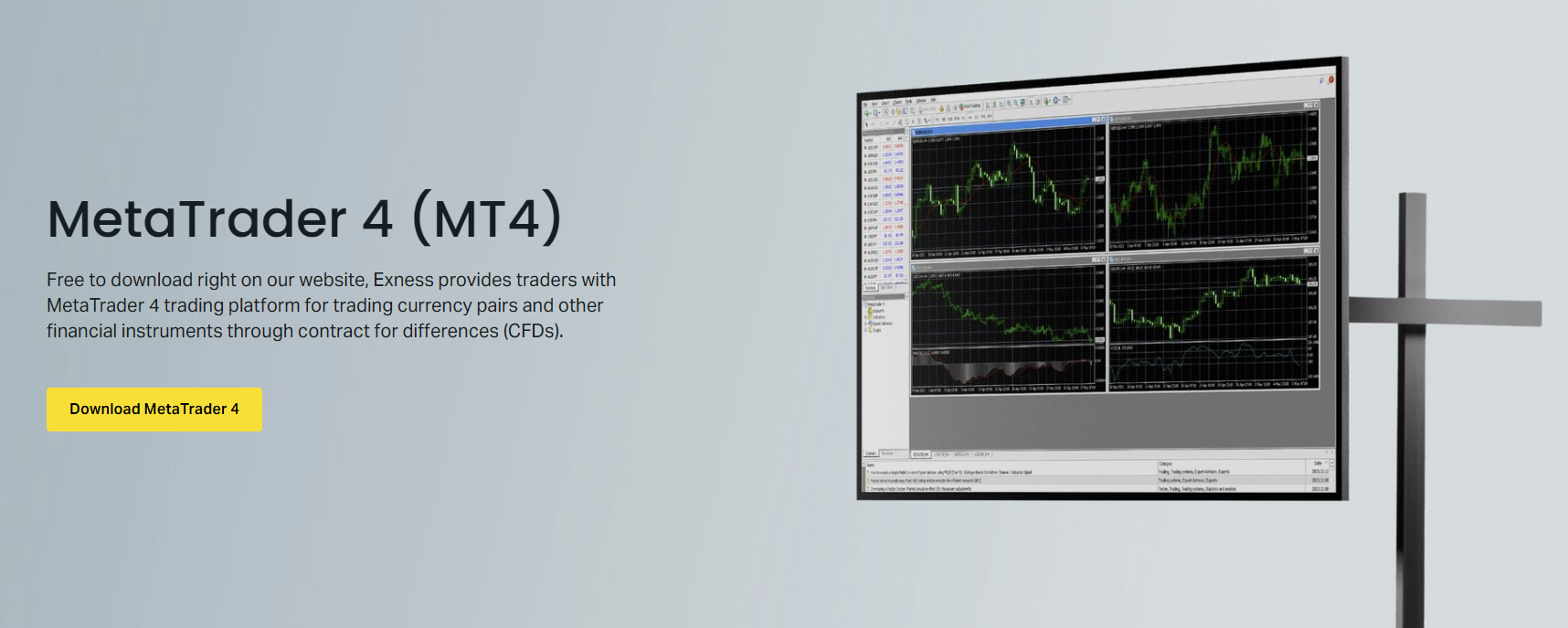
Exness provides MT4 through its personal area, direct download links, and mobile app stores. The broker's implementation includes custom symbol naming, specific server assignments per account type, and a few configuration defaults that differ from the generic MetaQuotes build. Understanding these nuances upfront prevents connection errors, missing instruments, and unnecessary support tickets.
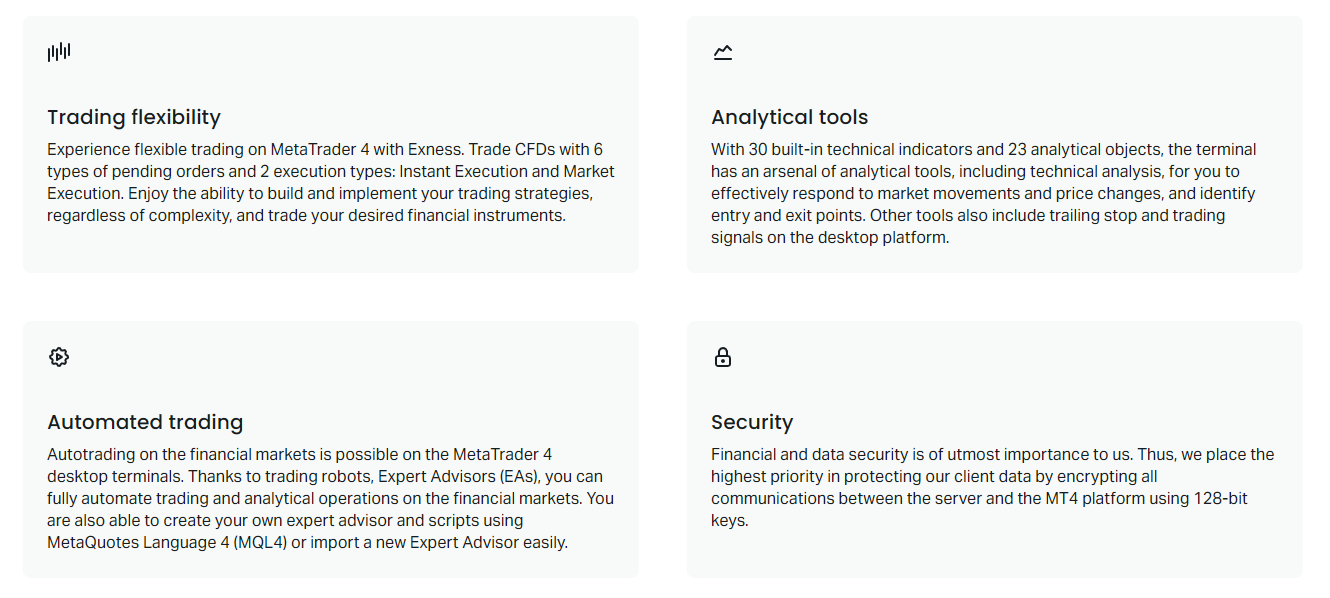
The platform itself hasn't changed dramatically in years, but Exness's trading conditions — raw spreads from 0.0 pips on certain accounts, unlimited leverage for eligible clients, and instant withdrawal processing — make the broker's MT4 offering distinct. The download process is straightforward, but the post-install configuration is where most users lose time.
Exness MT4 Desktop Download for Windows
Windows users have two reliable paths to get Exness MT4: the personal area download button and the direct link from the Exness website. Both deliver the same installer, but the personal area version pre-configures the server list for your specific account type, which saves a manual step later.
Log into your Exness personal area, navigate to the trading platforms section, and click the MT4 download button for Windows. The file is approximately 20 MB and downloads as an executable installer. Run it, accept the license agreement, choose an installation folder (the default Program Files location works fine), and let the installer complete. The process typically takes under a minute on a modern connection.
If you prefer the direct link without logging in first, visit the Exness trading platforms page and select the Windows MT4 download. This version includes the full Exness server list but doesn't pre-select your account's assigned server. You'll need to choose it manually during the first login — Exness-MT4-Trial for demo accounts, Exness-MT4-Real for standard cent and standard accounts, Exness-MT4-Pro for pro accounts, and Exness-MT4-RawSpread for raw spread and zero accounts.
System Requirements for Windows MT4
MT4 is lightweight by modern standards, but Exness's custom build adds a few megabytes. The official minimums are Windows 7 or later, 1 GHz processor, 512 MB RAM, and 50 MB free disk space. In practice, Windows 10 or 11 with 4 GB RAM and an SSD provides a noticeably smoother experience, especially when running multiple charts with custom indicators.
- Operating System: Windows 7 SP1 or newer (Windows 10/11 recommended)
- Processor: 1 GHz or faster (multi-core preferred for multi-chart setups)
- Memory: 512 MB minimum, 4 GB recommended
- Storage: 100 MB free space for installation and log files
- Display: 1024x768 minimum resolution
- Internet: Stable broadband connection, latency under 100 ms to Exness servers
Exness MT4 on macOS: Installation Options
MetaQuotes never released a native macOS version of MT4. Mac users have three workable approaches: the Exness web terminal (which replicates MT4 functionality in-browser), Wine/Crossover to run the Windows installer, or a virtual machine. The web terminal is the simplest and most stable for most traders.

The Exness web terminal runs on any modern browser — Safari, Chrome, Firefox — and requires no installation. It supports the full MT4 feature set: 30 built-in indicators, 24 analytical objects, nine timeframes, one-click trading, and expert advisor execution via the Exness VPS service. Charts sync with your desktop MT4 if you use the same account.
For traders who need the native Windows application on Mac, Wine-based solutions like PlayOnMac or Crossover can run the Exness MT4 installer. Performance is acceptable for basic trading, but custom indicators and EAs may behave unpredictably. A Windows VM via Parallels or VMware Fusion delivers near-native performance but consumes significant system resources.
Scroll horizontally to see all columns
| Method | Setup Time | Performance | EA Support | Cost |
|---|---|---|---|---|
| Exness Web Terminal | Instant | Excellent | Via VPS only | Free |
| PlayOnMac / Wine | 15-20 minutes | Good | Limited | Free |
| Crossover | 10-15 minutes | Good | Limited | Paid license |
| Parallels / VMware VM | 30-60 minutes | Near-native | Full | Paid license + Windows license |
Mobile MT4: Android and iOS Installation
The Exness MT4 mobile apps are available on Google Play and the Apple App Store. Search for 'MetaTrader 4' by MetaQuotes Software Corp — the official app — not third-party wrappers. Exness does not publish a separate branded MT4 app; the standard MetaQuotes app connects to Exness servers once you enter your credentials.
After installing the app, tap 'Login to existing account,' search for 'Exness' in the broker list, and select the appropriate server for your account type. The server naming matches the desktop version: Exness-MT4-Trial for demo, Exness-MT4-Real for standard accounts, Exness-MT4-Pro for pro, and Exness-MT4-RawSpread for raw spread and zero accounts. Enter your login (account number) and master password.
The mobile app supports 30 technical indicators, 24 analytical objects, three chart types, and nine timeframes. It lacks the strategy tester and full EA management of the desktop version, but you can monitor EA trades and manage positions remotely. Push notifications for price alerts and trade executions work reliably on both platforms when enabled in the app settings and your device's notification permissions.
First Launch: Account Configuration and Workspace Setup
On first launch, MT4 opens the login dialog. Enter your account number, master password, and select the correct server. The 'Save password' checkbox stores credentials locally in encrypted form — convenient but only recommended on personal devices. After successful login, the platform downloads symbol specifications and historical data for the default market watch list.
Exness's default market watch includes major forex pairs, metals, energies, indices, and crypto CFDs. Some symbols use suffixes (e.g., EURUSDm, XAUUSDm) to denote specific contract specifications or account-type restrictions. Right-click the market watch and select 'Show All' to see every available instrument. Drag frequently traded pairs to the top for quick access.
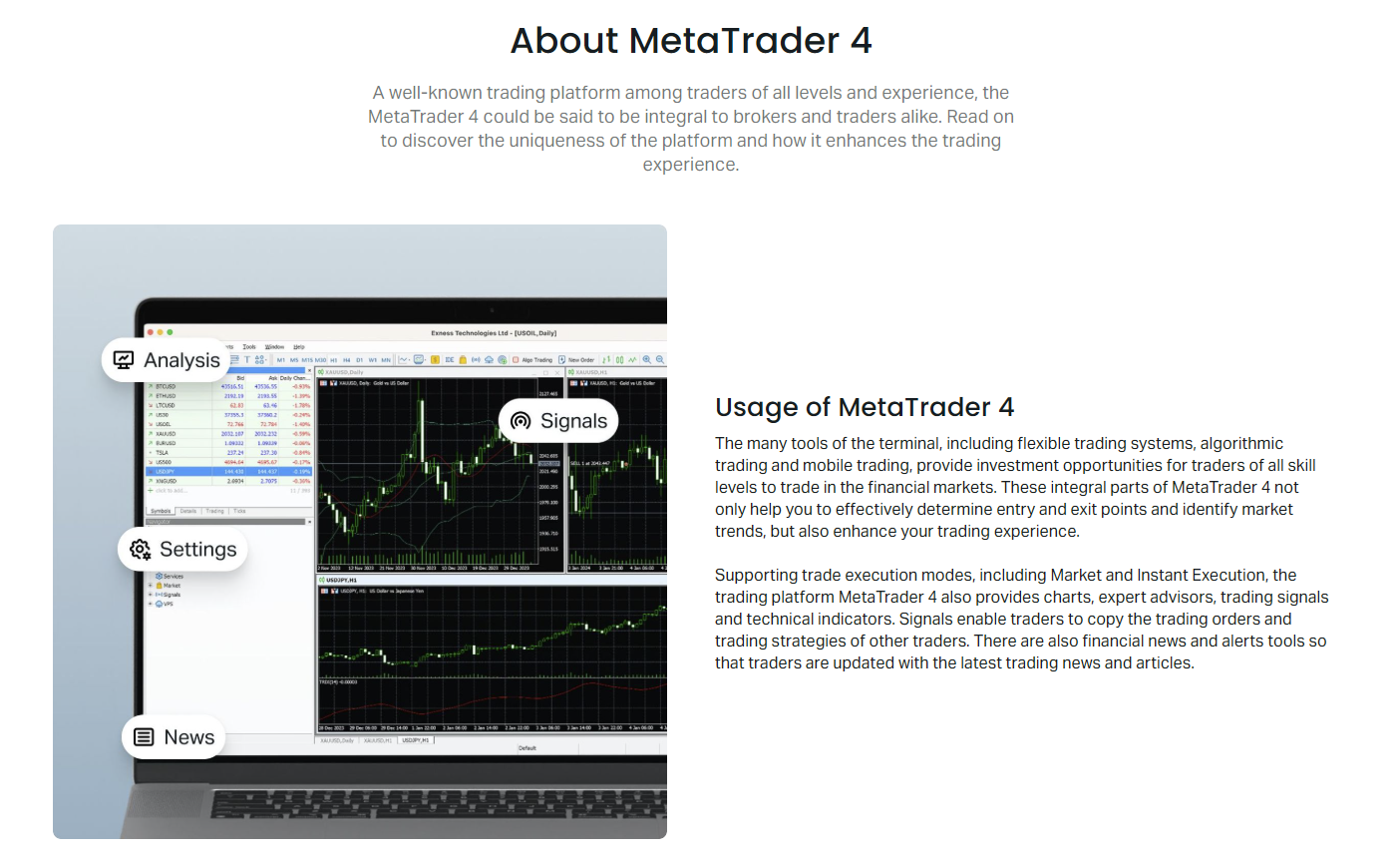
Customize your workspace by opening charts for your primary instruments, applying your preferred template (right-click chart → Template → Save Template), and arranging windows via the Window menu. The 'Tile Horizontally' and 'Tile Vertically' options create clean grid layouts. Save the entire workspace as a profile (File → Profiles → Save As) so you can restore it after updates or on another installation.
Exness-Specific Symbol Naming and Contract Details
Exness uses a suffix convention on MT4 that differs from some other brokers. Standard and Standard Cent accounts typically show symbols with an 'm' suffix (EURUSDm, GBPUSDm, XAUUSDm). Raw Spread and Zero accounts may show the same symbols but with different swap and commission structures. Pro accounts historically used raw symbols without suffixes, though this has converged in recent updates.
Scroll horizontally to see all columns
| Account Type | Forex Suffix | Metals Suffix | Commission | Swap-Free Option |
|---|---|---|---|---|
| Standard Cent | m (EURUSDm) | m (XAUUSDm) | None (spread only) | Yes |
| Standard | m (EURUSDm) | m (XAUUSDm) | None (spread only) | Yes |
| Pro | None (EURUSD) | None (XAUUSD) | None (spread only) | Yes |
| Raw Spread | m (EURUSDm) | m (XAUUSDm) | $3.5 per side per lot | Yes |
| Zero | m (EURUSDm) | m (XAUUSDm) | $3.5 per side per lot (zero spread) | Yes |
Always verify the contract specification for each symbol before trading. Right-click any symbol in Market Watch → Specification. Check the contract size, margin currency, swap long/short, and commission fields. Exness updates these periodically, especially for crypto and exotic pairs.
Installing Custom Indicators and Expert Advisors
MT4's MQL4 ecosystem remains vast. To install a custom indicator or EA on Exness MT4, download the .mq4 or .ex4 file, then open the data folder via File → Open Data Folder. Navigate to MQL4 → Indicators or MQL4 → Experts, paste the file, and restart MT4. The new indicator appears in the Navigator under Custom Indicators; EAs appear under Expert Advisors.
Exness permits all EAs, including scalpers, grid systems, and martingale strategies, provided they comply with the broker's general terms. However, the broker's execution model — market execution with no requotes — means EAs relying on instant execution or requote handling will not function as designed. Test thoroughly on a demo account first.
Exness VPS for MT4: Setup and Eligibility
Exness offers a free VPS service for clients who meet minimum equity and trading volume thresholds. The VPS runs a Windows Server instance with MT4 pre-installed, located in Equinix data centers near Exness's trade servers. Latency typically drops to 1-2 ms, which matters for high-frequency EAs and latency-sensitive strategies.
Eligibility requires either $500 equity with 5 lots traded monthly, or $3,000 equity with no volume requirement. Apply through the personal area under the VPS section. Once approved, you receive RDP credentials. Connect via Microsoft Remote Desktop, launch MT4, and log in with your existing account. The VPS persists your EA state across local device restarts.
A VPS doesn't improve your strategy — it only removes your local internet and power as failure points. If the EA loses money on your home connection, it will lose money on a VPS too.
Troubleshooting Common Exness MT4 Issues
Connection problems top the list. If MT4 shows 'No connection' in the bottom right, check your internet first, then verify the server address. Exness MT4 servers resolve to mt4.exness.com for real accounts and mt4-demo.exness.com for trial. Ping these hosts from a command prompt — latency over 200 ms or packet loss indicates a routing issue, not a broker problem.
- 'Invalid account' at login: Wrong server selected for account type. Re-check the server mapping table above.
- 'Authorization failed': Incorrect password. Use the master password, not the investor password. Reset via personal area if needed.
- 'Market closed' on active symbols: Trading hours vary by instrument. Forex closes Friday 23:59 server time, opens Sunday 23:05. Check the symbol specification for exact sessions.
- Missing symbols in Market Watch: Right-click → Show All. Some instruments are hidden by default on certain account types.
- EA not trading: Check the Experts and Journal tabs for errors. Common causes: insufficient margin, wrong magic number, trading disabled in EA settings, or 'Allow live trading' unchecked.
MT4 vs MT5 on Exness: Which to Choose
Exness supports both platforms with identical trading conditions per account type. MT4 remains the choice for traders with existing MQL4 libraries, legacy EAs, or preference for the simpler interface. MT5 adds more timeframes (21 vs 9), more order types, a built-in economic calendar, depth of market, and MQL5's object-oriented language. The hedging/netting account distinction exists on MT5 but not MT4 — Exness MT5 accounts are hedging by default.
Scroll horizontally to see all columns
| Feature | MT4 | MT5 |
|---|---|---|
| Timeframes | 9 | 21 |
| Order Types | 4 (Market, Pending) | 6 (adds Stop Limit, Take Profit Limit) |
| Technical Indicators | 30 built-in | 38 built-in |
| Analytical Objects | 24 | 44 |
| Economic Calendar | No | Yes (built-in) |
| Depth of Market | No | Yes |
| Strategy Tester | Single-threaded | Multi-threaded, cloud |
| Hedging Support | Native | Native (default on Exness) |
| MQL Language | MQL4 (procedural) | MQL5 (OOP) |
| Exness Account Compatibility | All types | All types |
If you're starting fresh with no legacy code, MT5 is the more capable platform. If you have working MT4 EAs or indicators you don't want to port, stay on MT4. Exness allows simultaneous MT4 and MT5 accounts under the same personal area — you can run both.
Security Best Practices for Exness MT4
MT4 stores encrypted passwords in the config folder, but local malware can still extract them. Use a dedicated trading device when possible. Enable two-factor authentication on your Exness personal area — this protects account management actions (withdrawals, password changes) even if MT4 credentials are compromised.
- Use a unique, strong master password for each trading account
- Never share your master password; use investor password for read-only access
- Enable 2FA on Exness personal area (Google Authenticator or SMS)
- Keep MT4 updated — Exness pushes updates automatically on restart
- Avoid public Wi-Fi for trading; use a phone hotspot or VPN if necessary
- Log out of MT4 (File → Login → uncheck 'Save password') on shared devices
Updating and Maintaining Exness MT4
MetaQuotes releases MT4 updates infrequently — typically security patches or compatibility fixes. Exness distributes these through the standard MT4 live update mechanism. When you launch MT4, it checks for updates and applies them automatically before showing the login screen. You'll see a brief 'Updating...' progress bar.
Custom indicators and EAs in the MQL4 folder persist through updates. However, major Windows updates or antivirus actions can occasionally reset file permissions, causing 'Cannot load library' errors. If this happens, right-click the MQL4 folder → Properties → Security → ensure your user has Full Control.
Log files accumulate in the Logs folder (Open Data Folder → Logs). MT4 creates daily logs and keeps them for roughly a month. Large log folders (hundreds of MB) can slow platform startup. Delete logs older than 30 days manually or use a script. The Journal tab in the Terminal window shows the current session's events — clear it periodically via right-click → Clear.
MT4's age shows in its file management. A 2 GB log folder won't crash the platform, but it will add seconds to every launch. Clean it quarterly.
Final Assessment of Exness MT4 Download and Setup
Downloading and configuring Exness MT4 is a solved problem — the installer works, the servers are stable, and the mobile apps are feature-complete for position management. The friction points are almost entirely post-install: selecting the correct server for your account type, understanding symbol suffixes, and configuring EAs for market execution rather than instant execution. Traders who spend ten minutes verifying these details before placing their first live trade avoid the most common support issues entirely. The platform itself is showing its age compared to MT5 and modern web terminals, but for algorithmic traders with MQL4 libraries, it remains the pragmatic choice on Exness.
Frequently Asked Questions
Does Exness have MT4 for Mac?
Exness does not offer a native macOS MT4 installer. Mac users should use the Exness web terminal (browser-based), run the Windows version via Wine/Crossover, or use a Windows virtual machine. The web terminal provides full MT4 functionality without installation.
Which Exness MT4 server do I choose for my account?
Match the server to your account type: Exness-MT4-Trial for demo, Exness-MT4-Real for Standard Cent and Standard, Exness-MT4-Pro for Pro, and Exness-MT4-RawSpread for Raw Spread and Zero accounts. The correct server is shown in your personal area under account details.
Can I use my existing MT4 EAs on Exness?
Yes, Exness permits all EAs including scalpers and grid systems. However, Exness uses market execution with no requotes, so EAs designed for instant execution or requote handling will not work as intended. Test thoroughly on a demo account first.
How do I get the free Exness VPS for MT4?
You need either $500 equity with 5 lots traded monthly, or $3,000 equity with no volume requirement. Apply in the personal area under the VPS section. Once approved, you receive RDP credentials to connect to a Windows Server with MT4 pre-installed near Exness trade servers.
Why are some symbols missing from Market Watch on Exness MT4?
Right-click Market Watch and select 'Show All' to display all available instruments. Some symbols are hidden by default. Also verify your account type supports the instrument — certain exotic pairs or crypto CFDs may be restricted on Standard Cent accounts.
What is the difference between master password and investor password on Exness MT4?
The master password allows full trading: open, modify, and close positions. The investor password grants read-only access — view charts, open positions, history, and equity — but cannot execute trades. Use investor password for third-party analytics or sharing performance.
How do I update Exness MT4 to the latest version?
MT4 checks for updates automatically on launch. When an update is available, it downloads and installs before showing the login screen. Custom indicators and EAs in the MQL4 folder are preserved. Restart MT4 periodically to receive updates.