

Forex Trading Tools
Exness VPS: Free Hosting for Automated Trading
Everything you need to know about Exness free VPS for MT4 and MT5 expert advisors.

Senior Forex Trader & Market Analyst
Daniel Chen is an experienced forex trader and financial market analyst with over 15 years of experience in currency trading. He specializes in technical analysis, risk management, and developing practical trading strategies to help traders make informed decisions.
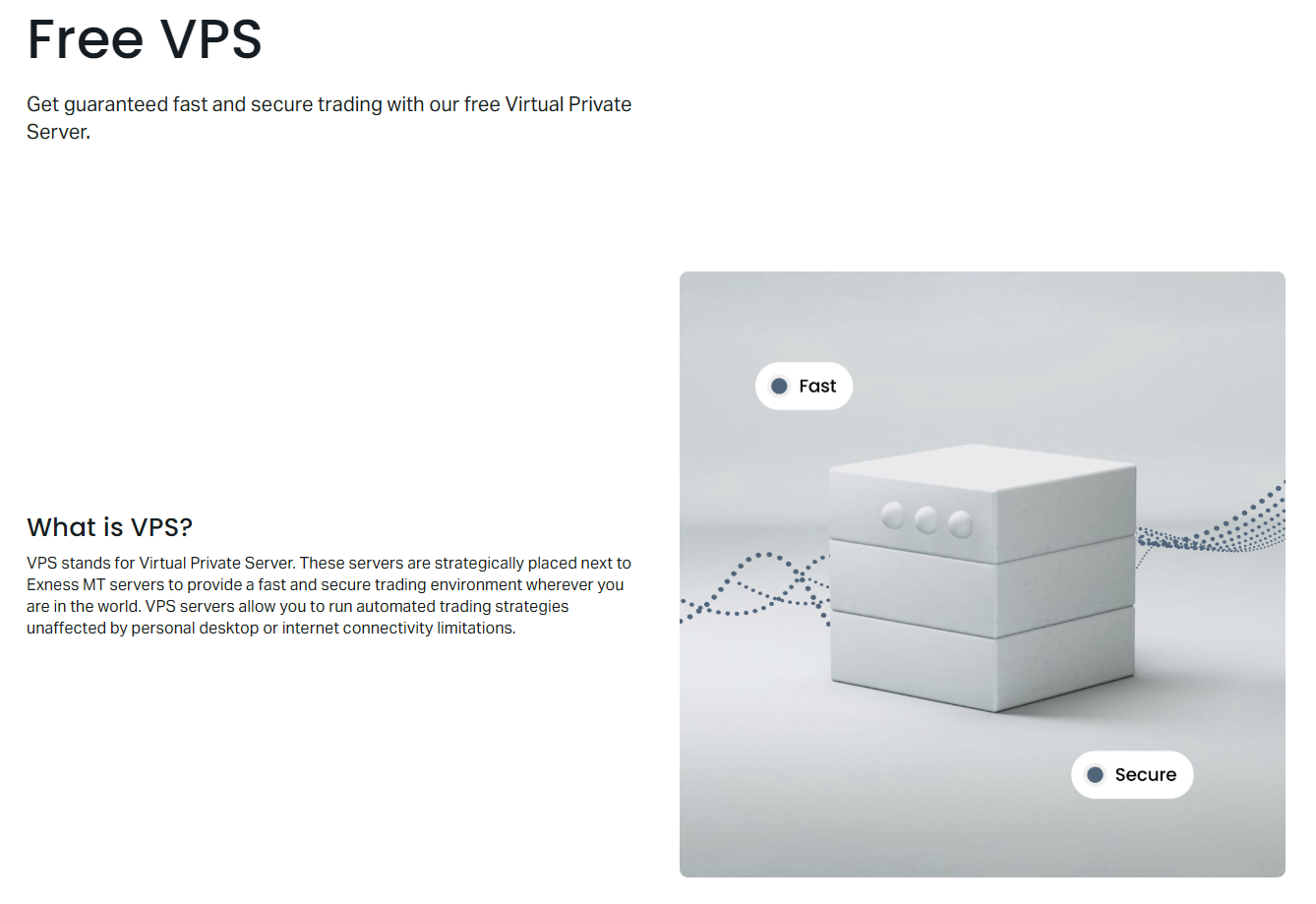
Exness offers a virtual private server service at no cost to qualifying clients, letting expert advisors and signal subscriptions run around the clock without a home computer staying powered on. The service is built on enterprise-grade hardware in data centers close to Exness trade servers, which keeps latency low and reduces the chance of missed fills during volatile moves. This article walks through who qualifies, what the server actually delivers, how to get it running, and whether it makes sense compared to commercial VPS providers.
Contents
- 1. Exness Free VPS Eligibility Requirements
- 2. VPS Specifications and Performance Reality
- 3. Setting Up Your Exness VPS Step by Step
- 4. Running Multiple Terminals and Resource Management
- 5. Latency and Execution Benefits for Automated Strategies
- 6. Comparing Exness VPS to Third-Party Providers
- 7. Common Issues and Practical Fixes
- 8. Security Considerations for a Shared Free VPS
- 9. Final Assessment of Exness VPS
Most brokers that provide free VPS tie eligibility to a minimum deposit or a monthly trading volume threshold. Exness follows a similar model but keeps the requirements transparent: a combined account equity of at least 500 USD and at least five round-turn lots traded in the previous calendar month. The equity check looks at the total across all real accounts in your Personal Area, not just a single account. Volume is measured in standard lots, so cent-account activity counts at one-hundredth the weight. If you dip below either threshold, the VPS stays active until the next monthly review, giving a short grace period.
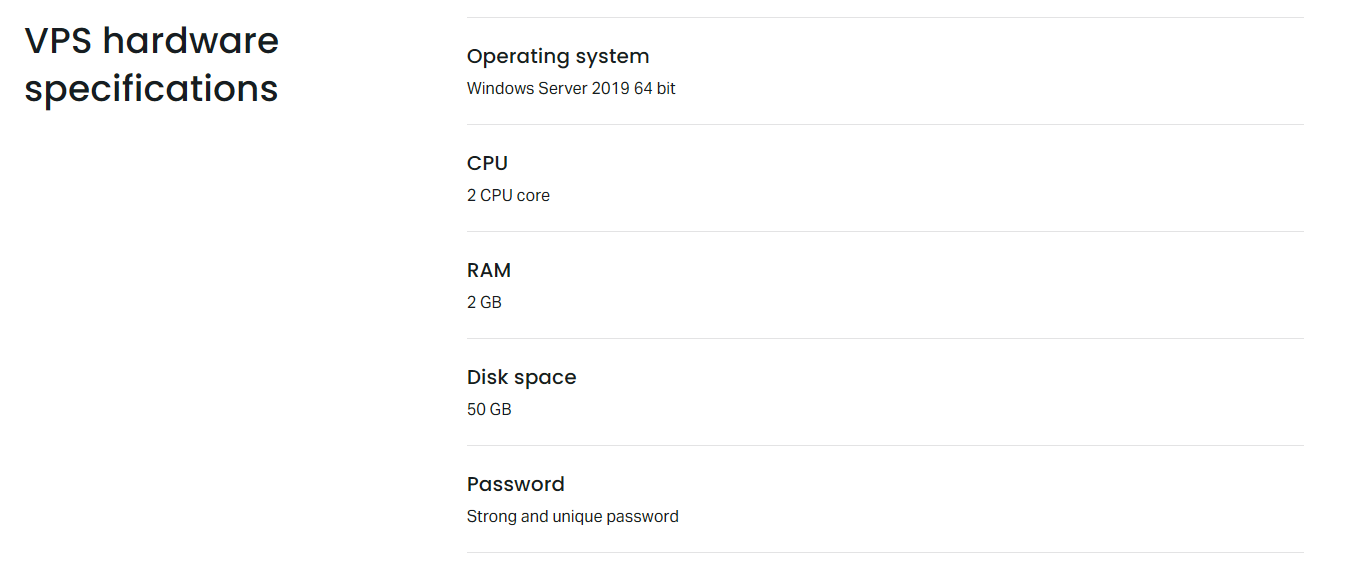
The VPS itself runs Windows Server 2019 on a 2 vCPU, 2 GB RAM, 30 GB SSD configuration. That is modest by modern standards but sufficient for a handful of MetaTrader 4 or 5 terminals with lightweight expert advisors. Heavy multi-currency backtesting or running dozens of charts with custom indicators will hit the memory ceiling quickly. Exness does not offer a paid upgrade tier; if you need more resources you must rent elsewhere. The server sits in the same Equinix NY4 facility that hosts Exness pricing engines, so network hop count is minimal — typically under 1 ms between the VPS and the trade server.
Exness Free VPS Eligibility Requirements
Qualification is evaluated on the first calendar day of each month using data from the prior month. The two criteria — 500 USD combined equity and five standard lots traded — must both be satisfied. Equity includes floating profit and loss at the moment of the check, so a large drawdown can temporarily disqualify you even if deposits are well above the threshold. Volume counts only completed round turns on real accounts; demo trading, pending orders that never filled, and internal transfers do not contribute. The five-lot requirement is aggregated across all instruments, so 2.5 lots EURUSD plus 2.5 lots XAUUSD satisfies it.
Cent accounts are popular with newer traders, but remember that 1 lot on a cent account equals 0.01 standard lots. Hitting five standard lots on a cent account means 500 cent lots, which is a significant amount of activity for a small balance. Many cent-account users find the volume hurdle harder than the equity hurdle. If you trade standard accounts with reasonable position sizing, the volume target is usually met within a few active sessions. The equity requirement is static; once your combined balance plus floating P/L crosses 500 USD you pass that leg indefinitely unless a drawdown pulls you back under.
- Combined real-account equity ≥ 500 USD at month-end snapshot
- ≥ 5 standard round-turn lots traded during the calendar month
- Both conditions must be met simultaneously
- Review occurs on the 1st of each month
- Grace period: VPS remains active until next review if you fall short
Exness does not publish a public API for checking eligibility programmatically. The Personal Area dashboard shows a green checkmark next to the VPS button when you qualify. If you are close on volume, the dashboard does not display a running lot counter; you must estimate from your trade history. Some traders keep a simple spreadsheet pivot of daily volume to avoid surprises. The equity figure shown in the Personal Area matches the qualification snapshot, so you can watch that in real time.
VPS Specifications and Performance Reality
The published specs — 2 vCPU, 2 GB RAM, 30 GB SSD, 1 Gbps port — are entry-level by 2024 standards. In practice, a fresh Windows Server 2019 install consumes roughly 1.1 GB RAM at idle. Launching one MT5 terminal with a few charts and an EA pushes usage to 1.5–1.7 GB. Two terminals leave almost no headroom. If you run Windows updates, antivirus scans, or remote desktop sessions, the system will swap to the SSD, introducing latency spikes. Traders who need three or more terminals, or who use memory-heavy EAs with large lookback arrays, will hit out-of-memory errors or forced restarts.
CPU allocation is shared on a hypervisor. The 2 vCPU guarantee means you get two threads of an underlying physical core, but noisy neighbors can steal cycles. During major news events (NFP, CPI, central bank decisions) the host node often sees elevated load from every VPS user running news-strategy EAs simultaneously. Benchmarks run on a quiet Sunday show single-thread PassMark scores around 1,100; under load that can drop 30–40%. For simple order-execution logic this rarely matters, but for on-tick calculations with complex math it can cause missed ticks or delayed order sends.
Disk I/O is the quiet bottleneck. The 30 GB SSD must hold the OS, page file, MT4/MT5 logs, tick data caches, and any custom databases. A typical MT5 terminal with six months of M1 history for ten symbols can occupy 2–3 GB. Two terminals double that. Windows updates can temporarily consume 5–8 GB. If free space drops below 2 GB, the system becomes unstable. Exness does not provide a control panel to add storage or clean logs automatically; you must RDP in and manage it manually. Many users schedule a weekly task to delete terminal logs older than 30 days and compact the history database.
Scroll horizontally to see all columns
| Resource | Exness Free | Entry Commercial ($10–15/mo) | Mid Commercial ($25–35/mo) |
|---|---|---|---|
| vCPU | 2 | 2–3 | 4–6 |
| RAM | 2 GB | 2–4 GB | 8–16 GB |
| Storage | 30 GB SSD | 50–80 GB NVMe | 150–300 GB NVMe |
| Network | 1 Gbps shared | 1–10 Gbps | 10 Gbps |
| Location | NY4 only | Multiple global DCs | Multiple global DCs |
| OS License | Included | Included | Included |
| Support | Ticket only | 24/7 chat + ticket | 24/7 phone + chat |
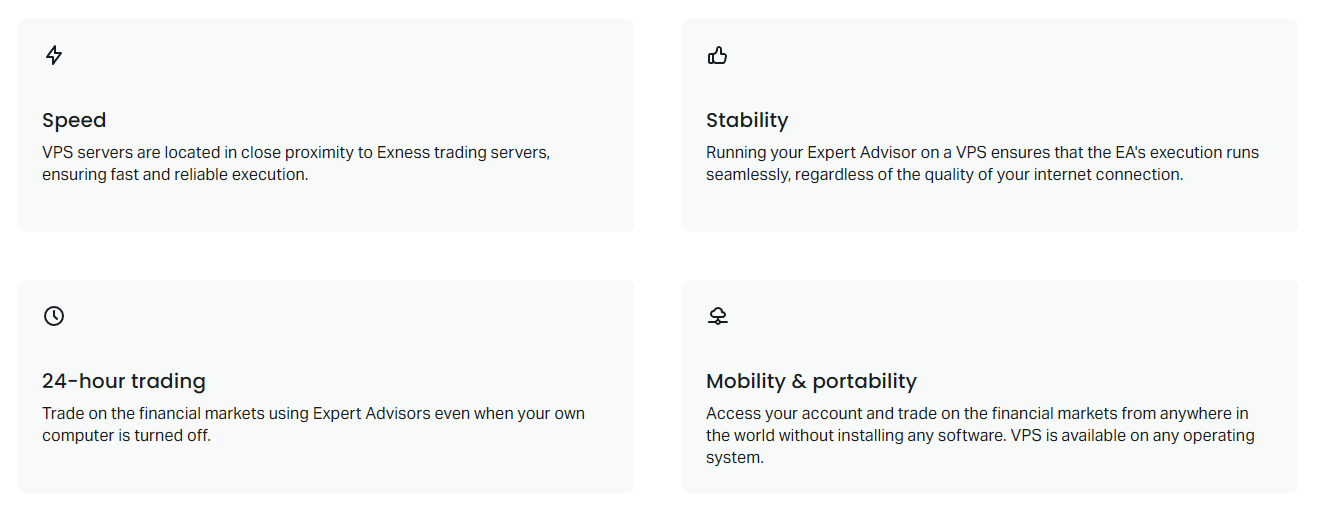
Network latency from the VPS to Exness trade servers averages 0.3–0.8 ms on a quiet day. During peak hours it can rise to 2–3 ms. That is still an order of magnitude better than a home connection from Europe or Asia, which typically sees 30–150 ms. For high-frequency scalpers or arbitrage EAs, every millisecond counts, and the free VPS delivers a genuine edge over residential internet. For swing traders holding positions for hours or days, the difference is negligible. The single data center location (NY4) means traders targeting Asian-session instruments (JPY pairs, AUD, NZD) still face the physics of trans-Pacific latency from New York to Tokyo liquidity pools.
Setting Up Your Exness VPS Step by Step
Activation starts in the Personal Area under the VPS tab. If you meet eligibility, a green "Get VPS" button appears. Clicking it provisions the server within 5–10 minutes. You receive an email with the IPv4 address, administrator username (usually "Administrator"), and a one-time password. The password must be changed on first login. No SSH key option exists; RDP is the only remote access method. The firewall allows inbound RDP (port 3389) from any IP, so changing the default port or restricting via Windows Firewall is a basic hardening step.
First login via Microsoft Remote Desktop (Windows) or Microsoft Remote Desktop app (Mac, iOS, Android). Accept the certificate warning — it is self-signed. Immediately open Settings → Accounts → Sign-in options and set a strong password. Then open Windows Firewall → Advanced Settings → Inbound Rules, find "Remote Desktop", and either change the port to something non-standard (e.g., 3390) or scope the rule to your home IP range. If you lock yourself out, Exness support can reset the password but cannot change firewall rules for you; you would need to request a full VPS re-provision, which takes another 10 minutes and wipes any installed software.
- Open Personal Area → VPS tab → click Get VPS
- Wait for provisioning email with IP, username, temporary password
- Connect via RDP client (Windows built-in or Microsoft Remote Desktop app)
- Change administrator password immediately
- Harden RDP: change port or restrict source IPs in Windows Firewall
- Install MetaTrader 4/5 from Exness download page (not third-party sites)
- Log in to your trading accounts, enable AutoTrading, load EAs
- Test with a micro-lot order to confirm execution path works
MetaTrader installers from the Exness website are pre-configured with the correct trade server addresses. Downloading from mql5.com or the MetaQuotes site works but requires manual server entry. Install the 64-bit version; the 32-bit build is deprecated and will not run on Windows Server 2019. After installation, launch the terminal, log in, and verify the connection status in the bottom-right corner shows green bars and a ping under 5 ms. Enable "Allow automated trading" in Tools → Options → Expert Advisors. Drag your EA onto a chart, confirm the smiley face appears in the top-right, and watch the Experts tab for any initialization errors.
A common pitfall is forgetting to synchronize the VPS clock. Windows Server defaults to time.windows.com, which is fine, but the NTP poll interval can be 15 minutes. For EAs that rely on precise candle-close timing, run "w32tm /resync" manually after first login and consider creating a Task Scheduler job to resync every 5 minutes. Another oversight: Windows Update reboots. The server is set to automatic updates and will reboot without warning, killing running EAs. Change Active Hours to cover your trading sessions and set "Restart this device as soon as possible" to off. Better yet, use Group Policy (gpedit.msc) to defer feature updates and pause quality updates for 7 days at a time, manually applying them on weekends.
Running Multiple Terminals and Resource Management
Each MT4 or MT5 instance runs as a separate process (terminal64.exe). A minimal terminal with one chart and no EA uses ~180 MB RAM. Adding 10 charts with indicators pushes it to 350–450 MB. An EA that stores tick arrays in memory can add another 100–300 MB per instance. With 2 GB total RAM, the practical limit is two lightweight terminals or one heavy terminal plus one lightweight. Running three terminals almost guarantees paging. The SSD mitigates paging latency but does not eliminate it; disk queue length spikes during news events when all terminals write logs simultaneously.
To stretch resources, disable unnecessary Windows services: Print Spooler, Windows Search, SysMain (Superfetch), and Windows Update Medic Service. Use "services.msc" and set them to Disabled. Turn off visual effects: System → Advanced → Performance → Adjust for best performance. In each terminal, reduce "Max bars in history" and "Max bars in chart" to 5,000 or lower unless your strategy explicitly needs more. Disable "News" in the terminal toolbar. Set log rotation: Tools → Options → Server → uncheck "Enable logging" for the Experts and Journal tabs if you do not need audit trails. These tweaks can reclaim 300–500 MB.
If you need to run more than two terminals, consider the multi-terminal feature in MT4 (File → Open MultiTerminal) which shares a single process for multiple accounts. MT5 does not have a native multi-terminal; you must run separate processes. Some traders use a single MT5 instance with multiple accounts by switching the login in Navigator, but EAs attached to charts only run on the currently logged-in account. For true concurrent multi-account automation on MT5, separate processes are unavoidable. That is where the 2 GB ceiling becomes a hard constraint.
Latency and Execution Benefits for Automated Strategies
The primary reason to use any VPS is reducing the round-trip time between your EA's order send and the broker's order receipt. On a home connection from London to Exness NY4, typical ping is 60–80 ms. From Singapore, 200–250 ms. From Sydney, 250–300 ms. The free VPS sits in the same building as the pricing engine, so the network leg is effectively zero. The remaining latency is the EA's internal processing plus the MT4/MT5 network stack, usually 1–3 ms total. For a scalper targeting 2–5 pip moves on EURUSD, eliminating 60 ms of internet latency can be the difference between a fill at the requested price and a requote or slippage.
Slippage statistics are not published by Exness for VPS vs non-VPS users, but the physics is straightforward: the longer an order spends in transit, the more the market can move. During NFP, EURUSD can move 10–20 pips in 100 ms. A 60 ms home latency means your order arrives when price has already moved 6–12 pips from your EA's calculation. A 2 ms VPS latency means 0.2–0.4 pips. That edge compounds over hundreds of trades. For strategies that place limit orders resting in the book (iceberg, passive market making), latency matters less because the order is already at the exchange when the market moves. For aggressive market orders, latency is everything.
The free VPS removes the single largest source of execution variance for retail algorithmic traders: the unpredictable last mile of consumer internet.
Uptime is another factor. Residential internet suffers outages, router reboots, ISP maintenance windows, and power cuts. The Equinix NY4 facility has redundant power, cooling, and multiple Tier 1 transit providers. Exness does not publish an SLA for the free VPS, but the underlying infrastructure targets 99.99% availability. In the past two years, community reports show fewer than four unplanned downtime events exceeding 15 minutes. Scheduled maintenance windows (usually Saturday 00:00–04:00 UTC) are announced via email and Personal Area notification. Your EAs will stop during those windows unless you have a fallback.
Comparing Exness VPS to Third-Party Providers
Commercial forex VPS providers (ForexVPS, BeeksFX, CNS, FXVM, etc.) charge $10–$50 per month for plans that exceed the free Exness specs. A typical $15 plan offers 2–3 vCPU, 4 GB RAM, 60 GB NVMe, and a choice of data centers (London, New York, Tokyo, Amsterdam). If you trade Exness, the New York location matches the free VPS latency. The extra RAM and storage allow 4–6 terminals comfortably. Support is usually 24/7 live chat with technicians who understand MetaTrader quirks — something Exness general support does not specialize in. Some providers pre-install MT4/MT5, configure auto-restart on crash, and offer a web-based control panel for reboot/reinstall without RDP.
The free VPS wins on cost (zero) and simplicity (integrated into Personal Area). It loses on resources, flexibility, and specialized support. If your strategy runs fine on 2 GB RAM and you only need one or two terminals, the free VPS is a no-brainer — you are already paying for it via spreads and commissions through your trading volume. If you need more RAM, multiple data centers for redundancy, or a control panel that lets you reboot a frozen terminal from your phone, a paid VPS pays for itself in time saved. Some traders run both: the free VPS for primary execution and a cheap $10 backup VPS in a different provider's rack for failover.
Scroll horizontally to see all columns
| Scenario | Free Exness VPS | Paid Commercial VPS |
|---|---|---|
| 1–2 lightweight EAs, standard account | Ideal | Overkill |
| 3+ terminals or memory-heavy EAs | Unstable | Recommended |
| Need Tokyo/London latency for other brokers | Not possible | Choose DC per broker |
| Want web control panel, auto-restart | Not available | Standard feature |
| Trading only with Exness, low complexity | Best value | Unnecessary cost |
| Running custom Python/R/Matlab bots | Possible but tight | More headroom |
A hidden cost of the free VPS is the eligibility maintenance. You must trade five lots every month. If your strategy is low-frequency (e.g., one swing trade per week), you may not hit the volume target without forcing extra trades. That can distort your strategy's risk profile. A paid VPS has no volume requirement; you pay cash and trade at your natural pace. For a trader doing 20 lots/month, the implicit cost of the free VPS is the spread/commission on those 20 lots — roughly $140–$200 on typical Exness Raw Spread pricing. A $15 VPS is cheaper in pure dollar terms, but the free VPS cost is already sunk in your normal trading. The calculation changes if you would otherwise trade less.
Common Issues and Practical Fixes
The most frequent complaint is the VPS becoming unresponsive after a Windows Update reboot. The terminal does not auto-start. Fix: create a shortcut to terminal64.exe in the Windows Startup folder (shell:startup) for each account you run. Better: use Task Scheduler → Create Basic Task → At startup → Start a program → path to terminal64.exe with " /portable" flag if using portable mode, or just the exe. Check "Run with highest privileges" and "Run whether user is logged on or not". This ensures the terminal launches before you RDP in.
RDP disconnects are another headache. The default RDP session times out after 10 minutes of inactivity. Change this in Group Policy: gpedit.msc → Computer Configuration → Administrative Templates → Windows Components → Remote Desktop Services → Remote Desktop Session Host → Session Time Limits → Set time limit for disconnected sessions → Enabled → 0 (never). Also set "Set time limit for active but idle sessions" to 0. This keeps your session alive indefinitely, so terminals keep running even when you close the RDP window. Note: closing the RDP window does not log you off; it disconnects. Logging off (Start → Administrator → Sign out) stops all user-session processes including terminals. Always disconnect, never sign out.
- Terminals don't auto-start after reboot → Task Scheduler at system startup
- RDP session dies after inactivity → Group Policy: set idle/disconnected limits to 0
- Out of memory crashes → Reduce Max bars, disable logging, kill unused services
- Disk full → Schedule weekly cleanup of logs, temp, Windows Update cache
- EA not trading → Check AutoTrading button, smiley face, Experts tab errors
- High latency spikes → Check Windows Update not running, no neighbor heavy load
Disk space exhaustion sneaks up. Windows Update downloads can fill the 30 GB drive in a single Patch Tuesday. Run "cleanmgr /sageset:1" and select all categories, then create a Task Scheduler job running "cleanmgr /sagerun:1" weekly. Also delete C:\Windows\SoftwareDistribution\Download contents after updates install. MT4/MT5 log files in AppData\Roaming\MetaQuotes\Terminal\<hash>\logs grow unbounded. A simple PowerShell script run weekly via Task Scheduler can delete logs older than 14 days: Get-ChildItem -Path $logPath -Recurse -Name *.log | Where-Object { $_.LastWriteTime -lt (Get-Date).AddDays(-14) } | Remove-Item.
Exness support for VPS issues is limited. The support team can reset your password, re-provision the server (wiping everything), and confirm the VPS is powered on. They cannot RDP in for you, cannot install software, cannot debug your EA, and cannot adjust Windows settings. If you break the OS (e.g., disable the network adapter via RDP), the only fix is a full re-provision. Keep a note of your EA parameters, input settings, and license keys locally so you can rebuild quickly. Some traders maintain a portable MT5 installation on a USB drive or cloud storage with all EAs pre-configured; copying the folder to the fresh VPS gets you running in minutes.
Security Considerations for a Shared Free VPS
The VPS is a multi-tenant Windows server. Each user gets an isolated account, but the underlying hypervisor is shared. Exness uses standard virtualization isolation (likely Hyper-V or VMware). There is no evidence of cross-VM data leakage, but defense-in-depth suggests treating the VPS as a hostile environment. Do not store API keys, wallet seeds, or unencrypted password databases on the VPS. Use Windows Credential Manager or a password manager that locks on session disconnect. Enable BitLocker on the system drive (Control Panel → BitLocker Drive Encryption) — it is available on Windows Server 2019 Standard and encrypts the volume at rest, protecting against physical disk theft (unlikely in Equinix) and snapshot attacks.
RDP is the attack surface. Brute-force bots scan the internet for port 3389. Changing the port to a high non-standard number (e.g., 54321) stops 99% of automated scans. Better: restrict the firewall rule to your known IP ranges (home, office, VPN). If you travel, use a personal VPN with a static IP and allow only that IP. Enable Network Level Authentication (NLA) — it is on by default in Server 2019 — which requires authentication before a full RDP session loads, mitigating credential-guessing attempts. Consider installing Fail2Ban-like logic via Windows Event Log monitoring (Event ID 4625) and a PowerShell script that blocks IPs after 5 failed attempts, but that adds complexity.
Exness does not provide backup or snapshot services. If you corrupt the OS, delete a critical file, or get hit by ransomware (unlikely but possible via malicious EA download), you lose everything. Maintain your own backup: export EA settings (right-click EA → Settings → Save), copy the MQL5/Experts and MQL5/Include folders to a cloud drive weekly. A full disk image via Macrium Reflect Free or Veeam Agent Free to an external target (OneDrive, Google Drive, Wasabi) gives bare-metal recovery. The 30 GB drive images compress to 8–12 GB. Schedule it Sunday night when markets are closed.
Final Assessment of Exness VPS
The Exness free VPS is a genuinely useful tool for the right trader. It delivers sub-millisecond latency to Exness trade servers, costs nothing if you already meet the volume threshold, and integrates directly into the broker's ecosystem. For a trader running one or two lightweight EAs on standard accounts, it removes the single biggest execution risk — consumer internet — without adding monthly overhead. The 2 GB RAM and 30 GB SSD are tight but workable with disciplined resource management. The lack of a control panel, specialized support, and multi-data-center redundancy means it is not a replacement for a professional managed VPS when reliability or scale matters.
The eligibility requirement creates a subtle incentive to overtrade. Five standard lots per month is trivial for an active scalper but meaningful for a swing trader or a small account. If you find yourself placing extra trades just to keep the VPS, the free service is costing you in distorted strategy performance. In that case, a $15/month commercial VPS is cheaper than the expected value of forced trades. Evaluate honestly: would you trade those five lots anyway? If yes, the free VPS is pure upside. If no, pay for independence.
A free VPS that changes your trading behavior is more expensive than a paid VPS that doesn't.
Exness could improve the offering by adding a paid tier with more resources, a web console, and automated terminal recovery. They could also publish a real-time eligibility tracker in the Personal Area. Until then, the free VPS remains a solid baseline for algorithmic traders who qualify naturally. Use it, harden it, monitor it, and keep a backup plan. That is the professional approach regardless of who hosts your server.
Frequently Asked Questions
How do I know if I qualify for Exness free VPS?
Log into your Personal Area and open the VPS tab. A green checkmark and active "Get VPS" button mean you meet both the 500 USD equity and 5 lots volume requirements for the previous calendar month.
Can I use the VPS with brokers other than Exness?
Technically yes — you can install any MT4/MT5 and connect to any broker. However, the latency advantage only applies to Exness trade servers in NY4. Other brokers will see normal internet latency from New York to their data centers.
What happens if I fall below the requirements mid-month?
The VPS stays active until the next monthly review on the 1st. If you still don't meet both criteria at that review, the VPS is deactivated and the server is reclaimed. You can reapply once you qualify again.
Does Exness VPS support Linux or only Windows?
Only Windows Server 2019 is provided. You cannot install Linux on the free VPS. If you need Linux, you must rent a commercial VPS that offers OS choice.
Can I upgrade the RAM or CPU on the free VPS?
No. Exness does not offer paid upgrades on the free VPS. The 2 vCPU / 2 GB RAM / 30 GB SSD configuration is fixed. For more resources you must use a third-party provider.
Will my EAs keep running if I close the RDP window?
Yes, closing the RDP window disconnects your session but leaves it running. Do not choose "Sign out" — that logs you off and stops all user-session processes including MetaTrader terminals.
How do I fix the VPS if it becomes unresponsive?
First try reconnecting via RDP. If that fails, contact Exness support to request a re-provision. This wipes the server and gives you fresh credentials. You will need to reinstall terminals and EAs from scratch.
Is the free VPS suitable for high-frequency trading?
The sub-millisecond latency is excellent for HFT, but the 2 GB RAM and shared CPU limit strategy complexity. Simple low-latency market-making or arbitrage EAs can work; multi-symbol tick-heavy strategies will hit resource walls.